

| Table of Contents |
|---|
What should I do when I receive my AXEPTA BNP PARIBAS access data?
First, you will receive a welcome email from our support team AXEPTA BNP Paribas (bnpparibas@computop.com). This email will inform you that you will receive, in few minutes, an encrypted email containing your confidential access data.
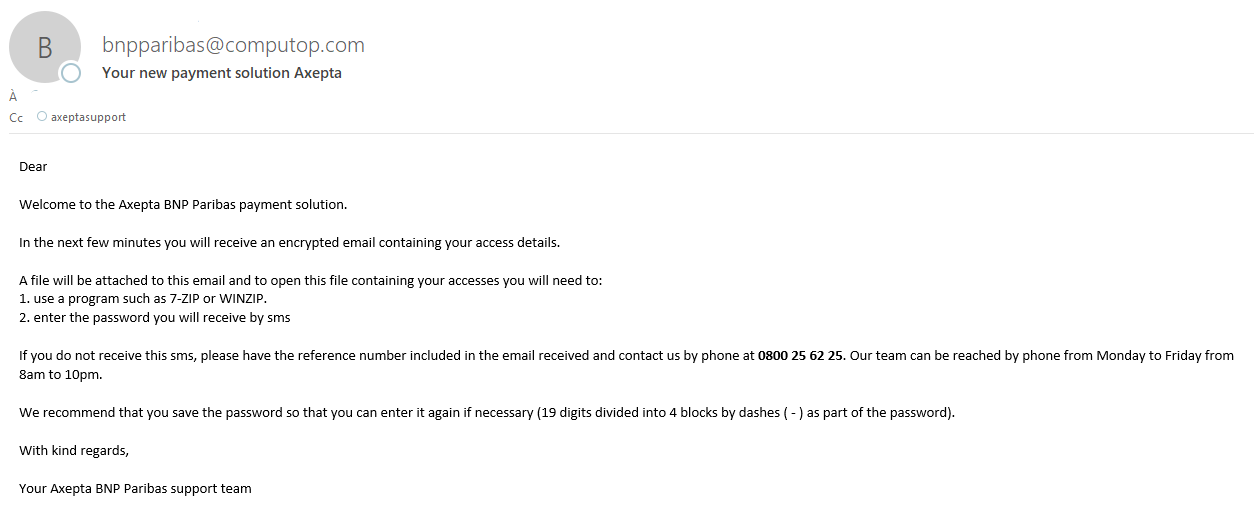
The encrypted email looks as follows: (this email contains a reference number, see below)
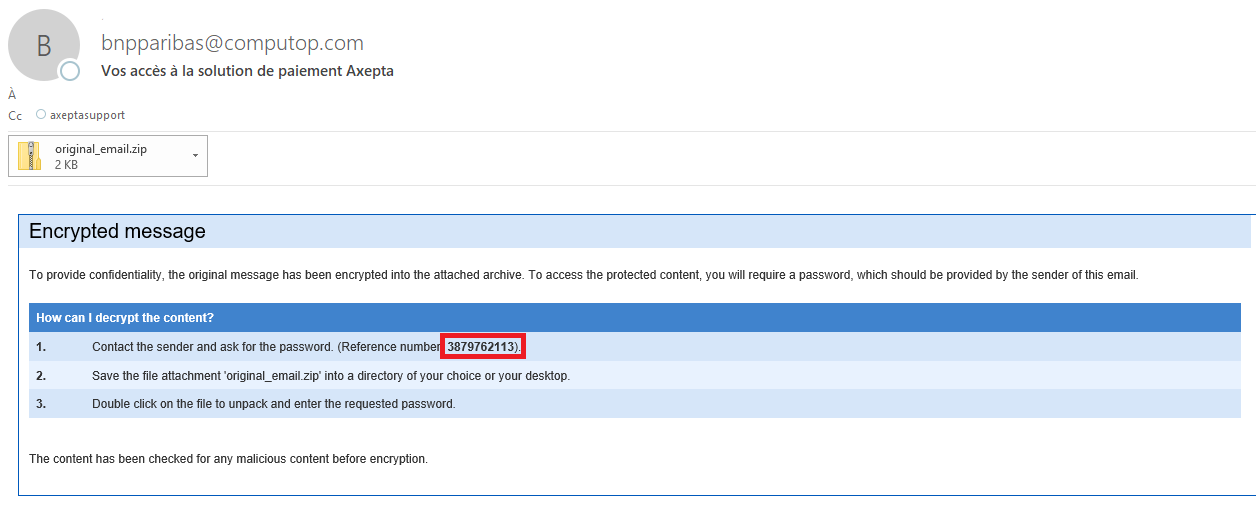
How to access to the content of the encrypted email ?
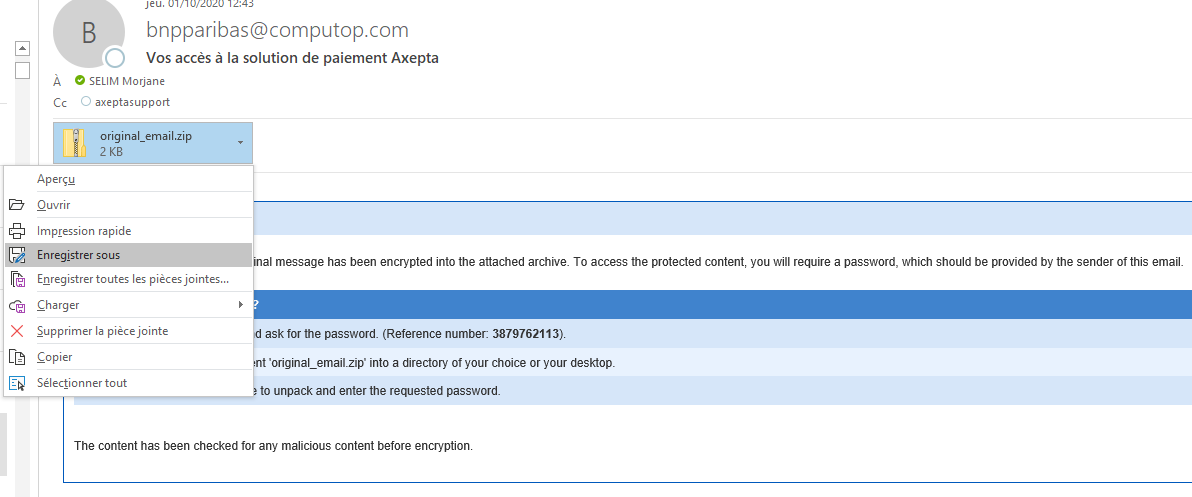
- Right clic on the attached file (original_email.zip).
- Save it in the location of your choice on your computer.
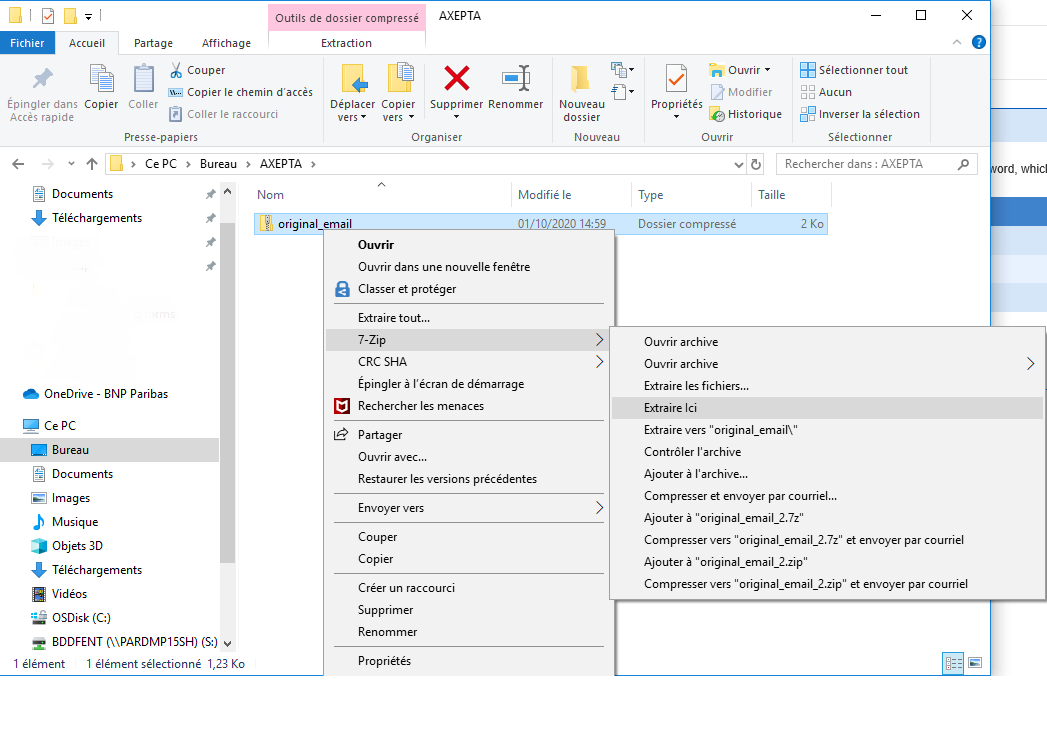
3. Go to the, previously saved, file and right clic on 7-ZIP then clic on Extract here
Note: If you don’t have 7-ZIP on your computer, use an equivalent app like WINZIP.
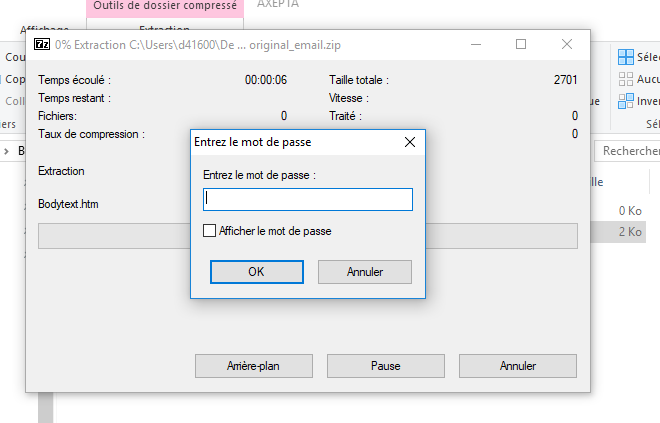
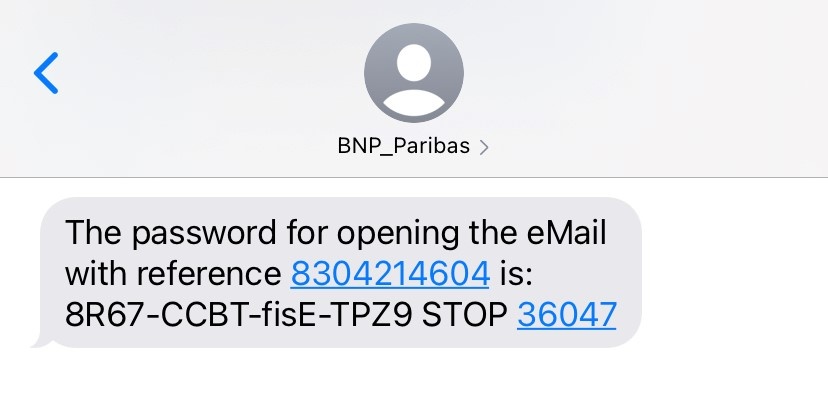
4. A window will appear asking for a password. Enter the password that you’ve received on your phone from BNP_Paribas.
Note : If you have many shops, the message on your phone contains a reference number mentioned in the encrypted email.
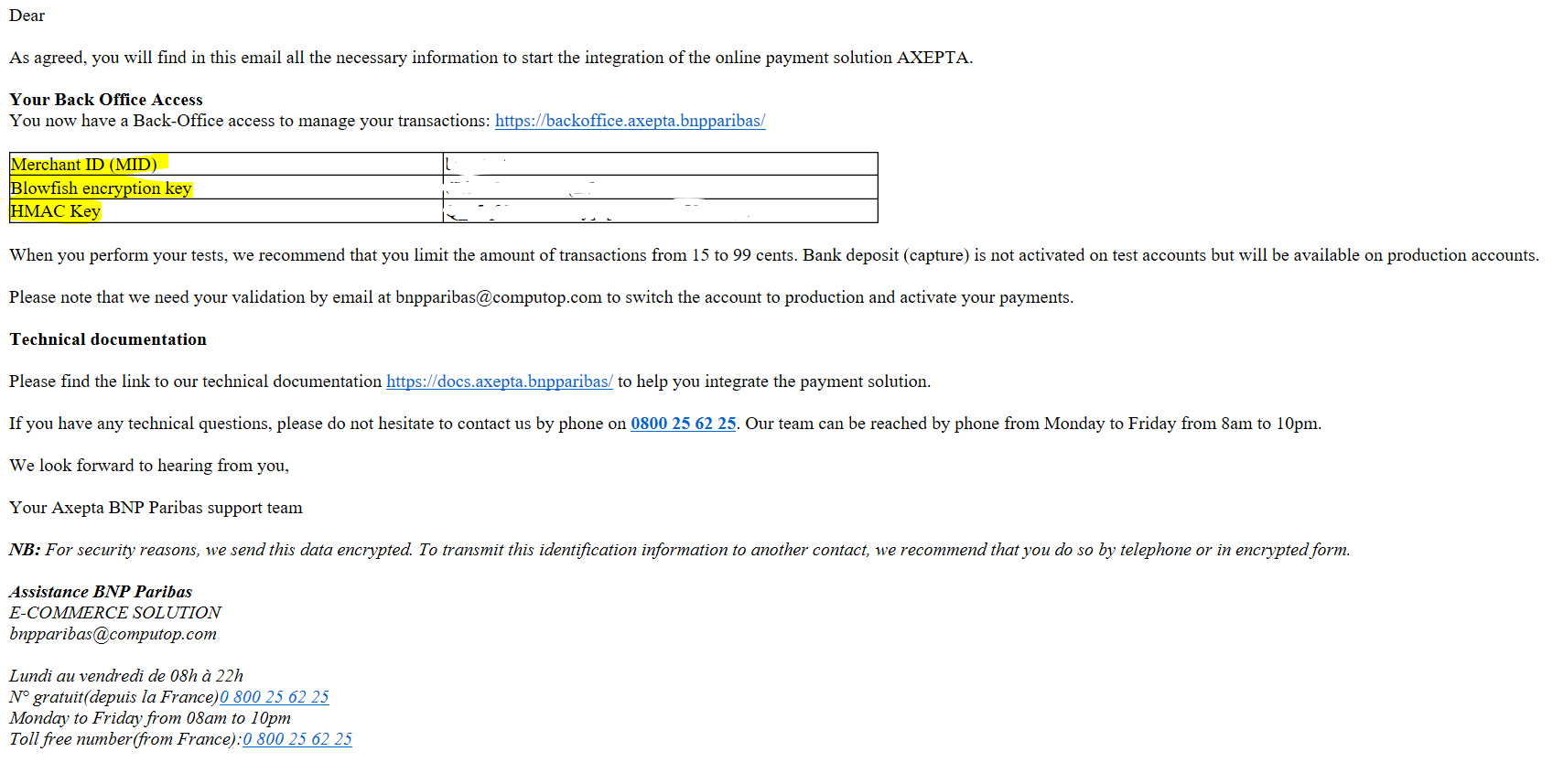
5. Once the password entered, a file called «BodyText » will appear in your folder (format .htm). Double-clic on it and open it with your preferred browser (Firefox, Chrome, Edge, Safari…).
You will finally have access to a page containing your access data:
- Merchant ID
- Blowfish encryption key
- HMAC key
These 3 data will allow you to integrate the AXEPTA BNP Paribas payment solution.
6. Finally, you will receive an email containing the summary of all your MIDs and how to use each one of them :
- The Master MID will give you a global view of your activity on the different accounts you have (Test and Prod). To do so, log on to the Axepta Backoffice using this MasterMID and the password received (https://backoffice.axepta.bnpparibas/login.aspx). Please note that the MasterMID cannot be used to carry out transactions.
- The Test MID will be used to perform tests without the transactions being banked. You will remain in a test environment.
- The Prod MID will allow you to access the production environment. Please note that your MID will go into production mode and your transactions will be banked when your account configuration is finalised.
...
1. Emails received after subscription
After subscribing to the Axepta BNP Paribas Online 2.0, two emails are sent.
1.1. Welcome email
All contacts provided during the subscription receive a welcome email.
This email contains:
- 📘 The links to the online documentation
- 🔐 The access link to the Axepta Backoffice
- 💳 The information regarding the bank deposit
- 🛠️ The helpdesk contact details
1.2. Email for Backoffice access (administrator contact)
A second email is sent only to the administrator contact defined during the subscription.
This email contains:
- 📩 Login credentials for the Backoffice
| Tip |
|---|
👉 Only the administrator contact receives these initial accesses. |
2. Access the Axepta BNP Paribas Backoffice
- Click on the Axepta BNP Paribas Backoffice link provided in the Welcome email
- Log in with the credentials received by email (administrator contact)
- You access your Pay by Link management space
| Tip |
|---|
Access to Backoffice: https://backoffice.axepta.bnpparibas/ |
3. Features available in the Backoffice
3.1. Manage Transactions
From the Backoffice, you can:
- 📊 View all your transactions
- 🔍 Access payment details and statuses
- 📄 Search and filter transactions
| Tip |
|---|
Associated documentation: Transaction management |
3.2. Dashboard
You will have visibility over:
- 📊 Key metrics
- 🔍Analysis of your operations and trends
| Tip |
|---|
Associated documentation: Dashboard |
3.3. Fraud Prevention
Velocity rules and manual actions leading to:
 Blacklisting or whitelisting of BINs and cards
 Blacklisting or whitelisting of card origin countries or IP addresses
| Tip |
|---|
Associated documentation : Fraud Prevention |
3.4. Manage Users
Administrators can:
- 👥 Create new users
- 🔐 Define access rights
- ✏️ Modify or deactivate existing accounts
| Tip |
|---|
Associated documentation: User management |
3.5. Access Technical Keys (API & HMAC)
To integrate Axepta BNP Paribas Online 2.0 with your e-commerce site, the Backoffice allows you to:
🔑 View your API key
🔐 View your HMAC key
These keys are necessary for:
Securing exchanges
Connecting your site to the Axepta Online payment solution
| Tip |
|---|
Associated documentation: Key management |
Do you use a BNP Paribas AXEPTA plugin?
...