

The "Administration → User management" tab allows you to view all users of the application and to change their user data. You have the option of calling up more information (detailed view) about every user. You can change personal data, the language and the site access rights in the detailed view.
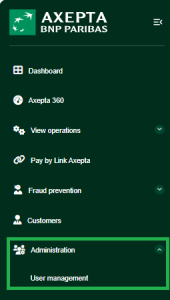

Opening the detailed view of user
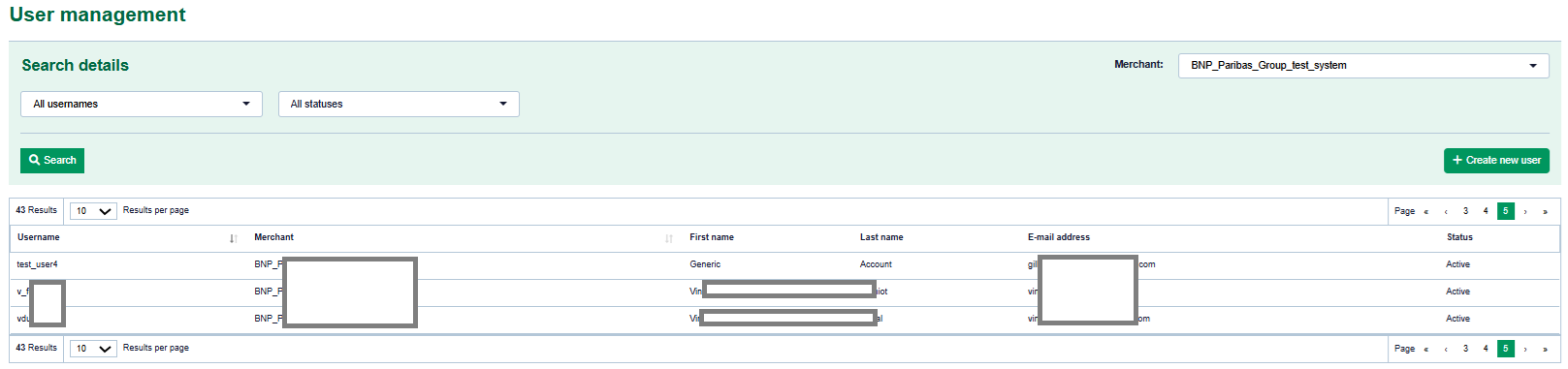
- "User name" column
- User name of a user
Proceed as follows to open the detailed view of an operation:
1. Click on the name of the required user in the "User name" column.
→ The detailed view of the user opens.
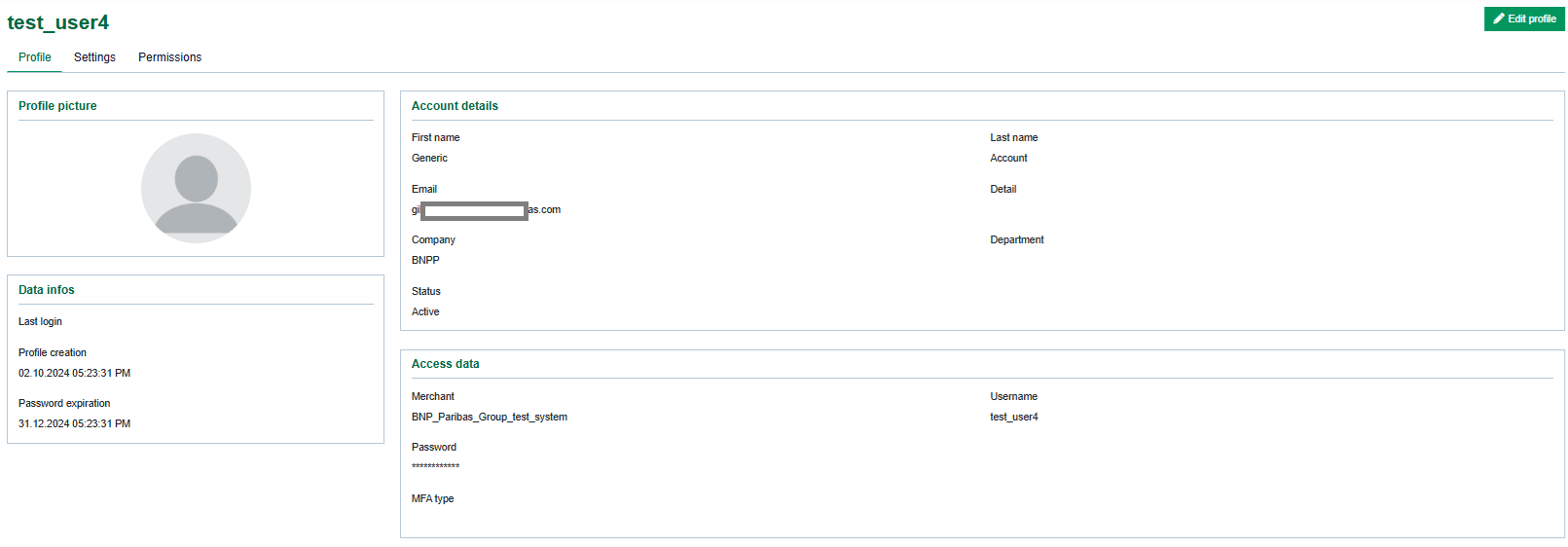
The detailed view of the user is divided into "Profile", "Settings", "Permissions" (optional) sections.
Changing access data
Access data
The access data Merchant and username for the user can only be changed by Axepta BNP Paribas Support for security reasons.
The password can be changed by editing the access data.
Changing personal data
You can change personal data by using the "Edit profile" button.
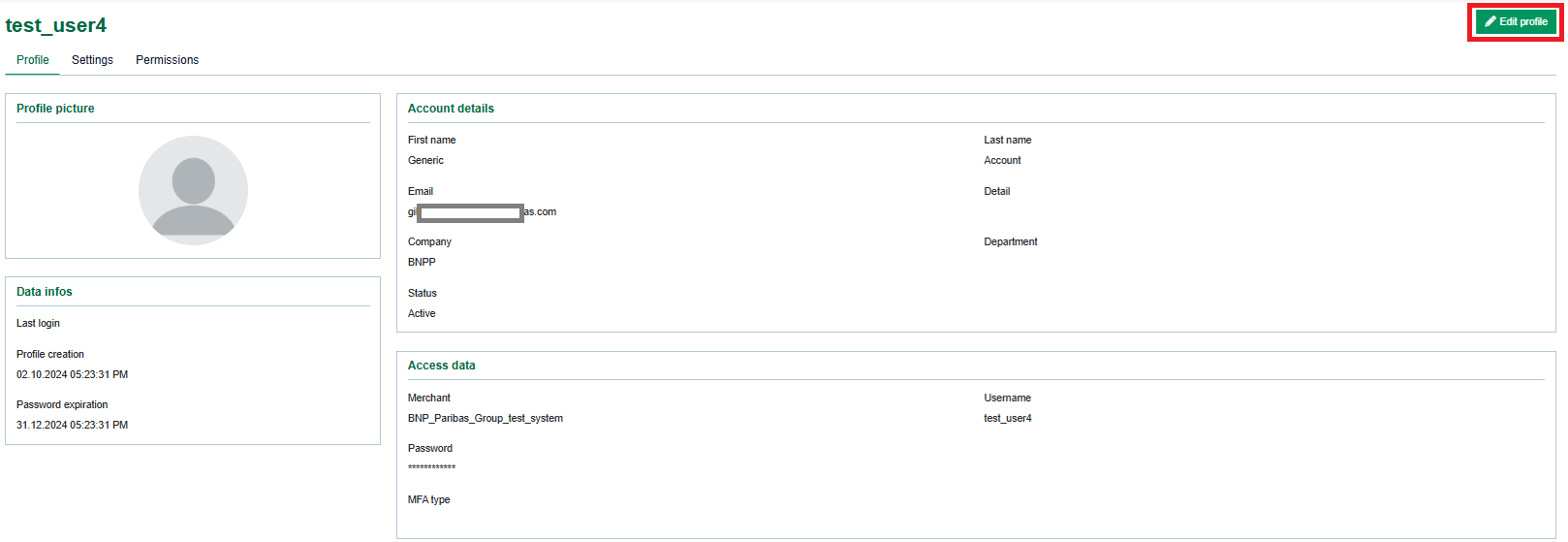
→ The edit profil page of the user opens.
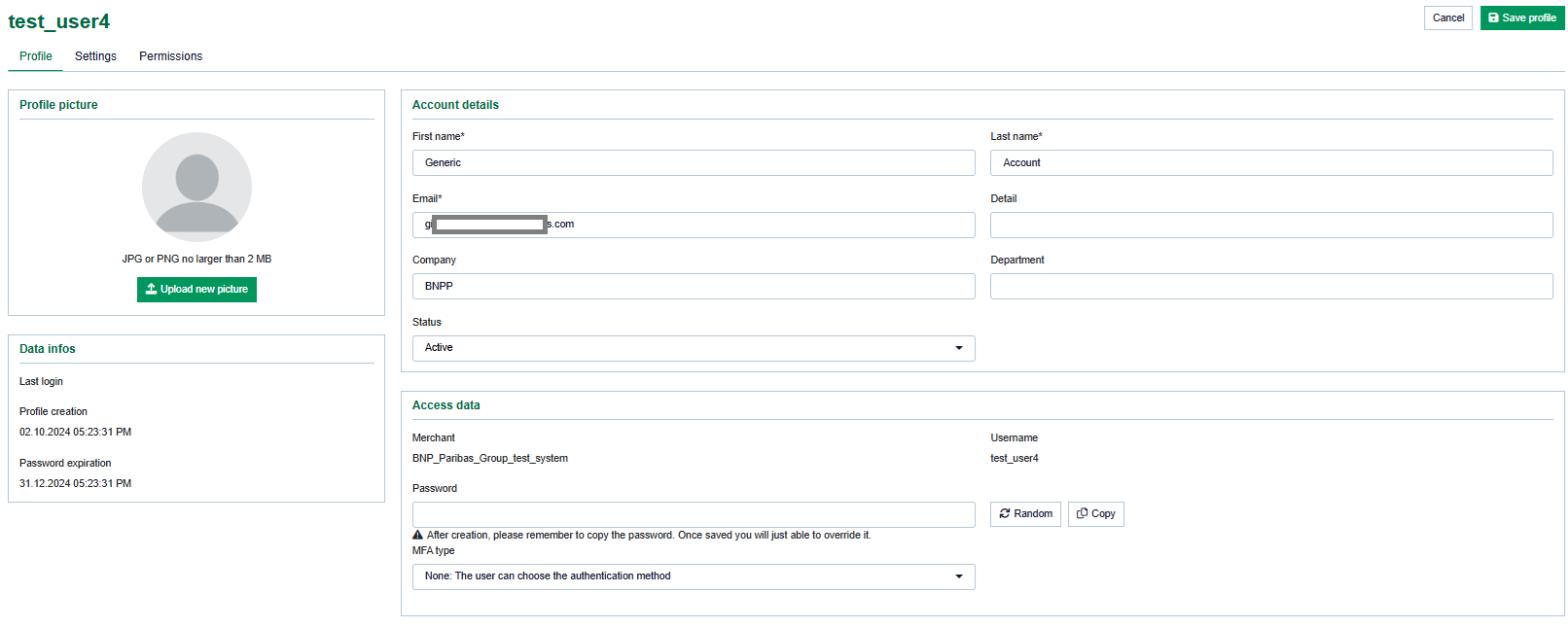
Changing parameters
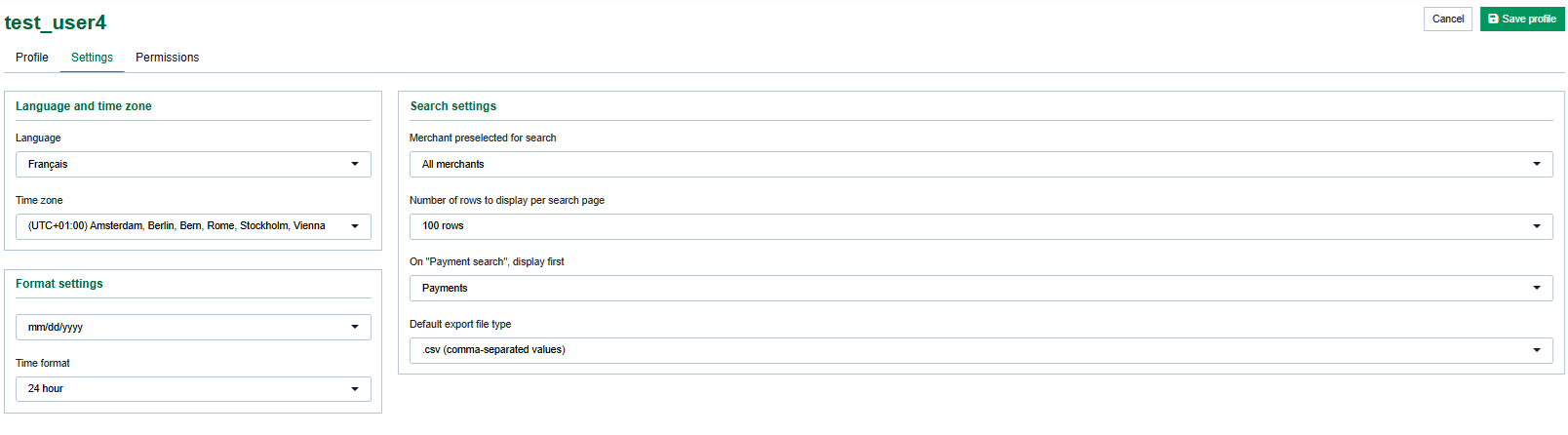
You can change the language displayed to the user or other parameters by using the "Edit profile" button on "settings" tab.
→ The edit profil page of the user opens.
Deactivating/activating access rights for the user
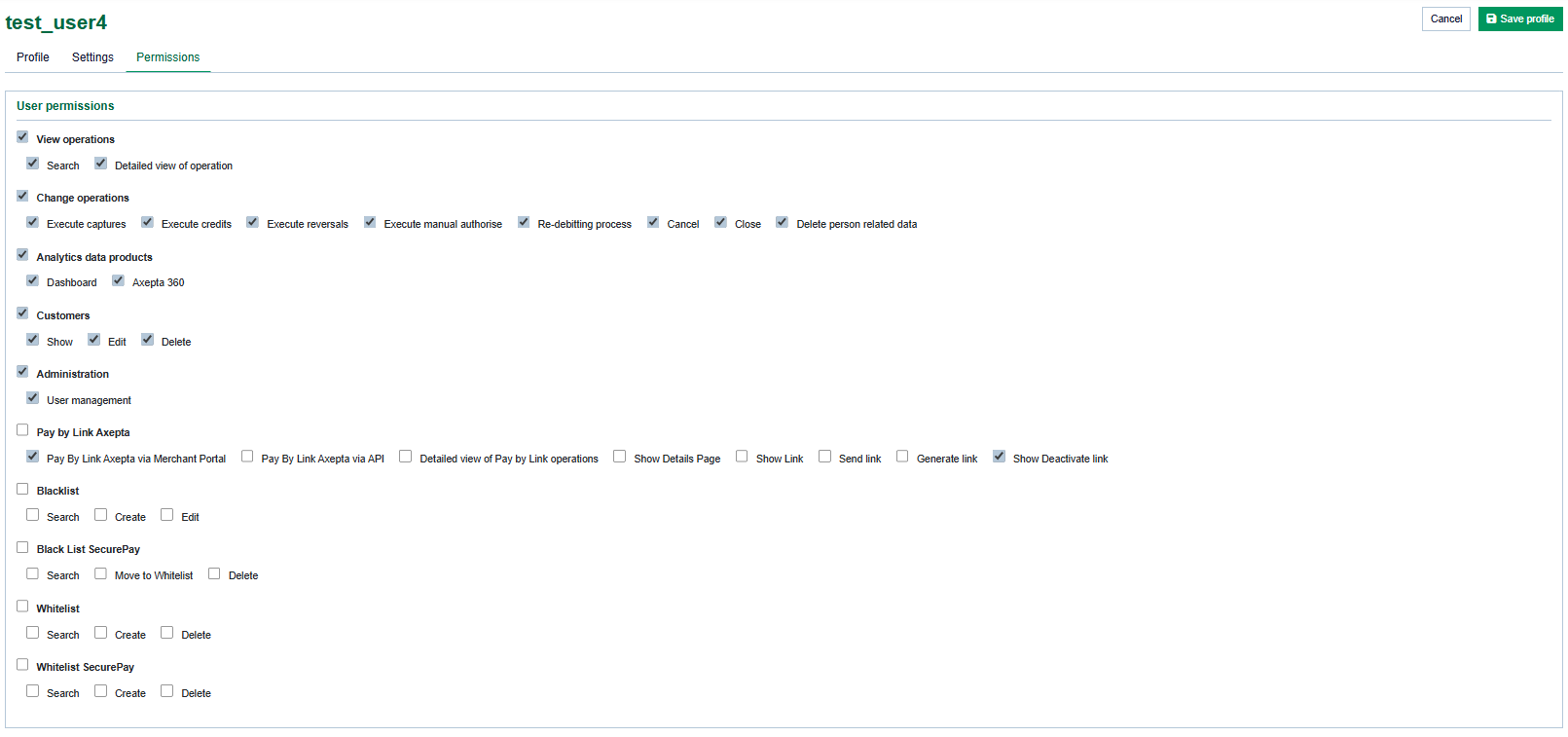
In order to enable a tab or an action for the user, you must activate the corresponding permission in the detailed view of the user.
Proceed as follows to activate or deactivate the site access rights for the user:
1. Open the detailed view of a user.
2. Click on the "permissions" tab and click on "Edit profile" button.
→ The necessary permissions can be selected. After selection click on save profile.
Showing and hiding site access rights