Summary
Introduction
Welcome to the documentation for the AXEPTA BNP Paribas module for Magento 2.
This free module allows you to easily integrate our online payment solution into your e‑commerce store.
This documentation will guide you through the installation, configuration, and use of the module, ensuring a simple, reliable, and tailored integration that meets your needs.
The module is available for free at the following address: GitHub - AxeptaBNPParibas/AxeptaOnline-Magento2-plugin: Axepta Online plugin for Magento2 · GitHub
Must Have
You must have a fully functional Magento module.
Make sure that your Magento 2 and PHP versions are compatible with the AXEPTA BNP Paribas module.
You can find the compatible versions here: GitHub - AxeptaBNPParibas/AxeptaOnline-Magento2-plugin: Axepta Online plugin for Magento2 · GitHub
Plugin Setup
The installation of the module proceeds as follows:
Download the module zip file and then unzip it
Go to the root directory of your site
Create the following folders:
app/code/Bnpparibas
app/code/AxeptaBnpparibas/Online
Copy all the contents of the unzipped module into the directory “app/code/Bnpparibas/Axepta”
Return to the root of your site and run the following commands:
php bin/magento setup:upgrade
php bin/magento cache:clean
php bin/magento cache:flush
Update Plugin
Before any installation, we invite you to properly uninstall the current extension, clear your CMS cache and verify that the extension has been removed by deleting the module’s installation directory from your FTP server.
Once this is done, you can install the latest update.
The most recent version of the module is available on our GitHub: GitHub - AxeptaBNPParibas/AxeptaOnline-Magento2-plugin: Axepta Online plugin for Magento2 · GitHub
It is updated regularly.
Afterwards, remember to complete the Axepta Online configuration parameters in each tab of the module. You will need to re‑configure your production MID and your production activation key, which are available on your BNP Paribas merchant portal.
Back Office
Plugin Global Settings
The module’s features are accessible through the left‑hand menu in the admin interface “Axepta BNP Paribas.” To start the configuration, simply click on the option “Payment Methods Settings.”
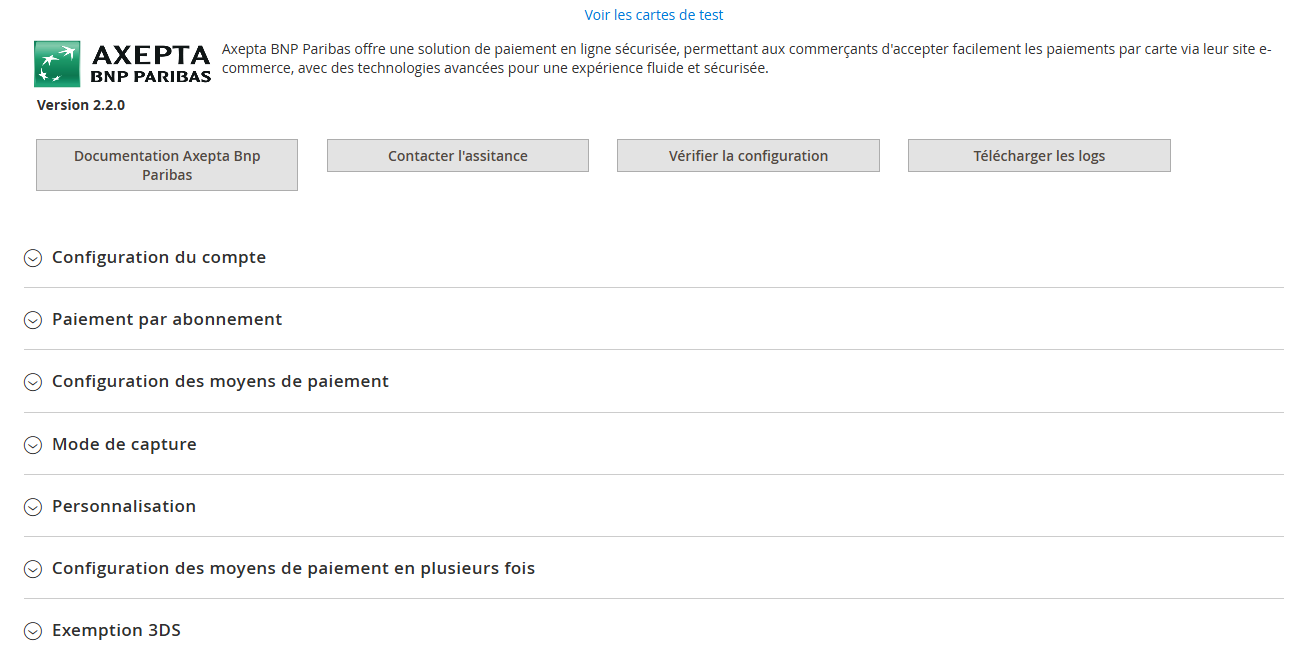
- Axepta BNP Paribas documentation : Links to our official module documentation.
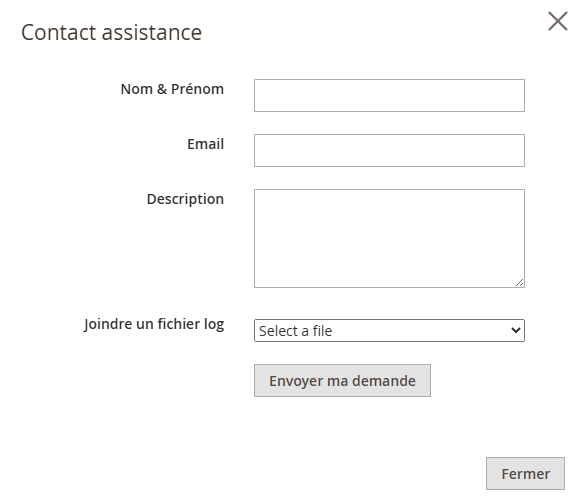
- Contact support : Opens an e‑mail form to reach our support team. The e‑mail automatically includes the server, CMS and module versions.
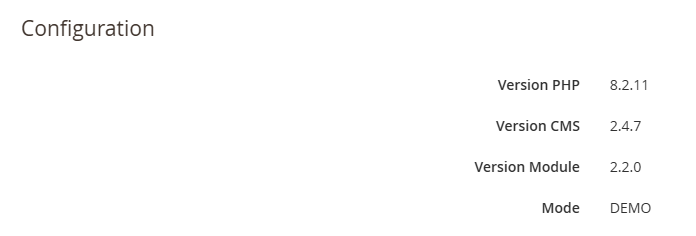
- Verify my configuration: opens a window that displays and checks whether the server configuration is compatible with the installed module.
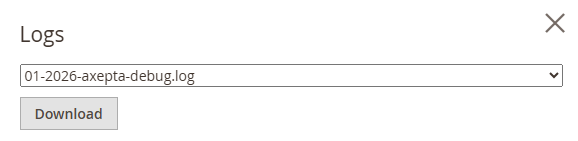
- Log download: This feature allows you to download logs in the format of your choice.
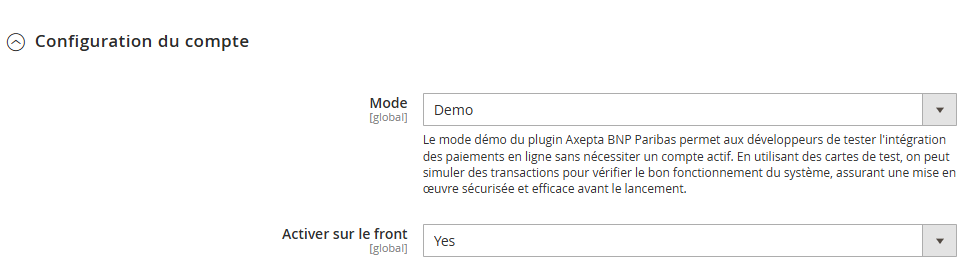
Account Settings
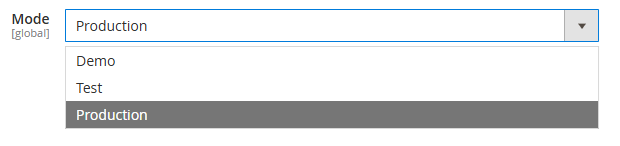
Demo mode
Demo mode (''DEMO'') lets you test the module and its features without having an Axepta BNP Paribas account.
Test mode
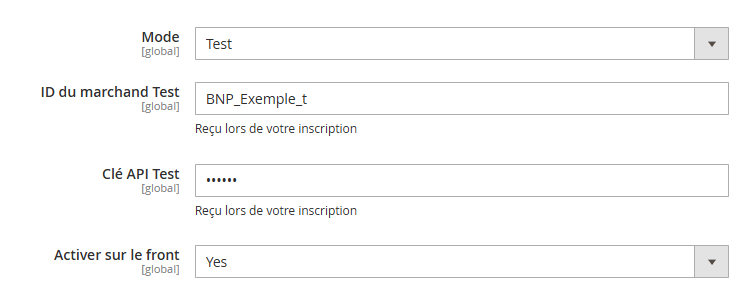
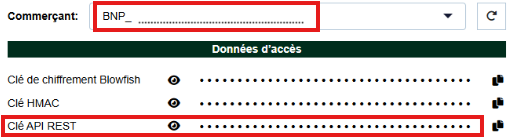
The test MID is available in the "View API credentials" section of your Axepta BNP Paribas Merchant portal.
The test REST API key is also available in the "View API credentials" section of your Axepta BNP Paribas Merchant portal.
This allows you to configure your dedicated test MID, which can be identified by the format BNP_MID_t that you can retrieve from your BNP Paribas merchant portal.
Accès aux identifiants de l’API & HMAC - Documentation Axepta BNP Paribas - Axepta
Production mode
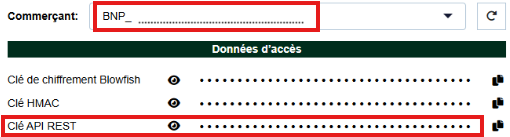
- The production MID is available in the ''View API credentials'' section of your Axepta BNP Paribas merchant portal.
- The REST API key is also available in the ''View API credentials'' section of your Axepta BNP Paribas merchant portal.
Allows you to configure your dedicated production MID, which is recognizable by the format (BNP_MID_XXX) available from your BNP Paribas merchant portal.
Accès aux identifiants de l’API & HMAC - Documentation Axepta BNP Paribas - Axepta
Front‑end activation:
Activating this feature is required to display the payment methods on the checkout page.
Theese items are saved only when the user clicks the  button.
Payment Method Configuration
The payment‑configuration tab lets you set up multiple module features.
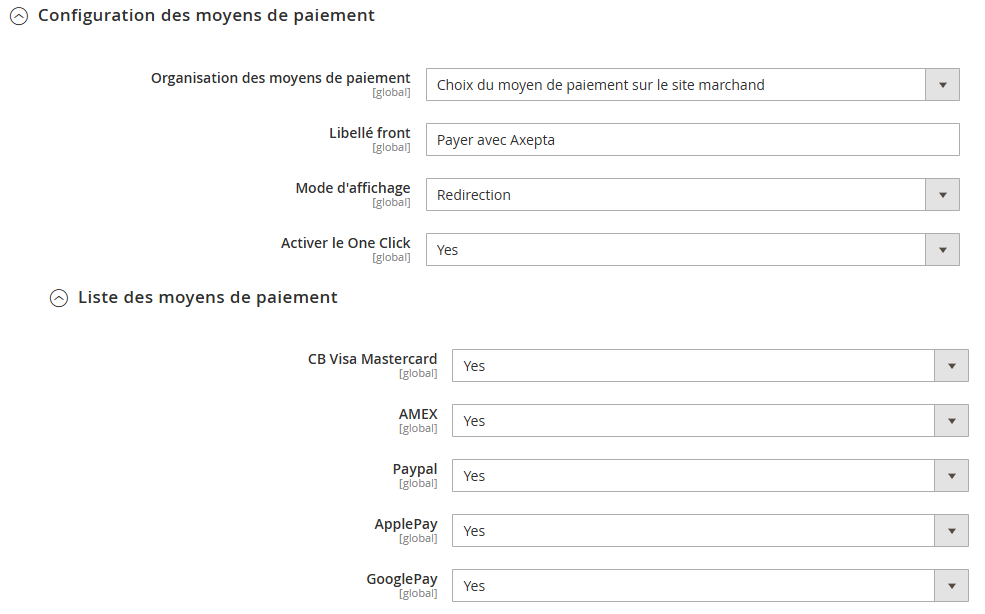
Payment Methods Organization
This section defines how payment options are displayed on the checkout page.
Two options are available:
- Payment method selection on the BNP Paribas page
This corresponds to the payment form hosted by BNP Paribas, where you will see the payment methods that are available for your merchant account.

- Merchant’s site payment methods selection panel
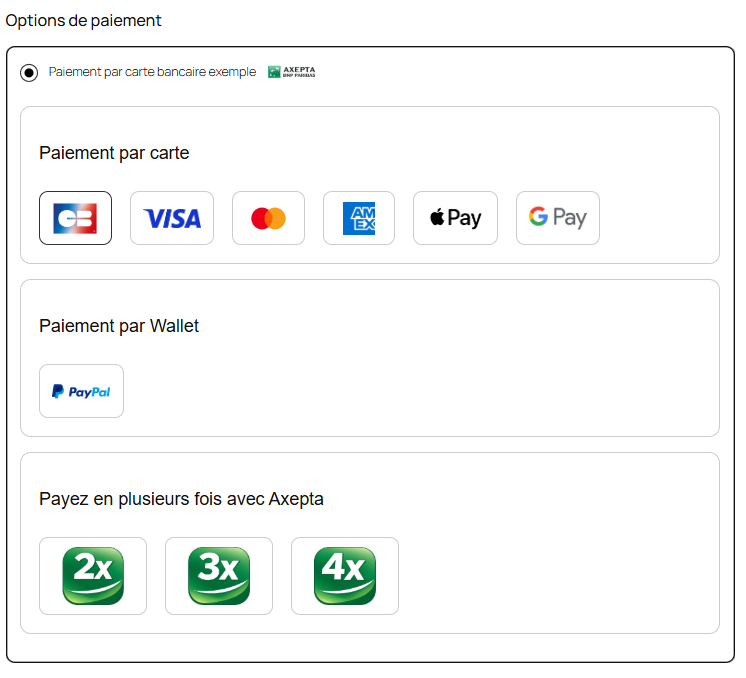
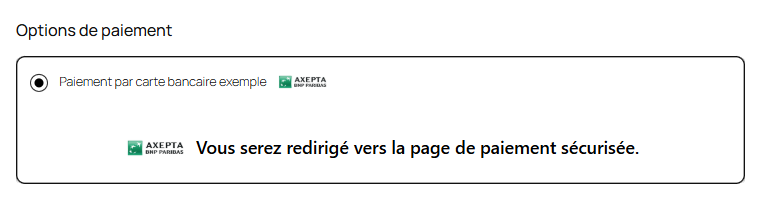
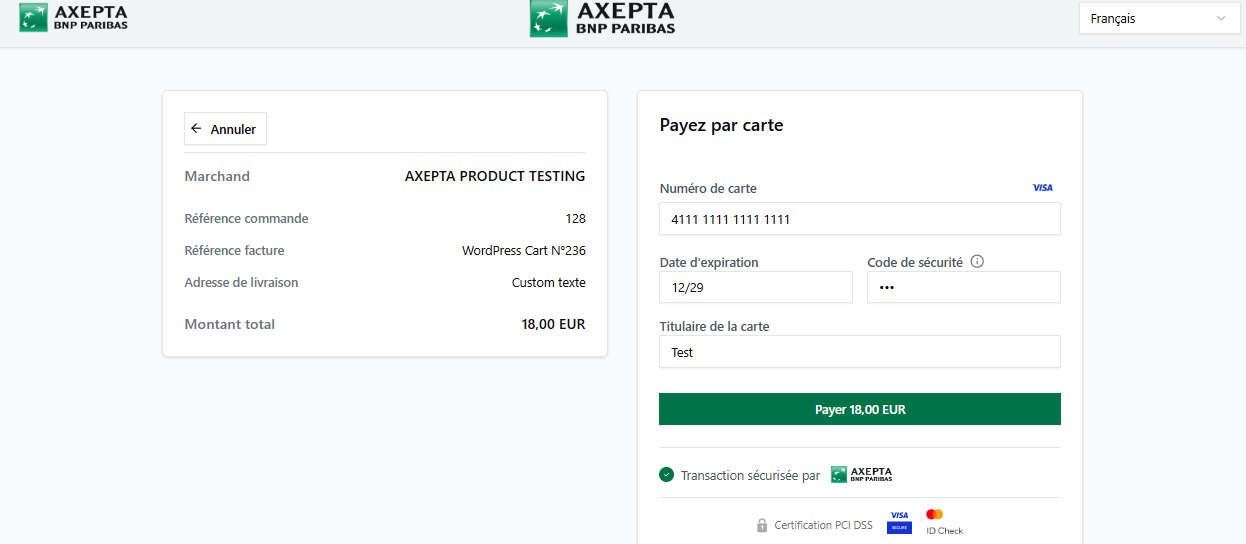
Front label: customizable text that appears on the payment page.

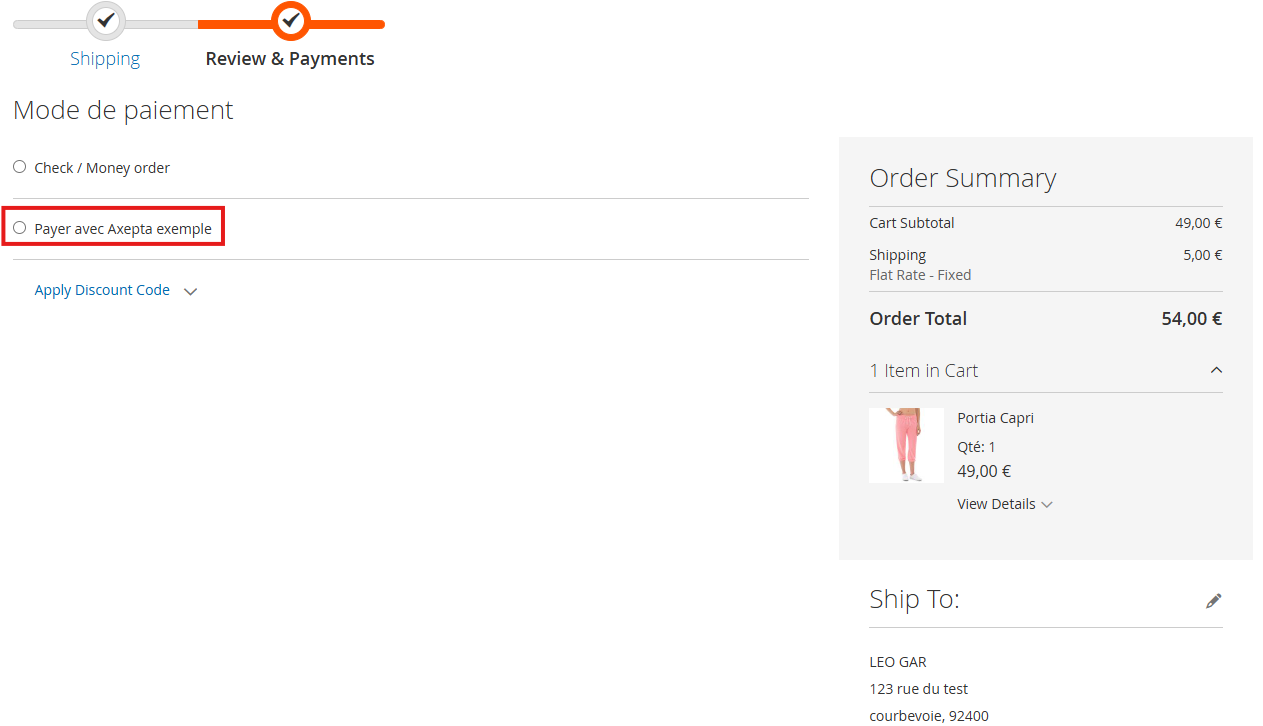
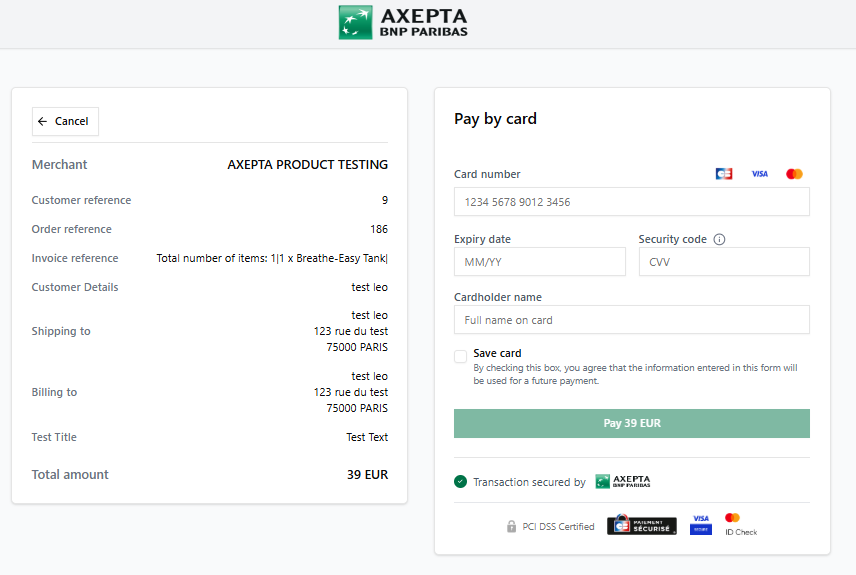
Display mode

Redirection mode: redirects the customer to the secure payment form provided by Axepta BNP Paribas.
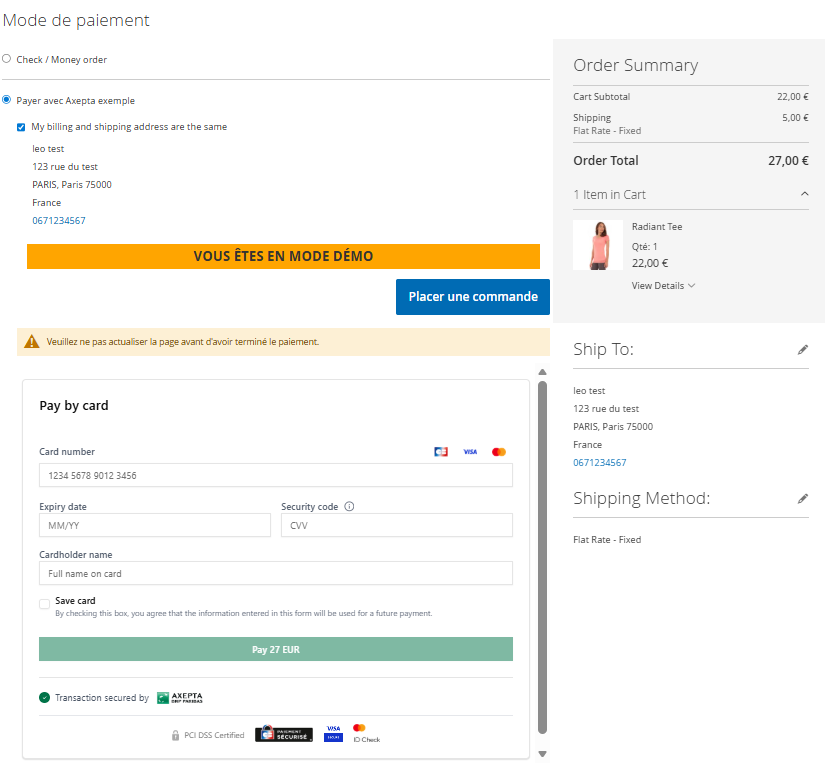
iFrame mode: embeds the payment page directly into your site.
Capture mode
This option allows you to choose the payment capture method.
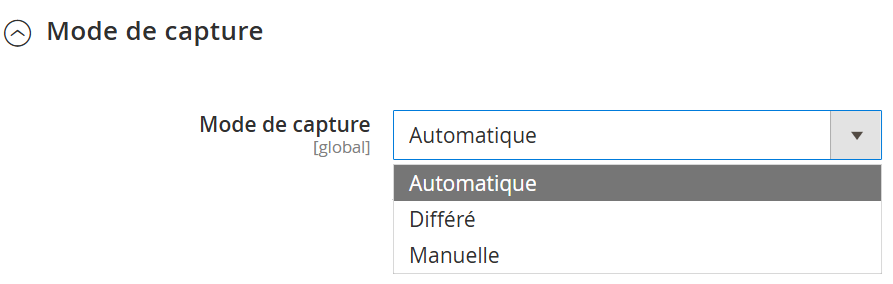
Automatic capture activation:
Automatic Capture (J): The capture is performed automatically at midnight.
Deferred capture activation:
Deferred Capture (J + x) – You can define a delay before capture (delay expressed in hours, integer between 1 and 696).
Example:
for 2 days, enter 48.

Deferred captures appear as "Capture timed" on "Sales" > "Orders", followed by the capture date and time.
Manual capture activation:
Captured manually by the merchant via back‑office configuration.
To manually capture a payment, you must invoice the order.
For that go to the order that needs to be invoiced and click "Invoice".

Select "Capture online" to manually capture the order when issuing the invoice.
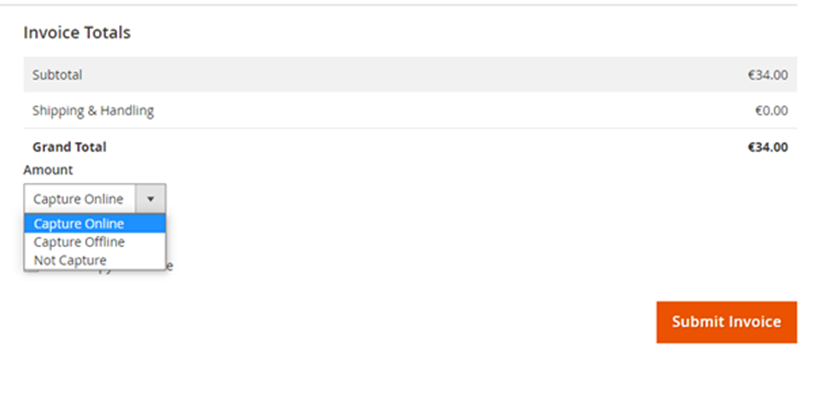
Online capture: The online capture performed from the Magento 2 back‑office connects to the Axepta back‑office. The transaction status is automatically synchronised between the two systems.
Offline capture: The offline capture simply generates the invoice and marks the order as "processing", indicating that the amount has been received manually.
Partial capture:
It is possible to capture only a part of the order when it contains multiple items by adjusting the quantities in the column.
In this case, the shipping fees are always captured on the first invoice.
For subsequent payment captures of the same order, the shipping fees will not be accounted for.
Warning: If the merchant does not take any action, the transaction will not be transferred to the bank.
Capturing a transaction after the 7th day results in the loss of the guarantee associated with 3‑D Secure. After the 29th day, the authorization granted by the issuer will no longer be valid. Therefore, it is advisable to capture transactions before these deadlines.
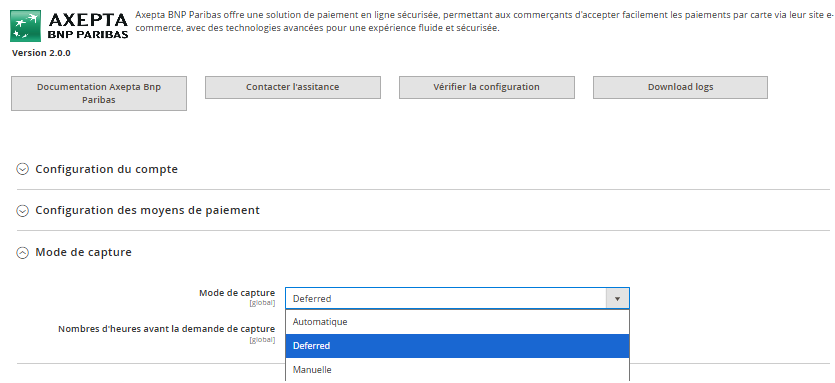
Capture Method
This option allows you to choose the payment capture method:
Automatic (J) => The capture will be automatically processed at midnight.
Deferred (J+x) => You can choose the delay before the capture (delay in hours: integer between 1 and 696. Example for 2 days: enter 48)
Manual Capture => Manual capture is performed manually by the merchant through a configuration in the back-office.
Activation of Automatic Capture:
When automatic capture is selected, the payment flows are automatically configured for capture to be performed at midnight.

No action is required by the merchant to perform the capture. It is confirmed by a return flow (IPN).
Activation of Manual Capture:
In the merchant configuration menu, scroll down to the "Capture" field and select "Manual Capture."

Warning : Without action from the merchant, the transaction will not be settled. Capturing a transaction beyond the 7th day results in the loss of the 3D Secure guarantee. Beyond the 29th day, the authorization granted by the issuer will no longer be valid. It is therefore preferable to capture transactions before these deadlines.
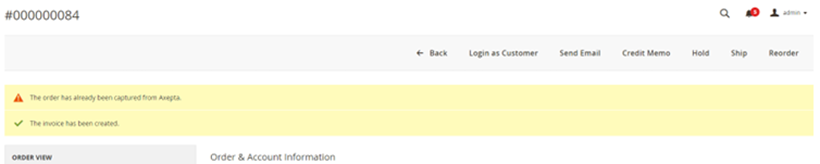
If you try to invoice an order whose payment has already been captured, an alert message "Order has already been captured" will appear at the top of the page.
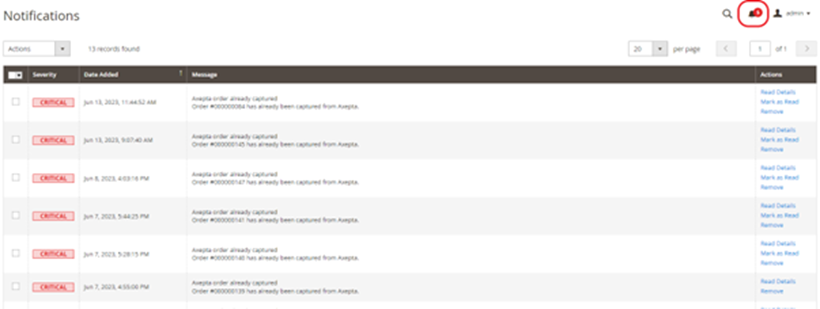
Specific notifications are also sent to you when a order’s capture has already been performed, or when a payment has not been captured for more than 7 days.
The Notifications tab is visible at the top‑right icon of your screen, and the displayed information is refreshed daily.
3DS Exemption
Corresponds to the configuration of 3DS (payment authentication method) and its exemption based on the total amount of the customer’s cart.

Activating the 3‑D Secure exemption request means you accept responsibility in the event of fraud or dispute on the affected transactions. This feature must be used with caution.
You can find the various liabilities in case of non‑payment on our dedicated page: Liability Shift and 3D-Secure Matrices - Documentation Axepta BNP Paribas - Axepta
One click activation
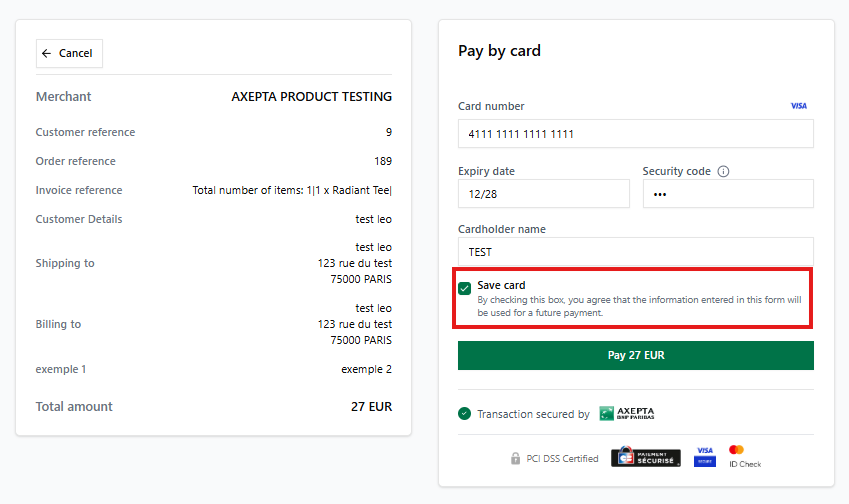
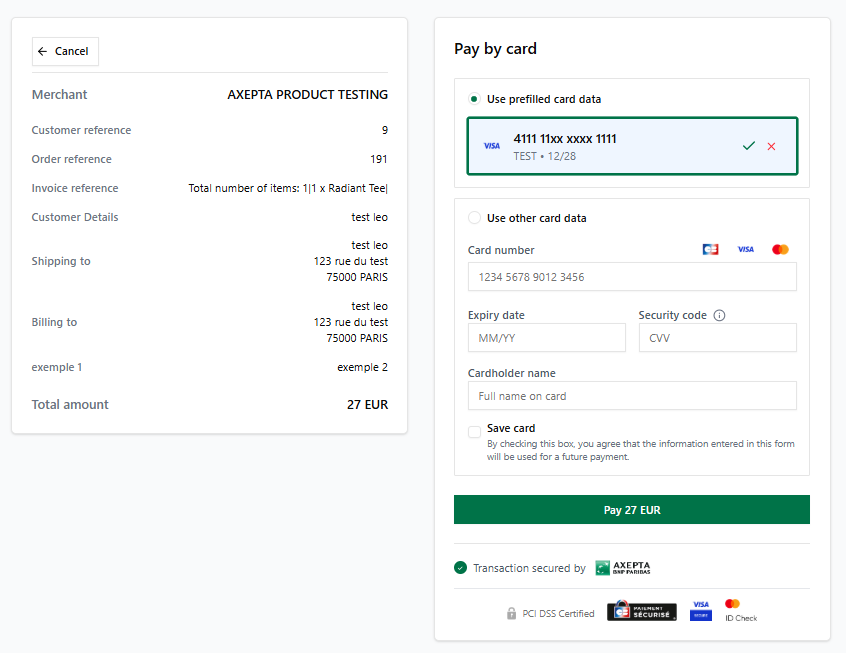
Activating this feature allows logged‑in customers to save their card for future payments.
To do so, the customer must first tick the “save card” checkbox on the payment page.