| Page properties |
|---|
|
Info | | Excerpt |
|---|
Change user data of created users. |
|
|---|
|
| Page properties |
|---|
|
| Info | | Excerpt |
|---|
How can I view the detailed user management view? How can I change the login data? How can I change the page permissions and what do the site access rights mean? How can I change the user's data? |
|
|---|
|
The "Administration → User management" tab allows you to view all users of the application and to change their user data. You have the option of calling up more information (detailed view) about every user. You can change personal data, the language and the site access rights in the detailed view.
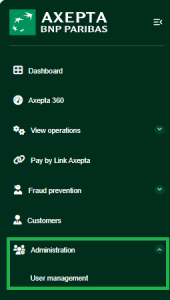

Opening the detailed view of user
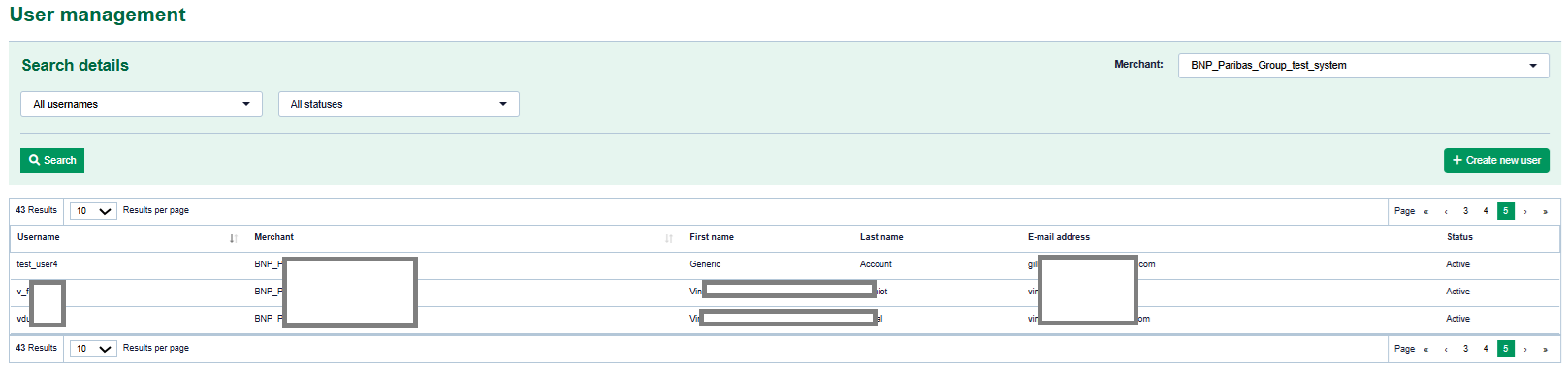
- "User name" column
- User name of a user
Proceed as follows to open the detailed view of an operation:
1. Click on the name of the required user in the "User name" column.
→ The detailed view of the user opens.
The detailed view of the user is divided into "Profile", "Settings", "Permissions" (optional) sections.
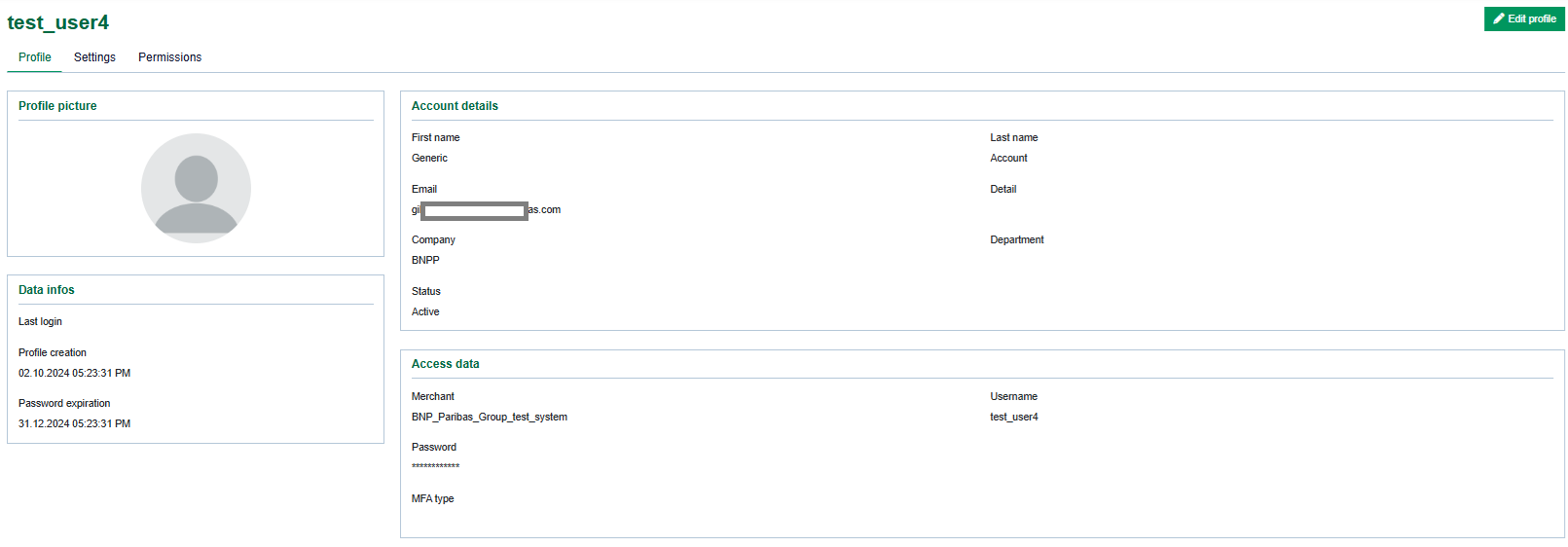
Changing access data
| Info |
|---|
|
The access data Merchant and username for the user can only be changed by Axepta BNP Paribas Support for security reasons. The password can be changed by editing the access data. After creation of password, please remember to copy the password. Once saved you will just able to override it.
|
Changing personal data
You can change personal data by using the "Edit profile" button.
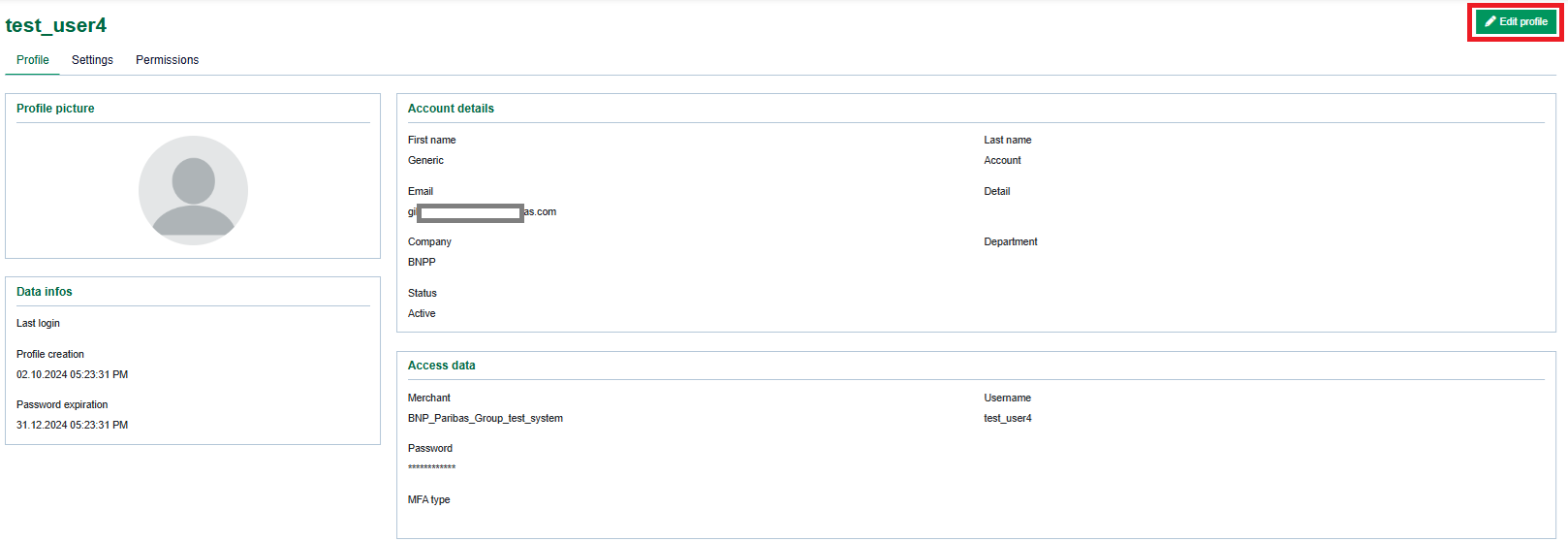
→ The edit profil page of the user opens.
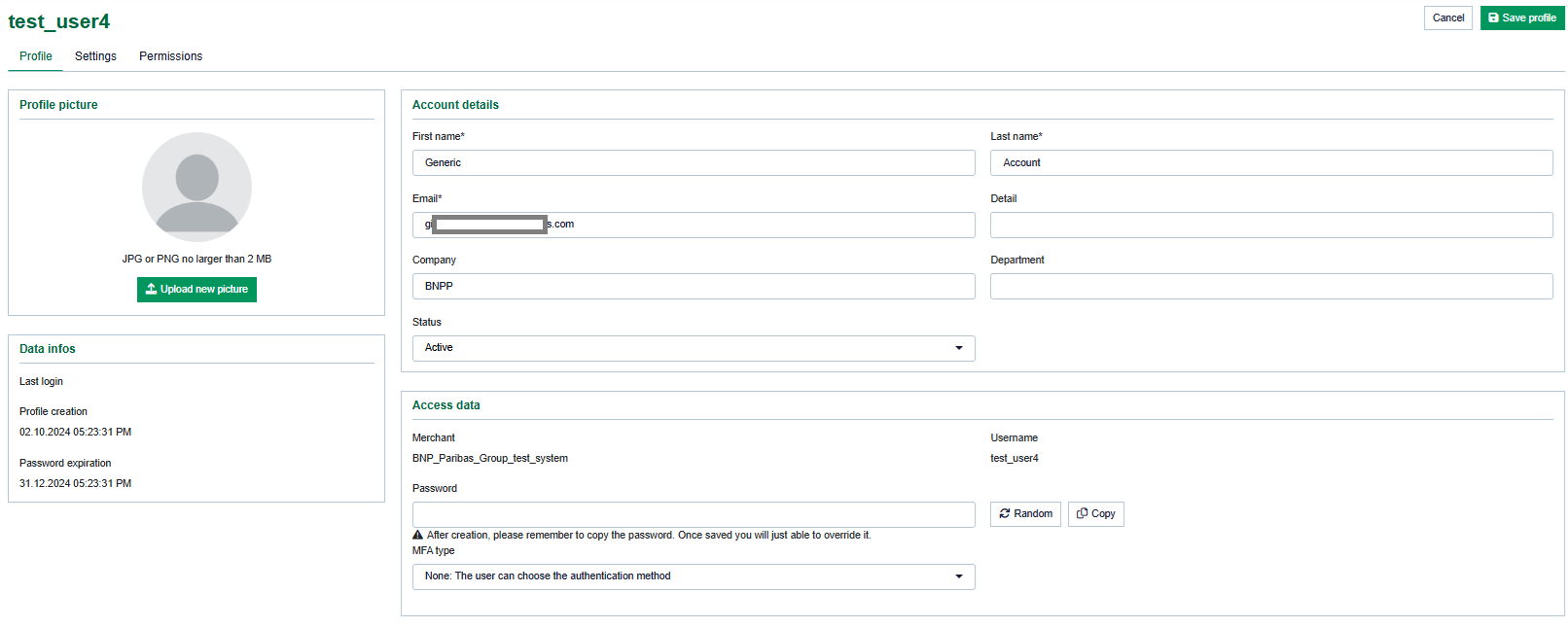
Changing parameters
You can change the language displayed to the user or other parameters by using the "Edit profile" button on "settings" tab.
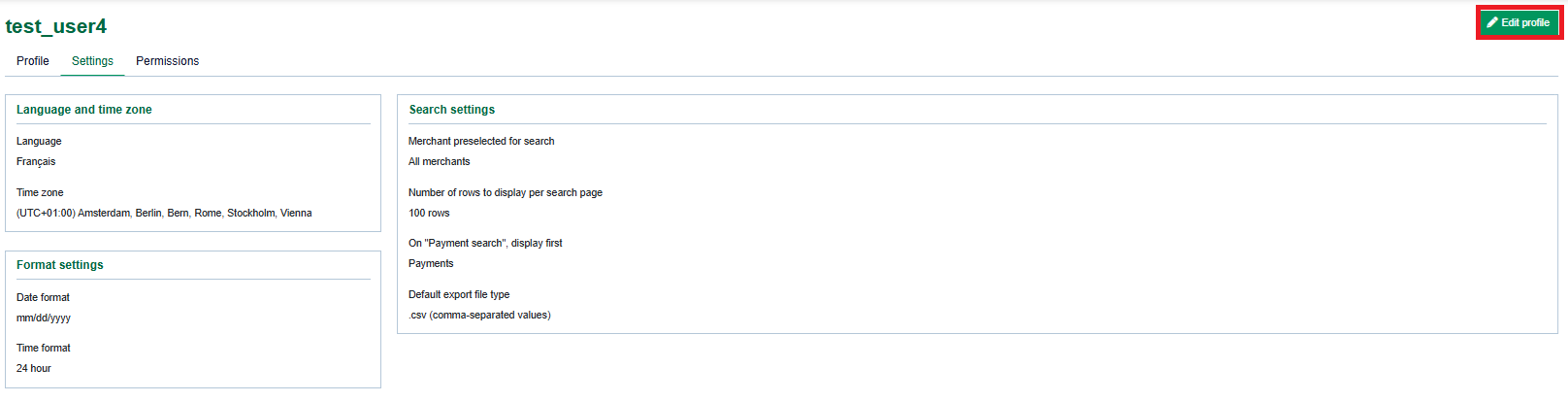
→ The edit profil page of the user opens.
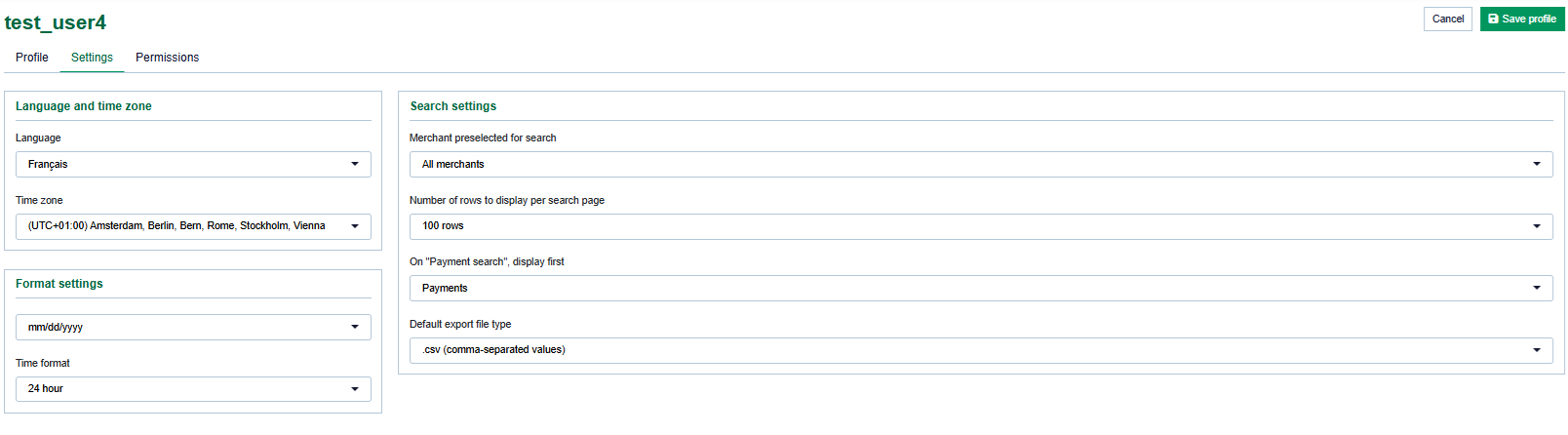
Deactivating/activating access rights for the user
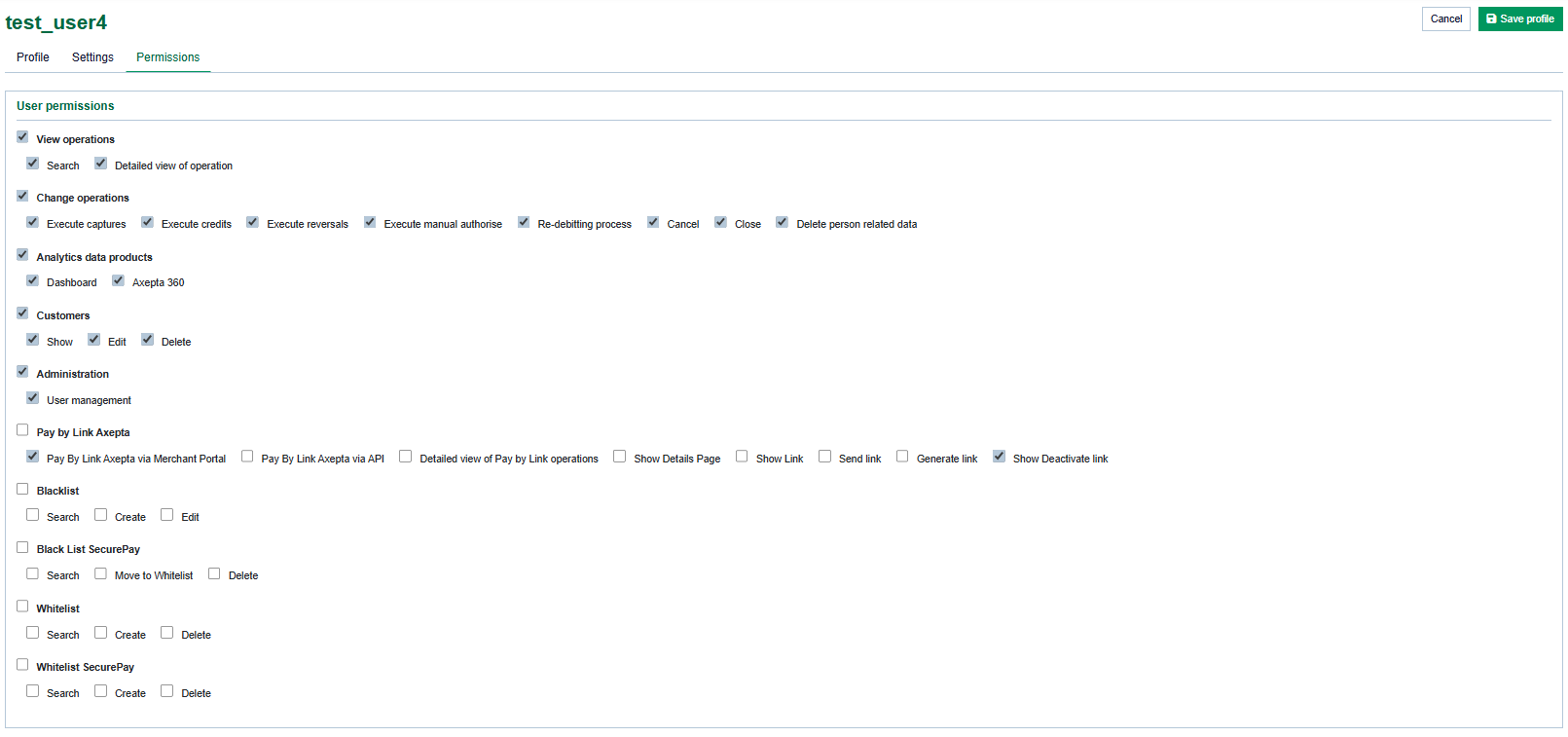
In order to enable a tab or an action for the user, you must activate the corresponding permission in the detailed view of the user.
Proceed as follows to activate or deactivate the site access rights for the user:
1. Open the detailed view of a user.
2. Click on the "permissions" tab and click on "Edit profile" button.
→ The necessary permissions can be selected. After selection click on save profile.
| Info |
|---|
| title | Showing and hiding site access rights |
|---|
|
| When you activate a higher-level permission (indicated in bold type), the corresponding lower-level permissions are selected. you can individually de-select the low level user rights. |
Rights table
Activate or deactivate permissions. A description of the permissions can be found in the table below.
| Expand |
|---|
| title | Table showing "View operations" site access rights |
|---|
|
"View operations" access right | Description |
|---|
| View operations | Enable the tab "View operations" | | search | User with this right can search for payments/transaction | | detailed view operations | User with this right can see the detailed view of payments/transaction details.
| | reconciliation | View Reconciliations tab and let the user search the payments with account number |
|
| Expand |
|---|
| title | Table showing "Change operations" site access rights |
|---|
|
|
| Expand |
|---|
| title | Table showing "Batch files" site access rights |
|---|
|
"Batch files" site access rights | Description |
|---|
| Batch files | Enable uploads and downloads of "batch files" | Search | Enable searching of processed batch files | Download | User with this access can download the processed batch file | Upload | user with this access can upload batch file for processing |
|
| Expand |
|---|
| title | Table showing "Settlement Files" access rights |
|---|
|
"Settlement files" access rights | Description |
|---|
| Settlement Files | Enable search and download of settlement files | Search | User with this access will be able to search the settlement files | Download | User with this access will be able to download the settlement files |
|
| Expand |
|---|
| title | Table showing "Analytics Data Product" access rights |
|---|
|
"Analytics data product" access right | Description |
|---|
| Dashboard | Enable the tab "Dashboard" (optional) | | Computop 360 | Enable the "Computop 360" (qlik) dashboard in merchant portal. |
|
| Expand |
|---|
| title | Table showing "Customers" access rights |
|---|
|
"Customers" access right | Enables the customer tab |
|---|
| Search | Enable the customer search | | Detailed view of customer | Enable detailed view of customer | | Delete person-related data | Enable action "Delete person-related data" in the customer detailed view |
|
| Expand |
|---|
| title | Table showing "Administration" site access rights |
|---|
|
|
| Expand |
|---|
| title | Table showing "Data Export" site access rights |
|---|
|
"Data Export" site access rights | Description |
|---|
| Data export | Enable the Data Export tab. |
|
| Expand |
|---|
| title | Tableau montrant les droits d’accès « Pay By Link Axepta » |
|---|
|
Access Right "Pay by link Axepta" | Description | | Pay By Link Axepta via Merchant Portal | Right to access the Pay By Link Axepta menu on the Merchant Portal | | Pay By Link Axepta via API | Right to create link by API | | Detailed view of Pay by Link operations | View Pay By Link transactions from the "View Transactions" menu | | Show Details Page | Access the transaction details page after the payment link has been created | | Show Link | Display the payment link from the Payment Link Details page | | Send link | Generate the payment link (and send it to the customer using one’s own means) | | Generate link | Send the payment link automatically to the customer by email | | Show Deactivate link button | This right allows the user to display the deactivation button of the payment link |
|
| Expand |
|---|
| title | Table showing "Blacklist" site access rights |
|---|
|
"Blacklist" site access rights | Description |
|---|
Search | Enable the Blacklist search operation for the user | Create | Enable the Blacklist creation access for the user | Edit | Enable the Edit action of the blacklist entries for the user |
|
| Expand |
|---|
| title | Table showing "Whitelist" site access rights |
|---|
|
"whitelist" site access rights | Description |
|---|
| Search | Enable the user to search the whitelist entries | | Create | Enable the user to create whitelist entries | | Delete | Enables the user to Delete the whitelist entries |
|
| Expand |
|---|
| title | Table showing "Blacklist Securepay" site access rights |
|---|
|
"Blacklist securepay" site access rights | Description |
|---|
| Search | Enable the user to search through the Blacklist secure pay entries | | Show details page | Enable the user to view the Blacklist securepay details page | | Move | Enable the user to move the blacklist entry to whitelist | | Delete | Enable the user to delete the blacklist entry |
|
| Expand |
|---|
| title | Table showing "Whitelist Securepay" site access rights |
|---|
|
"Whitelist securepay" site access rights | Description |
|---|
| Search | Enables the user to search through whitelist securepay list | | Create | Enables the user to create securepay whitelist entries | | Delete | Enables the user to delete whitelist securepay entries |
|
| Expand |
|---|
| title | Table showing "View API credentials" site access rights |
|---|
|
"View API credentials" site access rights | Description |
|---|
| View API Credentials | Enable the API credential tab |
|
