
Summary
Introduction
Welcome to the documentation for the AXEPTA BNP Paribas module for Prestashop.
This free module allows you to easily integrate our online payment solution into your e-commerce store.
This documentation guides you step by step through the installation, configuration, and use of the module to ensure a simple, reliable, and tailored integration to your needs.
This module is freely available at the following address: https://github.com/AxeptaBNPParibas
Our goal is to support you so that the implementation of our AXEPTA BNP Paribas solution is quick, intuitive, and fully functional in your Prestashop environment.
Plugin Setup
The module installation process is as follows:
Download the module zip file and then unzip it
Go to the "Modules" tab in your store's backoffice (on the left side of the screen) > "Module Catalog", click on "Install a module" and then upload the module zip file (by dragging it to the appropriate area)
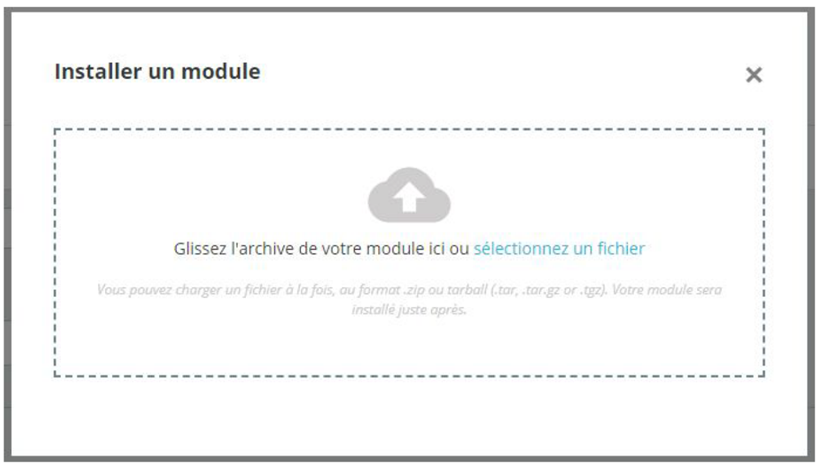
- In the "Module Manager" tab of the same menu, search for "Axepta" and locate the Axepta BNP Paribas plugin

- Click the "Configure" button to begin the setup.
This configuration page allows you to set up the store's generic parameters, especially if it is a "multi-store".
In a multi-store setup, make sure to select the specific store you need to configure.
Update Plugin
Download the new zip archive
Put your store in maintenance mode
Go to the "Modules" tab in your store's backoffice (left side of the screen) > "Module Catalog", click on "Install a module" and then upload the zip file as you would for a new installation
Remember to activate the module which may have been deactivated
Notice : The library is automatically updated with the Prestashop module update
Back Office
After updating, remember to reconfigure the Axepta Online settings in each module tab. You will need to re-enter your MID and activation key to put your module back into production.
Plugin Global Settings
The various tool's features are available in the left-hand menu of the page. To begin configuring the module, click on "AXEPTA".
The configuration page displays several buttons at the top:
Contact Support: Opens a form to send an email to support. The server, CMS, and module versions are automatically included in the email.
Documentation: When clicked, the user is redirected to the official documentation hosted by BNP Paribas.
Check Configuration: Allows displaying and verifying in a window that the server configuration is compatible with the installed module.
Download LOG File: Allows downloading the log file related to the module's usage.

Account Settings
o activate online payments, you need to configure both the production mode and the test mode:
Demo Mode ("DEMO") Allows you to test the module without setting up a MID (Merchant ID, provided by BNP Paribas during registration)
Production Mode Requires you to enter the MID and the private key
Test Mode Requires you to enter only the private key. The production MID is used with the parameter (_t) added to it
Select the mode you wish to configure to display the appropriate fields
To use the module, you need to fill in the following parameters in the form:
Production Mode:
- MID (provided by BNP Paribas)
- Private Key (provided by BNP Paribas)
- This is never displayed for security reasons
Test Mode: The production MID is used by default with the addition of a character string
- Private Key (provided by BNP Paribas)
- This is never displayed for security reasons
- Private Key (provided by BNP Paribas)
Demo Mode This mode displays a banner on the site to inform that this mode is active A specific MID is pre-configured
Front-end Activation Required to display the module on the checkout page regardless of the activated mode
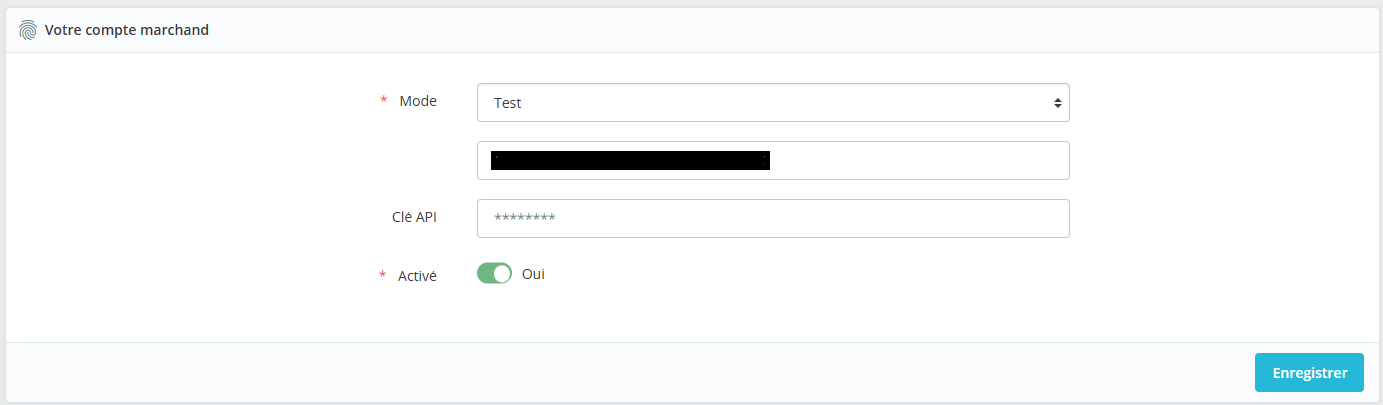
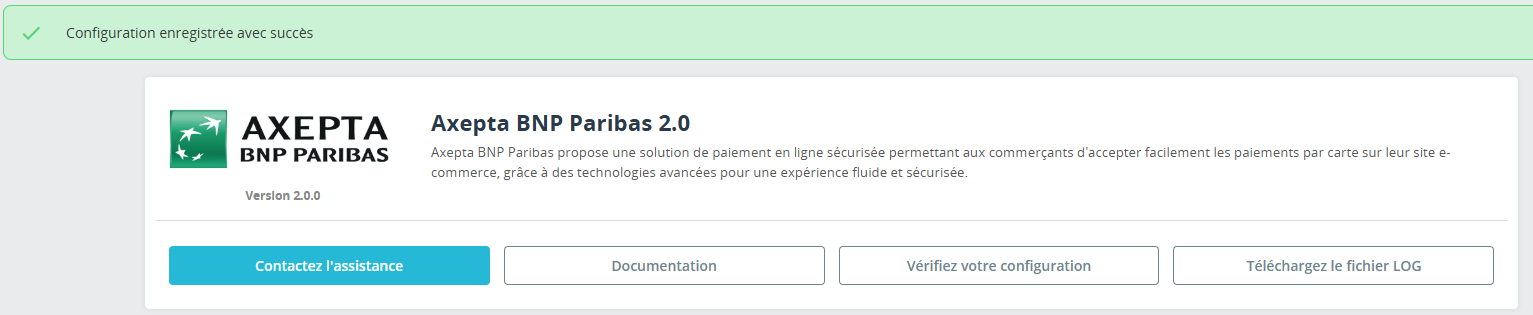
The elements are only saved when the user clicks the save button. A green banner appears if it is successfully saved.
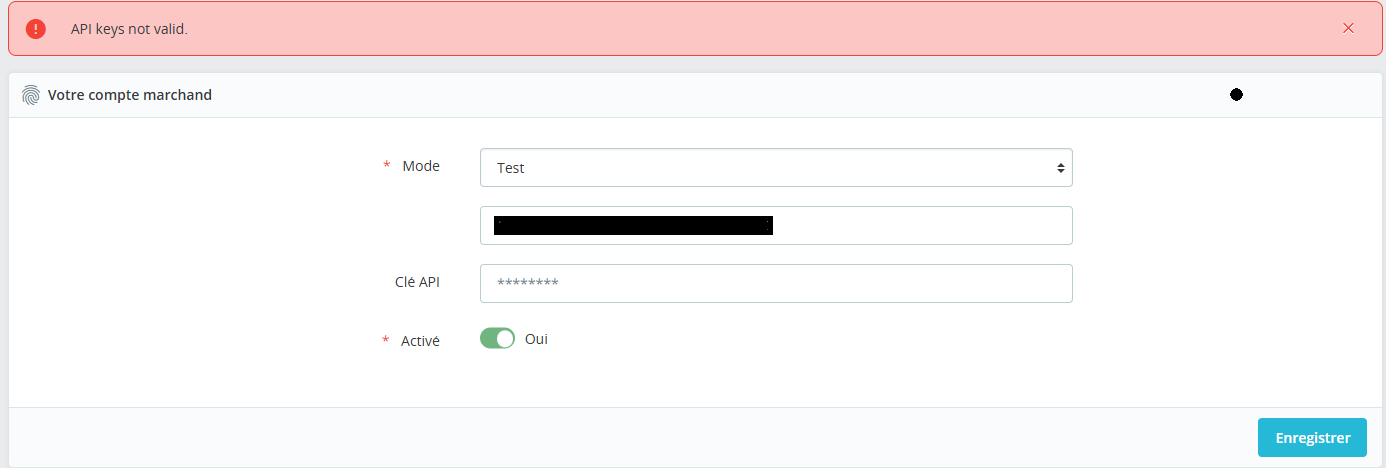
In the opposite case, the error message appears in red
Payment Method Configuration
You can now select the different payment methods to activate on your store.
A "Payment Configuration" block allows you to configure the display of payment methods on the checkout page as follows:
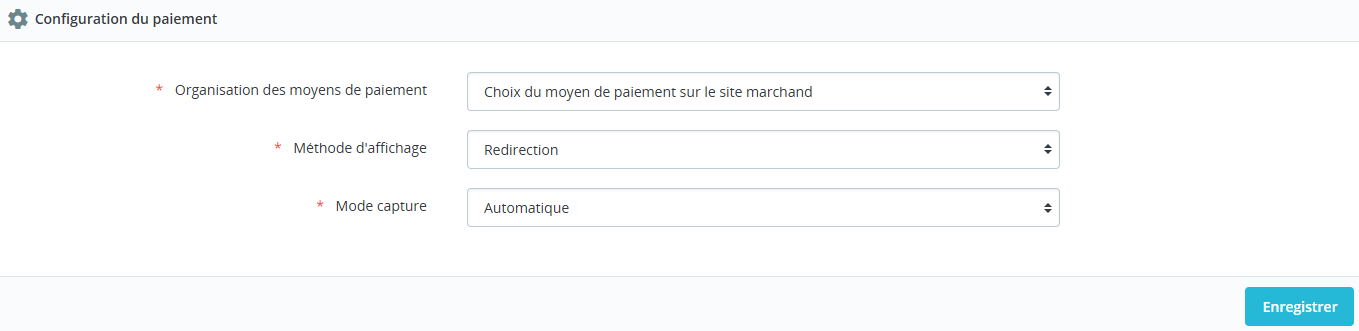
All payment methods integrated into the library are presented here. It is up to the merchant to select the payment methods they have subscribed to. The activation key no longer allows defining the payment methods.
Payment Organization:
This refers to the display of payments that has been decided on the checkout page.
Grouped: Payment blocks appear. It is possible to configure payments for redirection and iframe.
HPP (Hosted Payment Page): Only redirection is possible with all payment methods grouped into a single button. A complete block is displayed, with no differentiation between cards and other payment methods.
Display Method:
Redirection: During the payment phase, the user is redirected to a page based on the selected payment method.
Iframe: During the payment phase, the form is displayed at the bottom of the checkout page based on the selected payment method.
Capture Method
This option allows you to choose the payment capture method:
- Automatic (J) => The capture will be automatically processed at midnight.
- Deferred (J+x) => You can choose the delay before the capture (delay in hours: integer between 1 and 696. Example for 2 days: enter 48)
- Manual Capture => Manual capture is performed manually by the merchant through a configuration in the back-office.
Activation of Automatic Capture
When automatic capture is selected, payment flows are automatically captured at midnight.
Activation of Deferred Capture:
Deferred capture is configured with a specified number of hours before the capture is executed. The maximum allowed delay is 696 hours (29 days).
Notice : No action is required by the merchant to perform the capture. It is confirmed by a return flow (IPN).
Activation of Manual Capture:
In the merchant configuration menu, scroll down to the "Capture" field and select "Manual Capture."

Warning : Without action from the merchant, the transaction will not be processed by the bank. Capturing a transaction beyond the 7th day results in the loss of the 3DSecure guarantee. Beyond the 29th day, the authorization granted by the issuer will no longer be valid. It is therefore advisable to capture transactions before these deadlines.
Manually capture transactions
To manually capture a payment, go to the transaction list and click on the capture icon in the action column.

Payment Methods
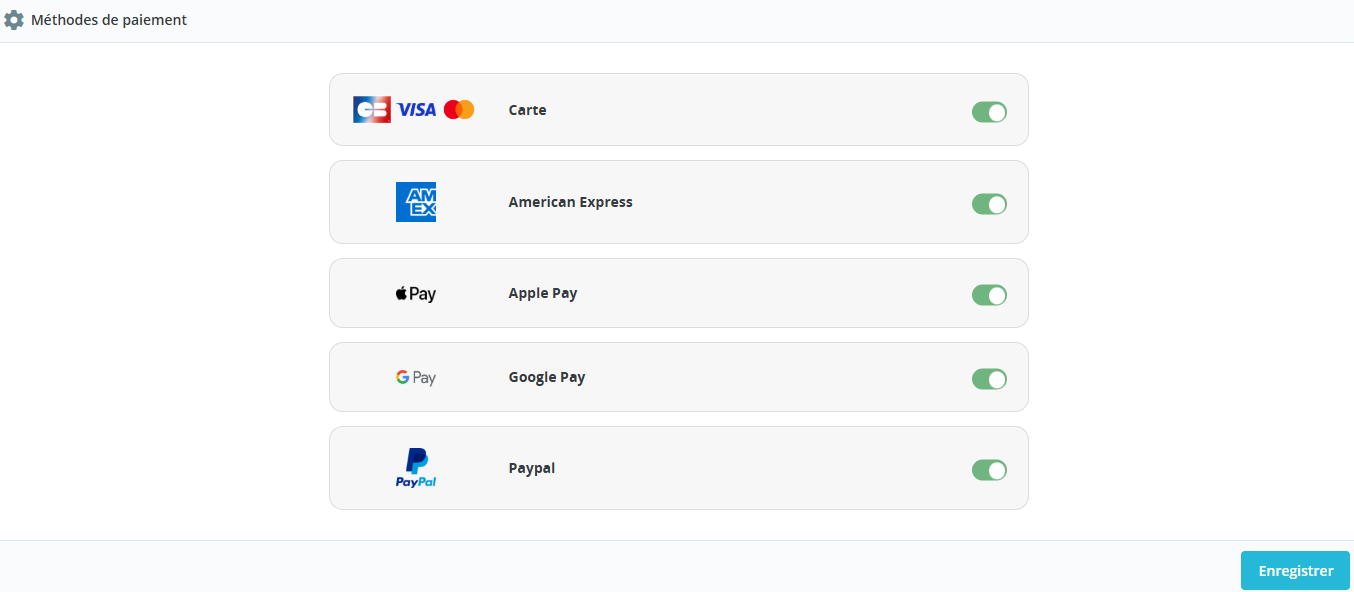
This block allows the activation of the different payment methods by card or Wallet:
Select the payment methods to display at checkout. If CB- Visa-MasterCard is activated, the CB logo will only appear if the country of delivery of the order is France
The Apple Pay and Google Pay settings allow you to display logos on the checkout page but require you to have subscribed to the option on the contract to see the display on the payment page.
PayPal is a Wallet that must be set up upstream on your Axepta account. It is necessary to communicate the PayPal PayerID to Axepta in advance.
The Subscription and AMEX Subscription payment methods are available when the cart contains a product associated with a subscription, and are then displayed on the checkout page
Customization
Allows configuration of the fields sent in the payment form during redirection.
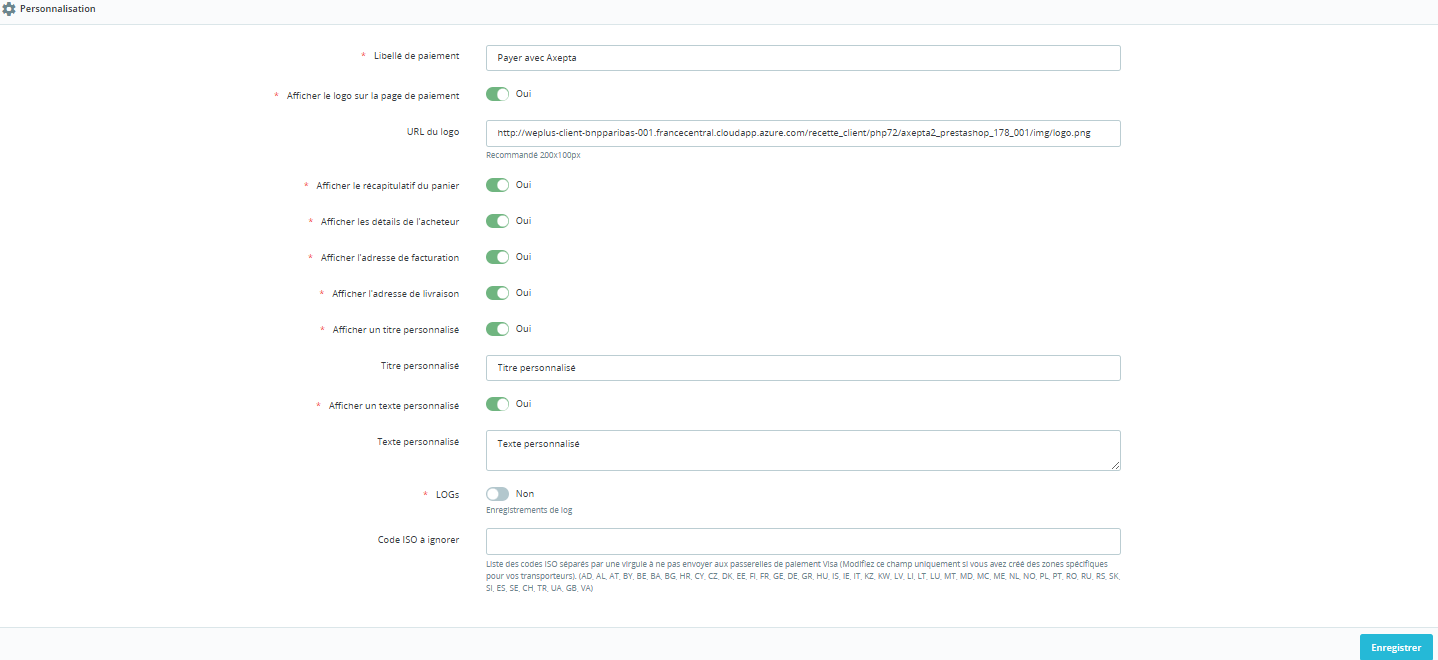
The ISO codes to ignore represent the ISO country codes if you have modified the configuration of your countries for carriers.
For example, FR (France) is not to be sent because it's in Europe, while US (United States) is to be sent.
Creation of subscription product
In Prestashop > Catalog > Products, open the product to be sold as a subscription (or create a new one).
In the Modules tab > Axepta BNP Paribas, click on the "Configure" button
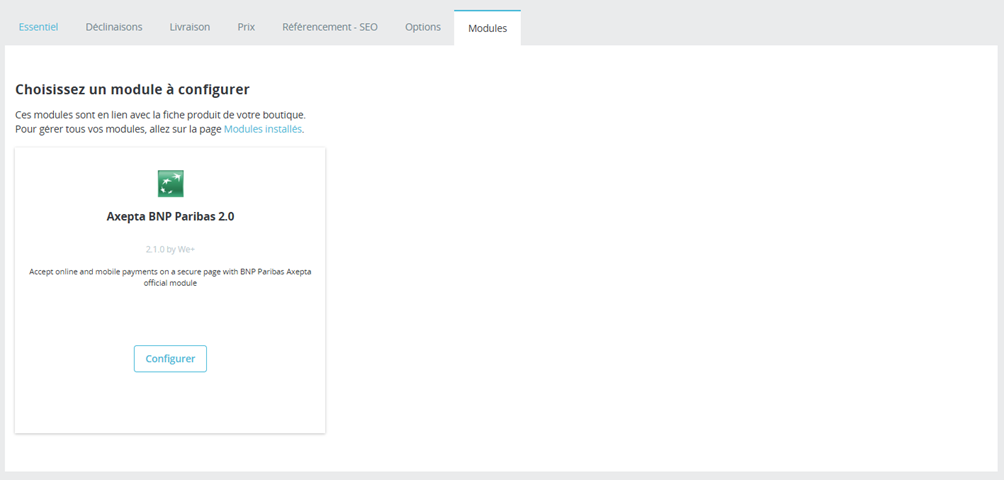
Activate a subscription on the product by filling in the various fields useful for configuring a subscription:
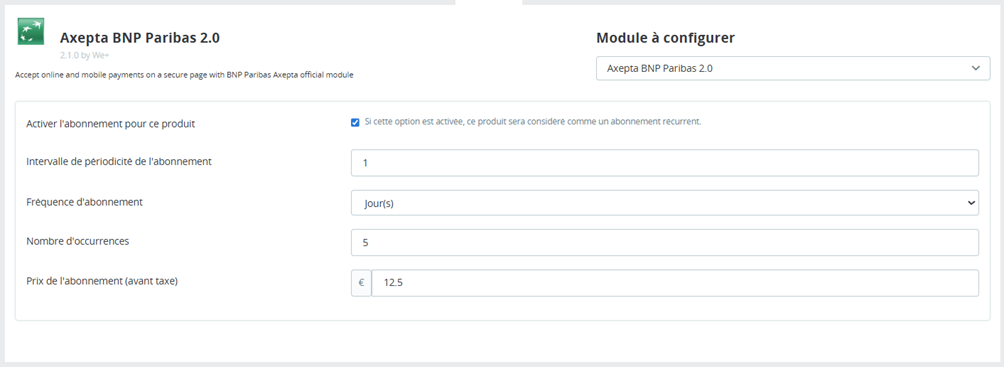
Activate subscription for this product: Check the box that will determine your product as a subscription product.
Subscription frequency interval: determine the number over the interval (e.g. 1,2,3 ...)
Frequencies: Day(s) / Month

Example:
- 1 + Month → billed every month
- 15+ Days → billed every 15 days
Duration (number of occurrences)
- Number of occurrences = number of times the customer will be charged.
- Example: 3 → 3 payments in total (depending on the frequency chosen)
Amount
- Subscription price (before tax): amount charged each period
Register/update the product.
Dashboard
Order statuses have been added to help you view payments in test, demo, or production environments.

Please note that payments made in demo mode require being in Demo mode to be visible.
Manual Capture
Manually Capture Transaction
To manually capture a payment, you need to go to the list of transactions and click on the capture icon in the action column

Logs
Logs are always enabled. You can download them using the button at the top of the settings screen.
Refund/ Cancellation
To refund a transaction, you must first select the store where the order was placed (top right of the screen). A refund can only be processed for a single store at a time.
Next, go to the customer's order in the transaction details (as previously indicated) and click on "Partial Refund" in the "Order" tab to create a gift certificate :
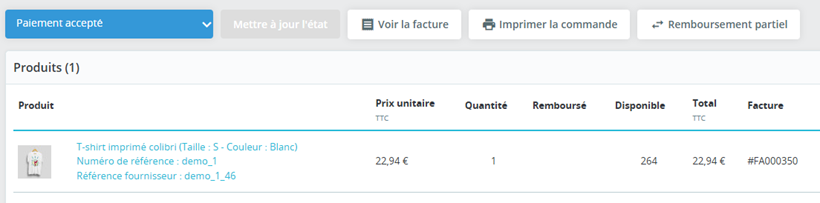
You will be redirected to the "Product" tab of the same page. Follow these steps to process a partial refund:
Select the amount to refund (either total or partial). The amount cannot exceed the total order amount, and the quantity cannot exceed the originally purchased quantity.
Click on "Partial Refund":
After saving the amount, while still on the order details page, go back to the product details:
Select the transaction to be refunded
Choose a gift certificate option
Click "Refund"
You can specify a partial amount if needed
The product will now appear as "refunded" in the order details
Full Refund
Multiple partial refunds can be processed. However, the total of all partial refunds cannot exceed the original order amount.
Cancellation
If the transaction has not yet been processed by the bank (captured), cancellation is possible.
Transactions list
All transactions made with the Prestashop Axepta BNP Paribas 2.0 module are consolidated in a table displayed.

Notice : The uninstallation and reinstallation of the module will result in the deletion of the transactions.
Subscription table

In the Axepta BNP Paribas tab > Subscriptions: find the list of subscriptions:

- Subscription ID
- The Subscription Product
- The order
- The customer
- The amount
- The status of the subscription
- Periodicity
- The start date
- The date of the next execution.
You have the option to change the status of the subscription to turn it on or off.
Stop a subscription
Action: Stop a subscription
Effect:
- The subscription goes to stop (there will no longer be automatic renewal).
- The customer will no longer be charged from that point forward.
Font Office
Checkout Page Display
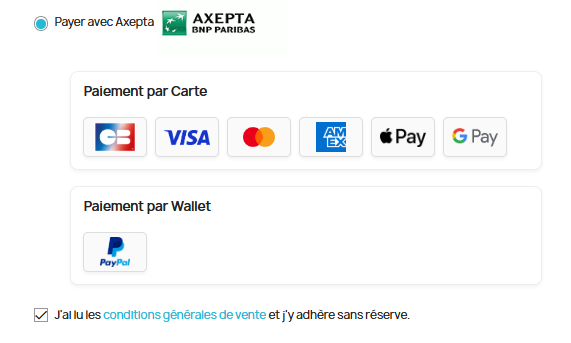
Payment methods are displayed in designated blocks.
Additional payment options are accessible by selecting "More payment options," which only appears when applicable.
Payment Page Redirection Display
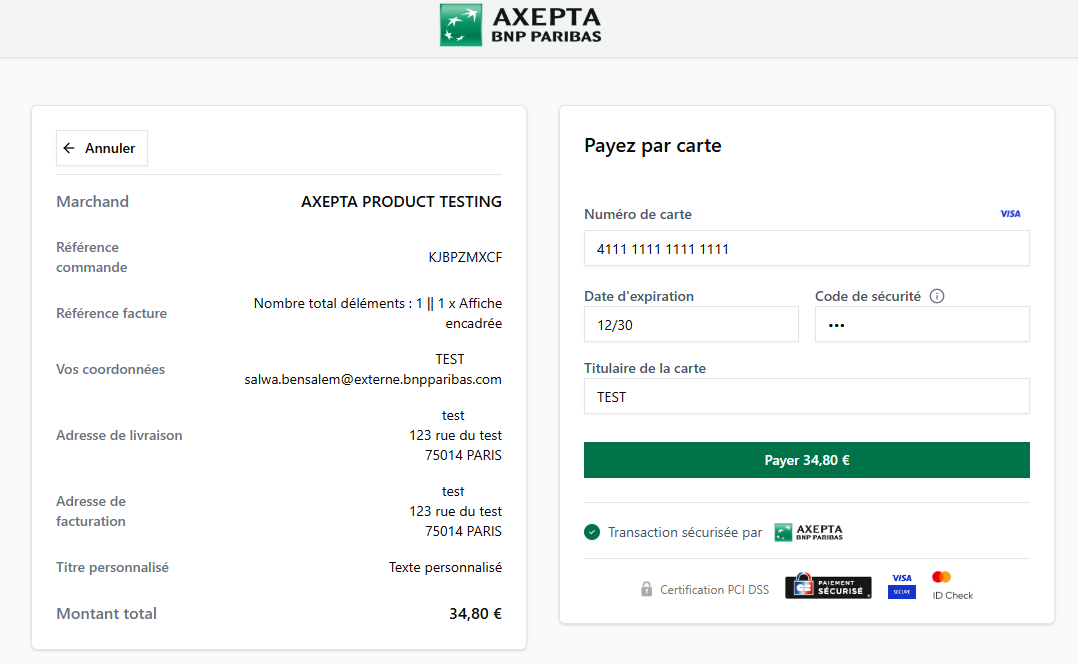
Notice : In demo mode, an orange banner appears with the label "DEMO".
Customer Account
Orders and subscriptions display an Axepta block in the customer area.
Installing a cron for prestashop
In order to automate the execution of certain tasks (such as triggering subscription payments), it is necessary to set up a scheduled task (cron) on your server.
Access the cron configuration
On a Linux server, open the terminal and run the following command:
crontab -e
Use this command to edit the current user's list of scheduled tasks.
Add the cron job
Add the following line to the file:
* * * * * php [PRESTASHOP_MODULE_PATH]/axepta2/run.php action=triggerSubscriptionPayment
- Replace [PRESTASHOP_MODULE_PATH] with the full path to your PrestaShop installation.
- This command executes the script to trigger subscription payments.
Define the periodicity
The five asterisks (* * * * *) define the frequency of execution:
* * * * * → every minute
You can adjust this frequency as needed (e.g. hourly, daily, etc.).
To help you generate a suitable cron expression, you can use the following online tool https://crontab.guru/