Once your payment link is sent or generated, access the "Payment Link Details" page for complete and real-time tracking of its progress. This page, accessible only to authorized users, provides you with a detailed and customizable overview of each transaction.
Summary
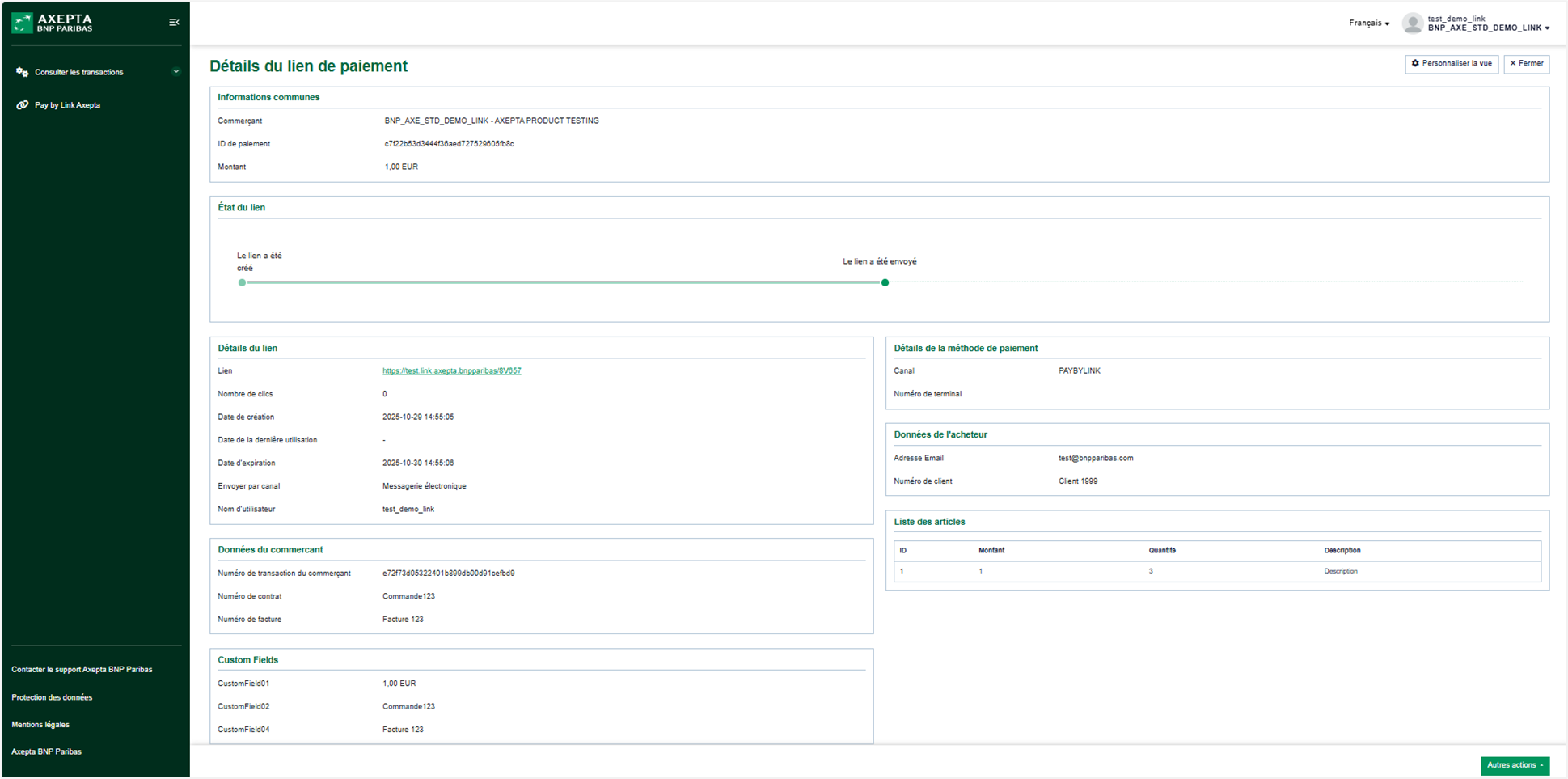
Access to the Details Page
You can access the details page in two cases:
- After clicking the "Send a payment link" button once the mandatory fields have been filled in.
- After clicking the "Close" button from the "Link Generation Successful" pop-up following the click on the "Generate Payment Link" button.
Customizing the Display
Using the "Customize View" menu located at the top left of the page, you can configure the layout of the display to adapt the interface to your specific needs.
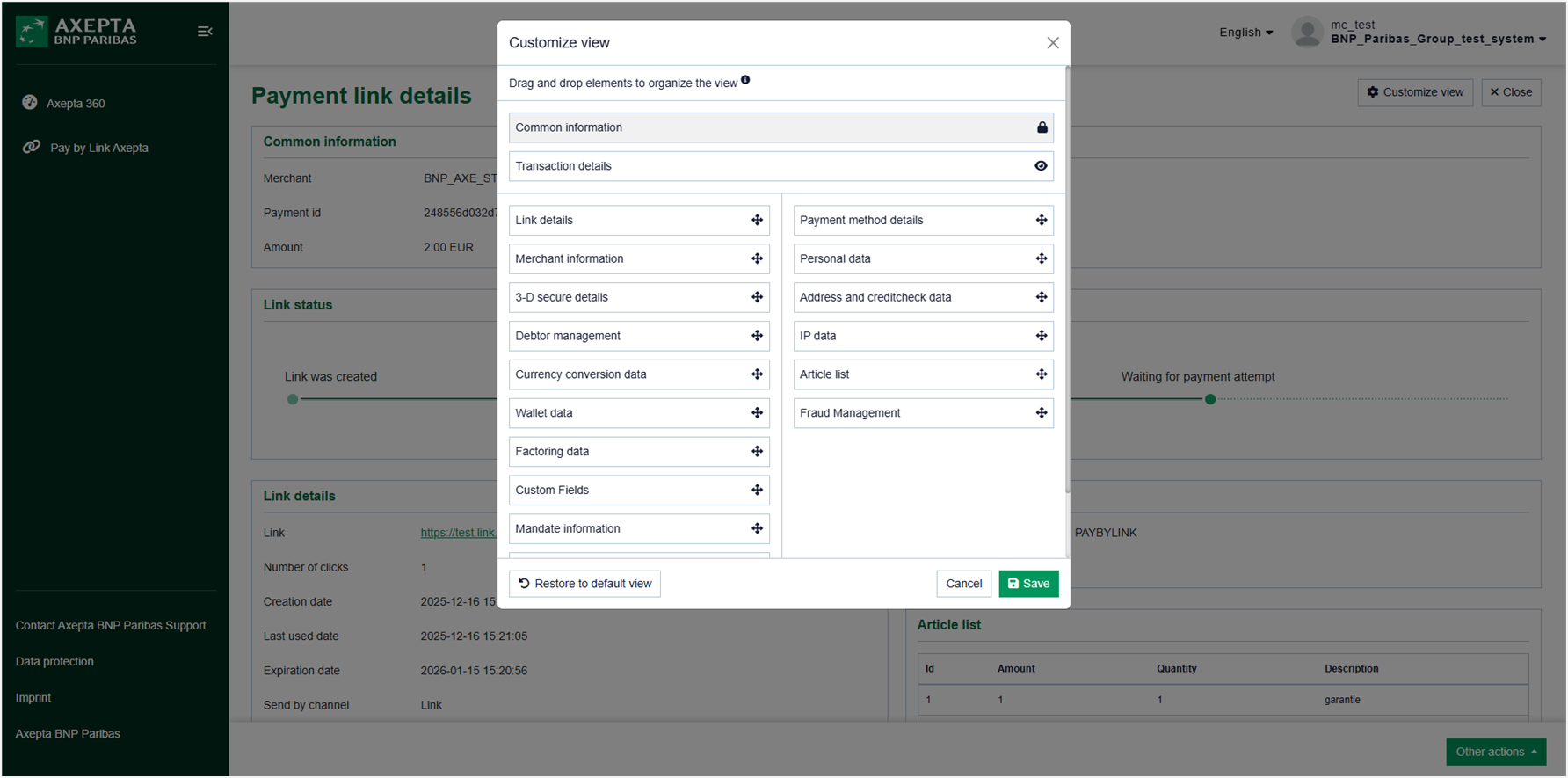
Features
Once the link is created, you can:
- View the created link: Check the generated link.
- Track the link status in real-time: A link can have multiple statuses and each click on the link is counted.
- Expiration date and time of the link: A link expires after 24 hours, but other options can be configured (168 hours / 7 days or 720 hours / 30 days).
- Deactivate the link: You can deactivate the link at any time.
- Delete person related data: Personal data can be deleted if necessary.
Key Features
Common Information
- Merchant: Merchant's name.
- Payment Id: Unique identifier generated by Axepta for the transaction.
- Amount: Transaction amount.
Link Status
Track the status of your payment link in real-time:
- Link was created: First status visible after link creation.
- Link was sent: Status displayed only if you send the link via the "Send link" button.
- Link was opened: Status displayed as soon as the customer clicks on the received link.
- Waiting for payment attempt: Status displayed at the same time as "Link opened".
- Paid: Status visible when the payment is validated. This is a final status.
- Rejected pending next attempt: Intermediate status displayed when the payment is rejected.
- Rejected: Status displayed if the payment does not go through.
- Expired: Status displayed upon expiration of the allotted time. This is a final status.
- Link deactivated: Final status displayed once the link is deactivated.
Link Details
- Link: Link identical to the one received by the customer via email (visible only to authorized users).
- Number of clicks: All clicks are counted, including those made from the BackOffice, the button/link present in the email, or the link copied and pasted into a browser.
- Creation date: Date and time of link creation.
- Last used date: Date and time of the last click made (a dash is displayed by default until a click has been made).
- Expiration date: Customizable expiration date and time (default period of 24 hours).
- Send by channel: Email for links sent via the "Send link" button, or link for links generated via the "Generate link" button.
- Username: User who created the payment link.
Payment Method Details
- Channel: PAYBYLINK.
Buyer Data
- Email Address: Email address of the customer to whom the link is intended.
- Customer Id: Identical to the one indicated on the link creation page.
Article list
This section includes the data entered at the time of link creation:
- ID
- Amount
- Quantity
- Description
Customer Data
- Merchant transaction number: Transaction number generated by Axepta BNP Paribas
- Order reference: Reference entered at the time of link creation.
- Invoice Reference: Reference entered at the time of link creation.
Custom Fields
- CustomField01: Contains the payment amount.
- CustomField02: Displays the order reference number if entered at the time of link creation.
- CustomField04: Displays the invoice number if entered at the time of link creation.
Action on the Links
The "Other Actions" button located at the bottom left of the details page allows you to:
- Deactivate the link: A pop-up titled "Confirm link deactivation" allows you to confirm or cancel the action. If confirmed, a pop-up "Deactivate link executed successfully" is displayed.
- Delete person related data: A pop-up titled "Confirm delete of person related data" allows you to confirm or cancel the action. If confirmed, a pop-up "Delete Person related data executed successfully" is displayed.
Summary Table
Bloc | Données affichées avant suppression des données personnelles | Données affichées en cas de suppression des données personnelles |
|---|---|---|
Informations communes | Commerçant, ID de paiement, Montant | Commerçant, ID de paiement, Montant |
État du lien | - | Le lien continue à être visible tant qu'il est au statut "En attente d'une tentative de paiement" |
Détails du lien | Lien, Nombre de clics, Date de création, Date de la dernière utilisation, Date d'expiration, Envoyer par canal, Nom d’utilisateur | Lien, Nombre de clics, Date de création, Date de la dernière utilisation, Date d'expiration, Envoyer par canal, Nom d’utilisateur |
Détails de la méthode de paiement | Canal, Méthode de paiement | Canal, Méthode de paiement |
Données de l'acheteur | Adresse Email, Numéro de client | - |
Liste des articles | ID, Montant, Quantité, Description | - |
Données du commerçant | Numéro de transaction du commerçant, Numéro de contrat, Numéro de facture | Numéro de transaction du commerçant |
Custom Fields | CustomField01, CustomField02 (affiché si saisi), CustomField04 (affiché si saisi) | CustomField01 |
The personal data deleted is not visible at the level of the search results.