|
The application carries out a dynamic analysis directly on your transaction database so that you can always see the latest processing status. You can also set measures for fraud prevention and carry out manual postings or credit memos. The optional dashboard of the application offers you the possibility of clearly displaying all processes with the associated payment transactions in the form of tables and diagrams.
Payment Card Industry Data Security Standards The application was developed according to the latest security concepts. All transmissions are exclusively encrypted in accordance with the current Payment Card Industry Data Security Standards (PCI DSS). Due to PCI DSS regulation:
|
We recommend using the latest version of Microsoft Edge, Mozilla Firefox or Google Chrome as a browser for Axepta BNP Paribas Merchant Portal. |
Login credentials are the same as you already have received for teh old back office.
|
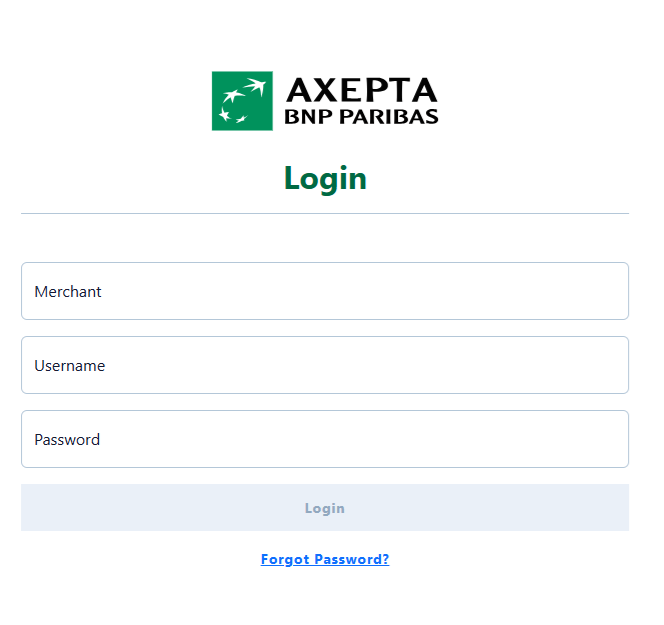
 For login always Merchant, Username and Password are required.
Merchant Portal Connection
Click on the URL that allows you to access the web application: Merchant Portal
Enter your login credentials:
- Enter your verification code (OTP) received by email
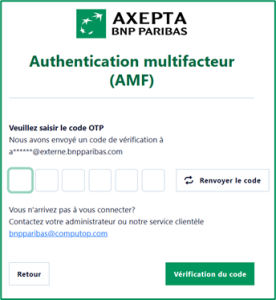
MFA Improvements:
|
Password reset
In case you forgot your password you can click on the links "Forgot your password?".
By doing so a new form will be shown:
Enter your MerchantId and Username
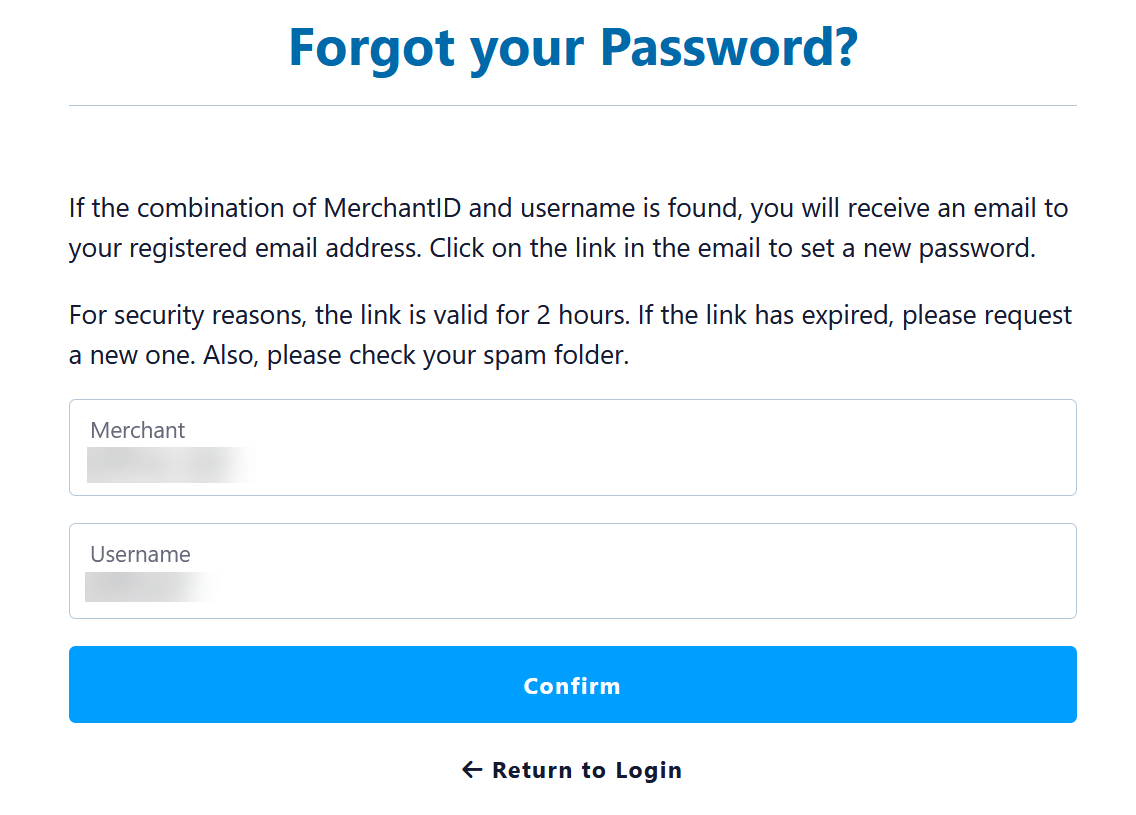
Here you will have to enter your MerchantId and your Username - both are mandatory.
Email has been sent
If your combination of MerchantId and Username have been found an email will receive an email for confirmation:
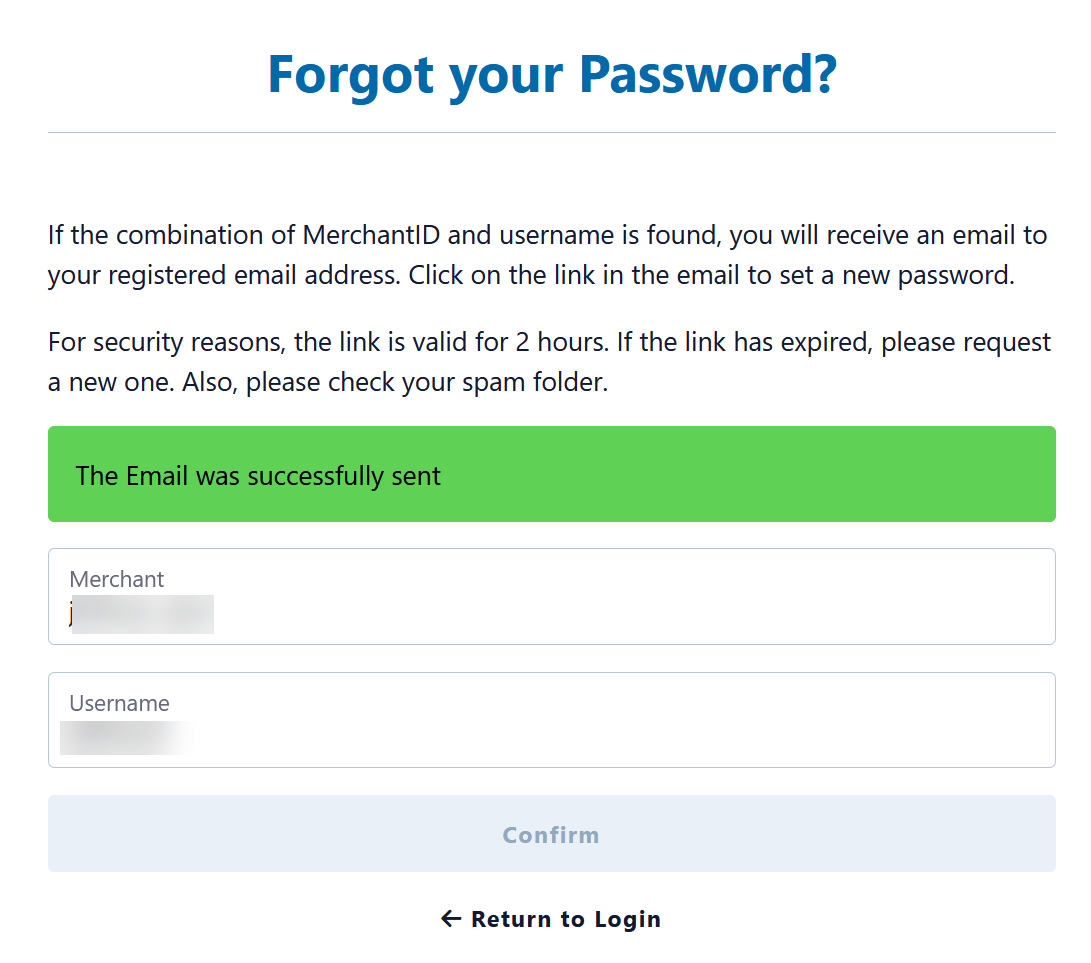
Email with link to reset password

Set new password
After clicking on the link to "reset password" a new form will be displayed.
Please enter the new password twice - to ensure you have no typo in any password.
Then click on "Save" and your new password is active.