
Summary
Introduction
Welcome to the documentation for the AXEPTA BNP Paribas module for WooCommerce.
This free module allows you to easily integrate our online payment solution into your e-commerce store.
This documentation guides you step by step through the installation, configuration, and use of the module to ensure a simple, reliable, and tailored integration to your needs.
This module is freely available at the following address: https://github.com/AxeptaBNPParibas
Our goal is to support you so that the implementation of our AXEPTA BNP Paribas solution is quick, intuitive, and fully functional in your WooCommerce environment.
Prerequisites
Plugin Setup
Installation via the WordPress interface
For a quick and simple installation, you can download and install the plugin directly from the WordPress administration interface. Follow these steps to do it easily.
Download the plugin ZIP file.
Go to the WordPress dashboard, under Extensions > Add.
Click on Upload Plugin, then select the plugin ZIP file.
Click on Install Now, then activate the plugin after installation.
Installation via FTP/SSH
If you prefer a manual method or if you have restrictions on the WordPress interface, you can install the plugin via FTP or SSH by following these steps.
Download the plugin ZIP file and extract it on your computer.
Connect to your server via FTP or SSH.
Go to the « wp-content/plugins » directory of your WordPress installation.
Create a folder named « axepta-bnp-paribas »
Copy all the contents of the extracted plugin into this folder.
Go to the WordPress interface, under Extensions > Installed Extensions, then activate the plugin.
Update Plugin
- Uninstall the Axepta BNP Paribas module completely
- Before installing the new version of your module, we invite you to properly uninstall the current extension, clear the cache of your CMS, and verify the deletion of the extension by ensuring that the module installation directory is deleted from your FTP server.
- Install the latest update you have downloaded
Notice : The library is automatically updated with the plugin update.
Back Office
Please remember to reset the Axepta Online configuration parameters in each tab of the module. You will need to re-enter your MID (Merchant ID) and your activation key to put your module back into production.
Plugin Global Settings
The module's features are accessible via the left menu in the administration interface « WooCommerce > Settings ». To start the configuration, simply click on the option « Axepta BNP Paribas ».
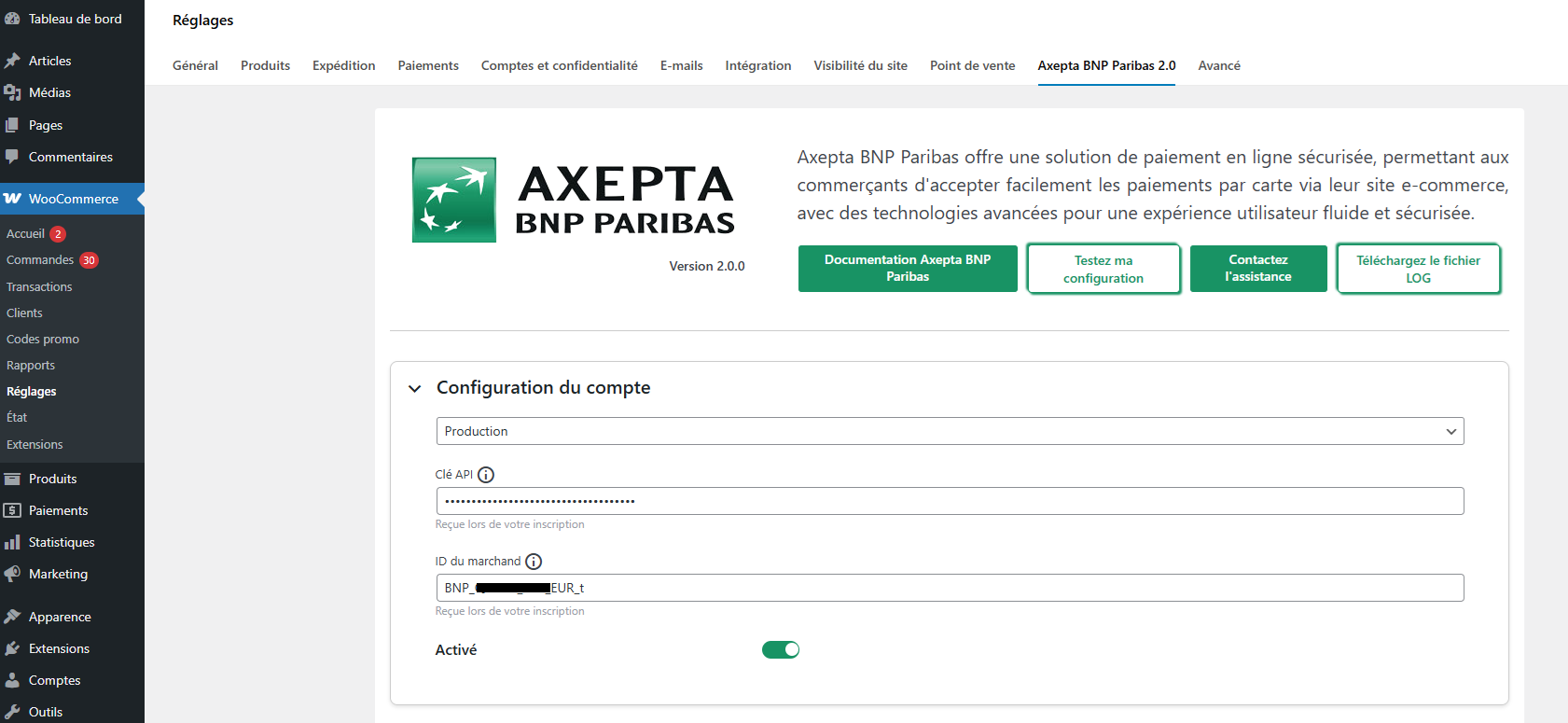
The configuration page displays several buttons at the top.
Axepta BNP Paribas Documentation: When clicked, the user is redirected to the official documentation hosted by BNP Paribas.
Contact Support: Opens a form to send an email to support. The server, CMS, and module versions are automatically included in the email.
Test Configuration: Allows displaying and verifying in a window that the server configuration is compatible with the installed module.

Account configuration
To activate online payments, you need to configure both the production mode and the test mode.
Demo Mode ("DEMO"): Allows you to test the module without setting up a MID (Merchant ID, provided by BNP Paribas during registration).
Production Mode: Requires you to enter the MID and the private key.
Test Mode: Requires you to enter only the private key. The production MID is used with the parameter (_t) added to it.
Select the mode you wish to configure to display the appropriate fields.
To use the module, you need to fill in the following parameters in the form.
Production Mode:
- MID (provided by BNP Paribas)
- Private Key (provided by BNP Paribas)
Test Mode:
The production MID is used by default with the addition of a character string
- Private Key (provided by BNP Paribas)

Demo Mode:
This mode displays a banner on the site to inform that this mode is active. A specific MID is pre-configured.

Front-end Activation:
Required to display the module on the checkout page regardless of the activated mode
Display the ApplePay logo:
ApplePay is currently integrated into the payment page. This option simply displays the logo along with the payment methods.
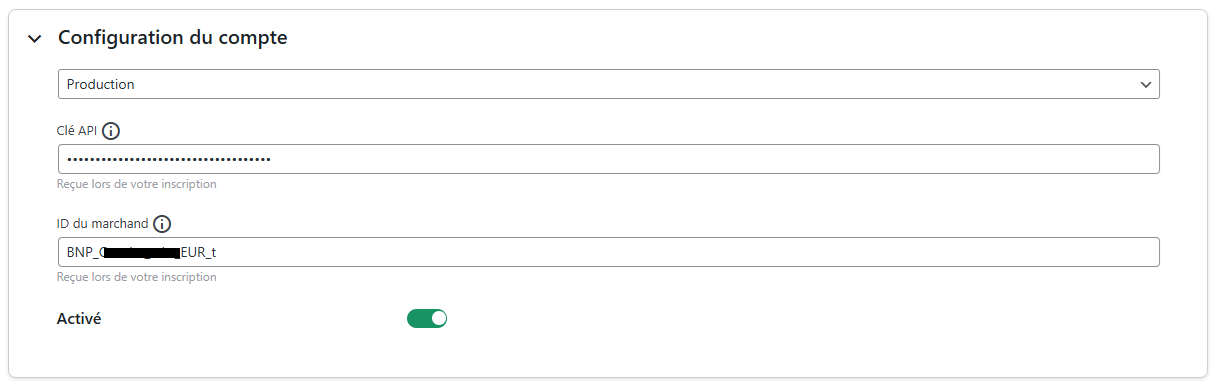
The elements are only saved when the user clicks the save button
Payment Method Configuration
You can now select the different payment methods to activate on your store.
A tab labeled « Payment Methods Configuration » appears just below « Account Configuration ». Click on it to open the section and configure your payment methods:
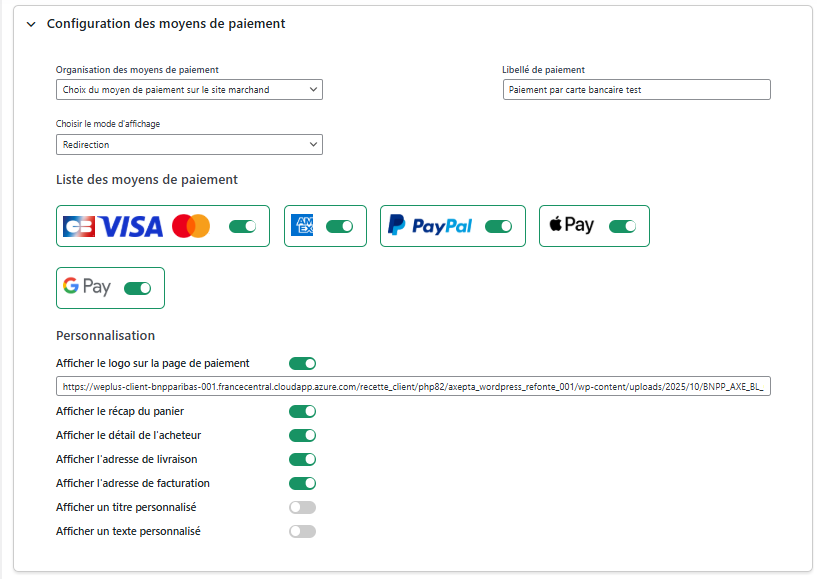
All payment methods integrated into the library are presented here. It is up to the merchant to select the payment methods they have subscribed to. The activation key no longer allows defining the payment methods.
Payment Organization: This refers to the display of payments that has been decided on the checkout page.
Grouped: Payment blocks appear. It is possible to configure payments for redirection and iframe.
HPP (Hosted Payment Page): Only redirection is possible with all payment methods grouped into a single button. A complete block is displayed, with no differentiation between cards and other payment methods.
Display Method:
Redirection: During the payment phase, the user is redirected to a page based on the selected payment method.
Iframe: During the payment phase, the form is displayed at the bottom of the checkout page based on the selected payment method.
Label: Text to display on the block
List of Payment Methods: Select the payment methods to display at checkout.
Quote: If CB-Visa-MasterCard is enabled, the CB logo will only appear if the order's delivery country is France.
Payment Method Customization:
Allows the configuration of fields sent in the payment form during redirection.
Feature Configuration
Click on « Feature Configuration » to open the dedicated section. You will find the option to choose « payment capture mode », allowing you to define how transactions will be processed.
This option allows you to choose the payment capture method:
Automatic (J) => Payment will be automatically captured at midnight.
Deferred (J+x) => You can choose the delay before capture (delay in hours: integer between 1 and 696. Example for 2 days: enter 48)
Manual Capture
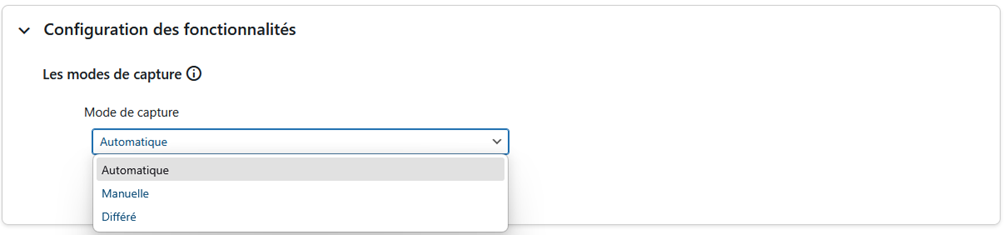
Activation of Automatic Capture:
When automatic capture is selected, payment flows are automatically captured.

Activation of Deferred Capture:
Deferred capture is configured with a number of hours before the capture is to be performed.

No action is required by the merchant to perform the capture. It is confirmed by a return flow (IPN).
Activation of Manual Capture:
In the merchant configuration menu, scroll down to the "Capture" field and select "Manual Capture."
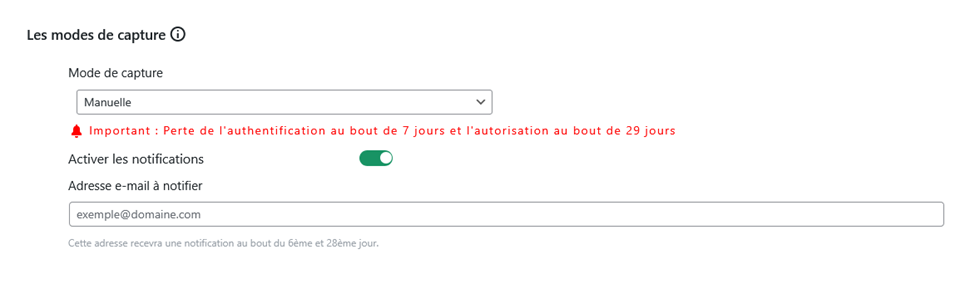
Warning : Without action from the merchant, the transaction will not be processed by the bank. Capturing a transaction beyond the 7th day results in the loss of the 3DSecure guarantee. Beyond the 29th day, the authorization granted by the issuer will no longer be valid. It is therefore preferable to capture operations before these deadlines.
Back Office
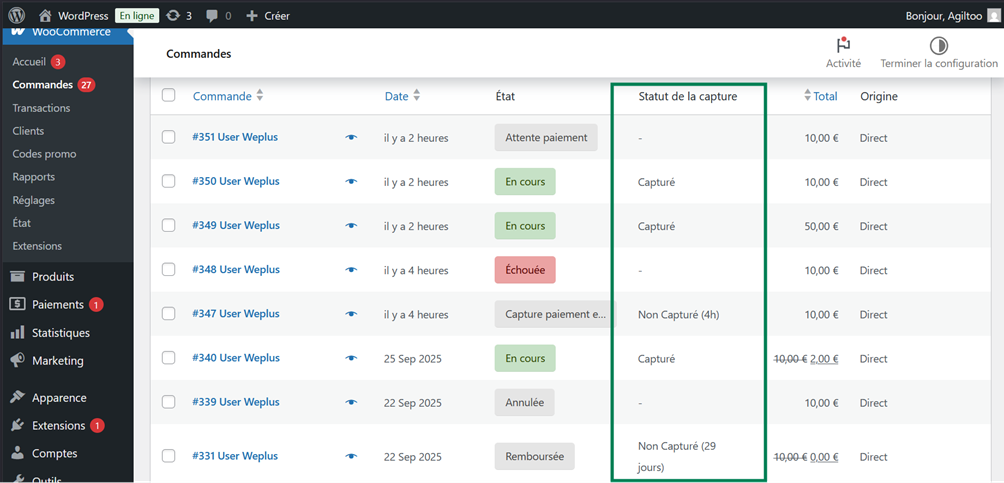
A new column titled "Capture Status" has been added to the order list in WooCommerce.
This column indicates whether the payment transaction has been captured or not. If the capture has not yet occurred, the time elapsed since the capture request will be displayed.
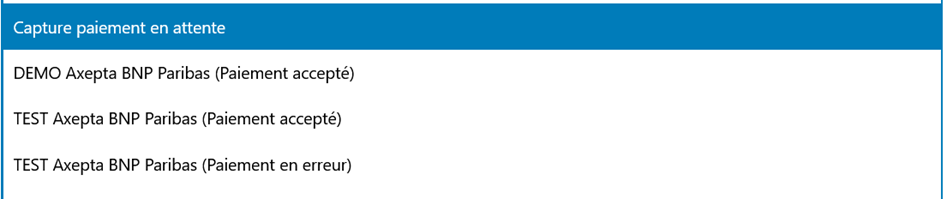
Additionally, a new status "Pending Payment Capture" has been added to the WooCommerce order statuses. This status is only assigned to orders for which the payment capture has not yet been completed. It clearly differentiates orders awaiting capture from those whose payment has already been finalized.
Manual Capture
To manually capture a transaction, follow these steps:
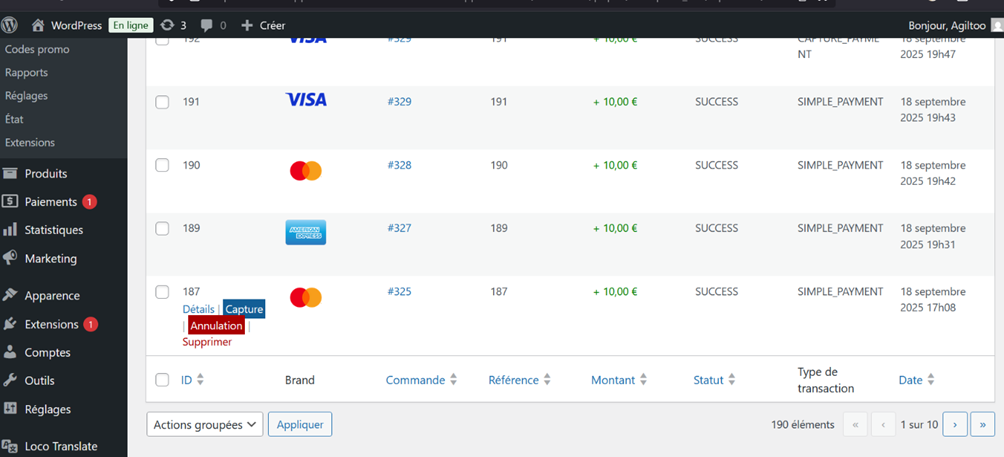
Go to WooCommerce > Transactions from your WordPress dashboard.
You will see the list of transactions that have been made.
When you hover over a line corresponding to a transaction that has not yet been captured, a blue "Capture" button will appear below that line.
Click this button to perform the payment capture.
Once the capture is complete, the transaction status will be updated to reflect the action.
Manual Capture Notifications Notifications are displayed during the manual capture attempt of a payment to keep you informed of the operation status:
Successful Capture: A notification informs you that the capture was successfully completed.
Already Captured: If the transaction has already been captured, an alert indicates that the capture cannot be redone.
Failed Capture: In case of capture failure, a detailed notification explains the reason for the problem and guides you through the steps to follow.
These notifications allow you to precisely track the status of each transaction and act accordingly.
Refund / Cancelllation
Remboursement
Go to WooCommerce > Orders and click on the order you wish to refund.
On the order page, you will find the relevant information about the order.
You will see a "Refund" button. Click on it to open the refund section.
Once the section is open, you can enter the "refund amount" as well as the "refund reason" which is optional.
After filling in the fields, click on "Refund X.XX € with Axepta BNP Paribas" to proceed (X.XX is the entered refund amount) with the refund. The refund will be processed if the order has already been captured.
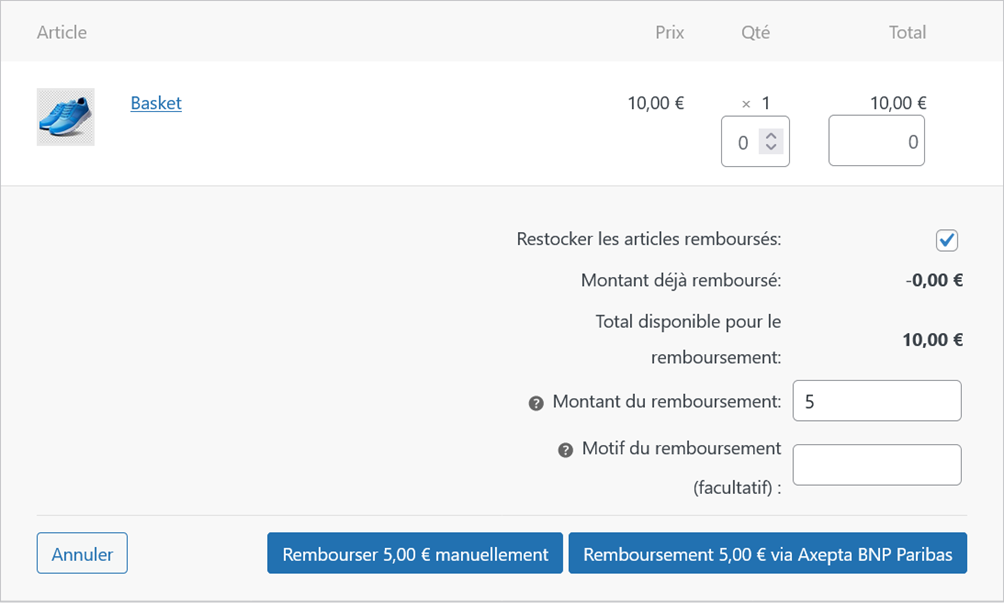
Full Refund
For a full refund, the amount (subtotal) is displayed, and you simply need to leave the predefined values blank and confirm (Refund Offline).
Partial Refund
For a partial refund, you need to adjust the field values. The "Adjustment Fee" field allows you to modify the amount to be deducted from the refund. For example: Subtotal = 45, Adjustment Fee = 15, clicking on "Update Totals" results in a refund of 30 for the buyer.
Cancellation
If the transaction has not yet been processed by the bank (status "processing" when clicking on the order ID), cancellation is possible via « WooCommerce > Transactions ».
Cancellation
To cancel an order whose payment has not yet been captured, follow these steps:
Go to WooCommerce > Transactions.
Search for the transaction associated with the order number you wish to cancel, and ensure that payment capture has not yet been completed.
Once the transaction is located, click the "Cancel" button to cancel the order

Logs
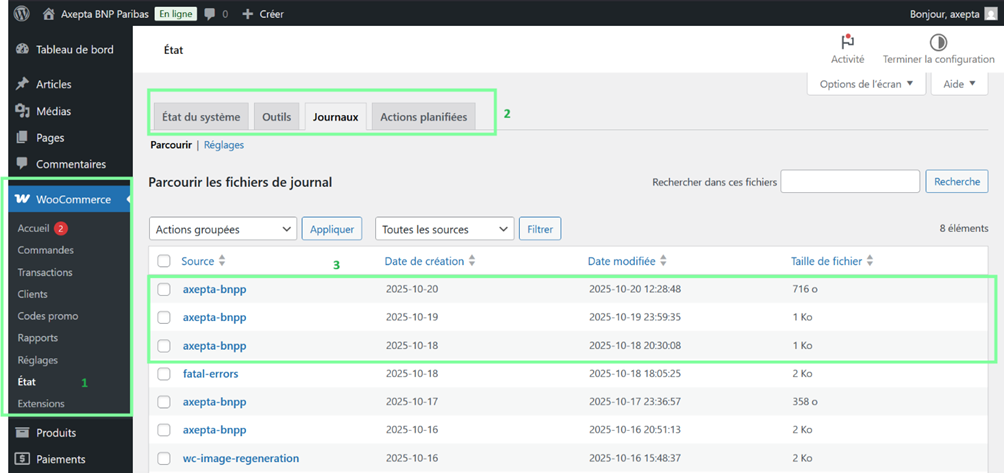
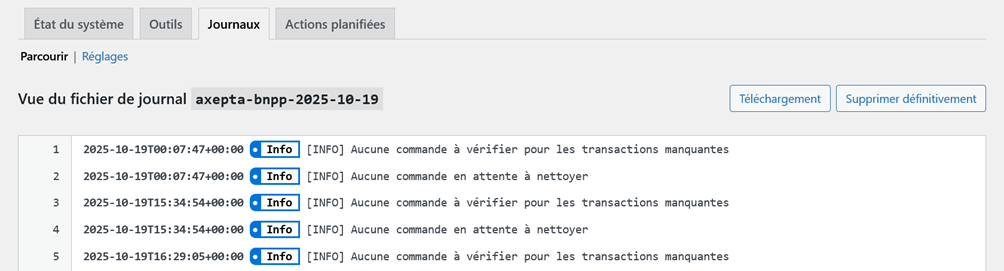
Logs are always enabled. To view or download them, go to « WooCommerce > Status > Logs » and select the log « axepta-bnpp ». On the next page, you can view the logs and download them by clicking the « Download » button.
Front Office
Checkout Page Display
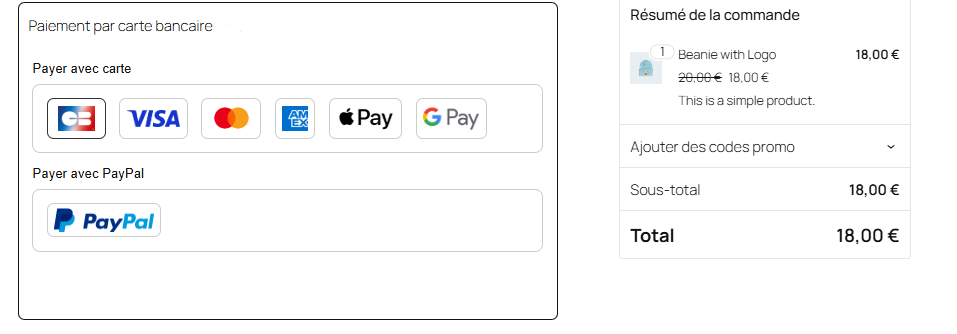
The payment methods are displayed in a block-specific frame.
Additional payment methods are accessible by selecting "More payment options," which only appears when applicable.
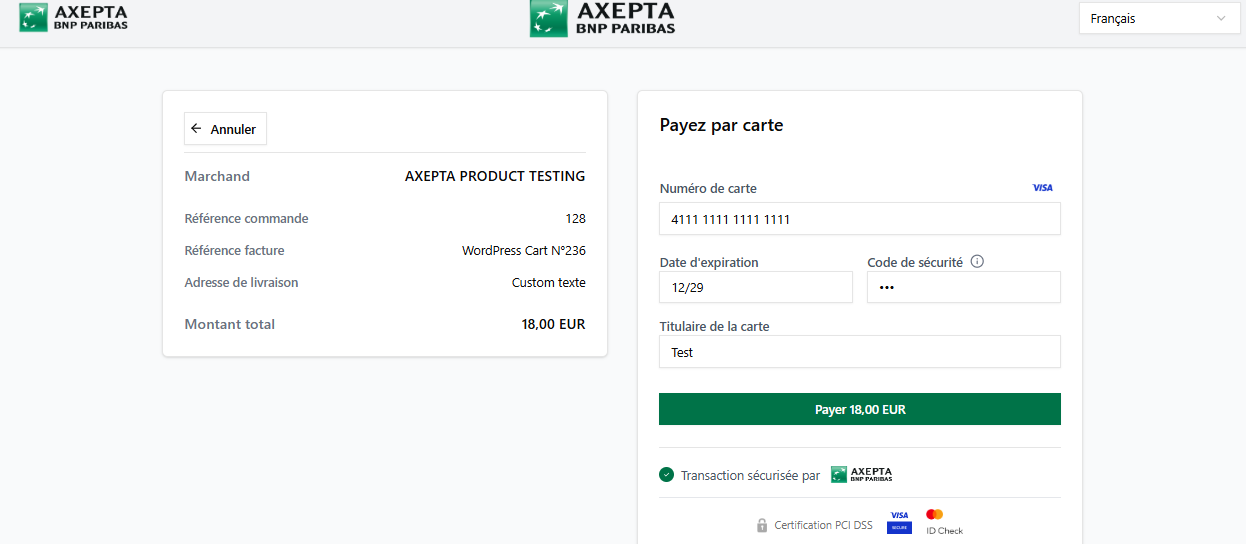
Payment Page Redirection Display
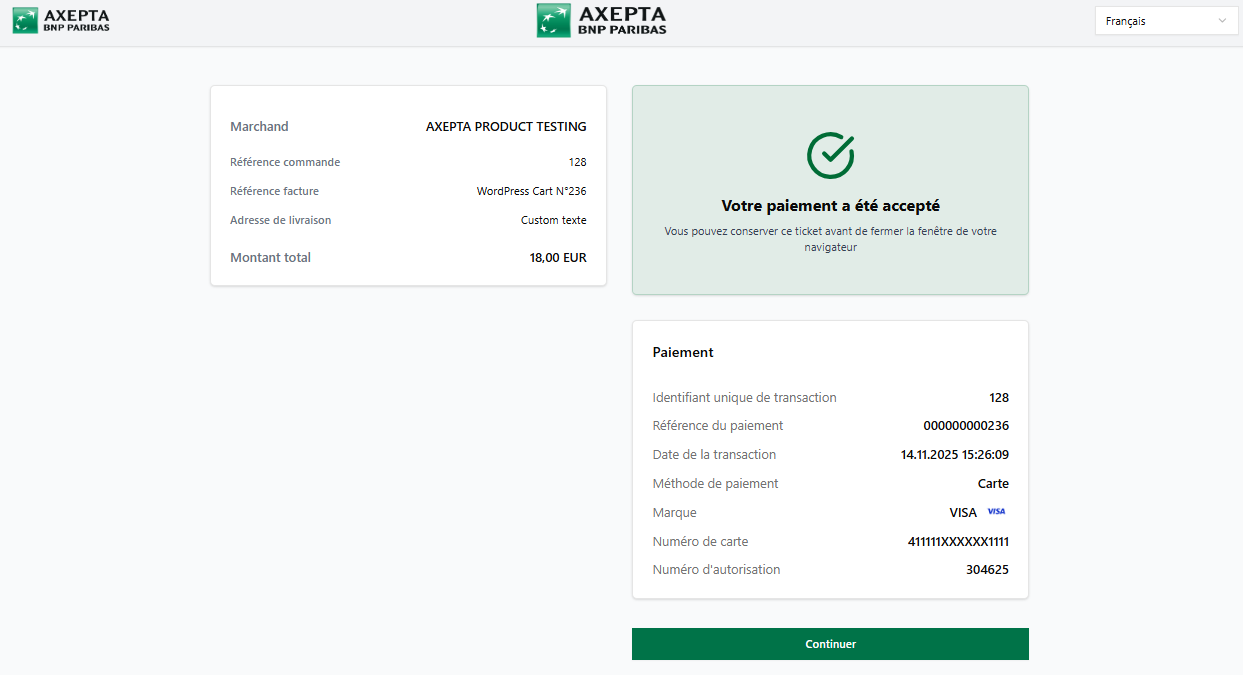
Payment Confirmation Page Display
Merchant Portal
The merchant portal displays an Axepta block for orders.