
Summary
| Table of Contents |
|---|
Introduction
Welcome to the documentation for the AXEPTA BNP Paribas module for Magento 2.
This free module allows you to easily integrate our online payment solution into your e‑commerce store.
This documentation will guide you through the installation, configuration, and use of the module, ensuring a simple, reliable, and tailored integration that meets your needs.
| Info |
|---|
The module is available for free at the following address: GitHub - AxeptaBNPParibas/AxeptaOnline-Magento2-plugin: Axepta Online plugin for Magento2 · GitHub |
Must Have
You must have a fully functional Magento module.
| Tip |
|---|
Make sure that your Magento 2 and PHP versions are compatible with the AXEPTA BNP Paribas module. |
Plugin Setup
The installation of the module proceeds as follows:
Download the module zip file and then unzip it
Go to the root directory of your site
Create the following folders:
app/code/Bnpparibas
app/code/AxeptaBnpparibas/Online
Copy all the contents of the unzipped module into the directory “app/code/Bnpparibas/Axepta”
Return to the root of your site and run the following commands:
php bin/magento setup:upgrade
php bin/magento cache:clean
php bin/magento cache:flush
Update Plugin
Before any installation, we invite you to properly uninstall the current extension, clear your CMS cache and verify that the extension has been removed by deleting the module’s installation directory from your FTP server.
Once this is done, you can install the latest update.
| Info |
|---|
The most recent version of the module is available on our GitHub: GitHub - AxeptaBNPParibas/AxeptaOnline-Magento2-plugin: Axepta Online plugin for Magento2 · GitHub Afterwards, remember to complete the Axepta Online configuration parameters in each tab of the module. You will need to re‑configure your production MID and your production activation key, which are available on your BNP Paribas merchant portal. |
Back Office
Plugin Global Settings
The module’s features are accessible through the left‑hand menu in the admin interface “Axepta BNP Paribas.” To start the configuration, simply click on the option “Payment Methods Settings.”
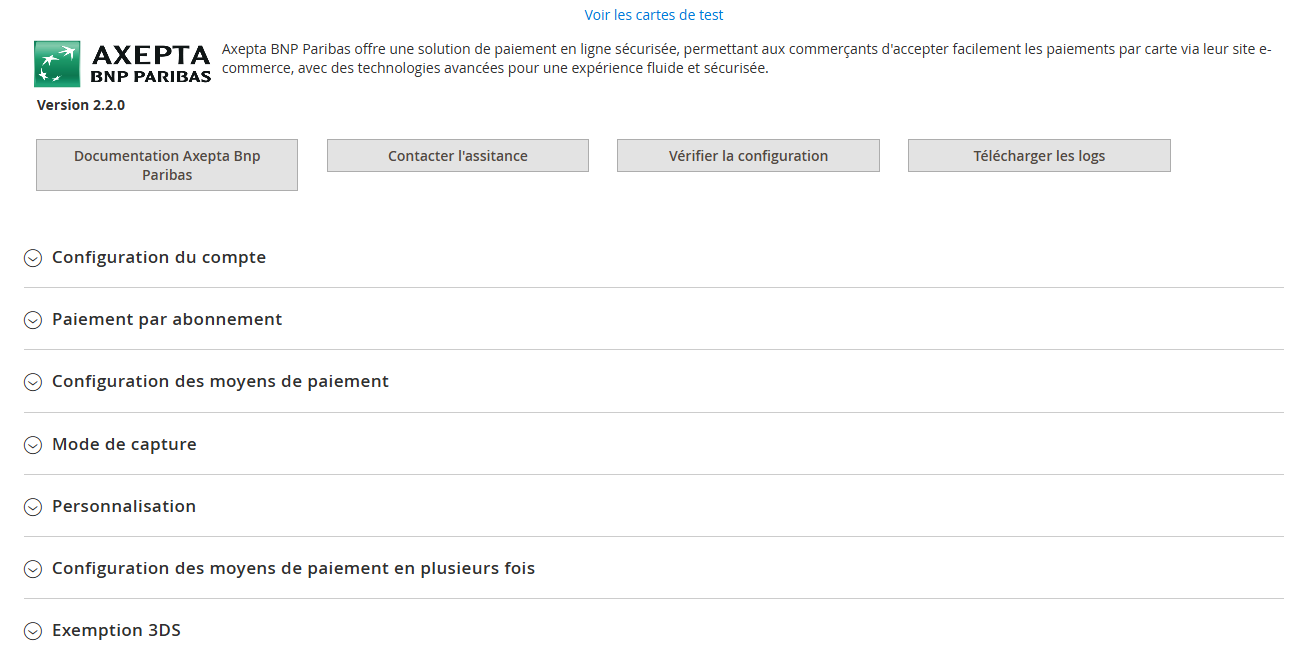
- Axepta BNP Paribas documentation : Links to our official module documentation.
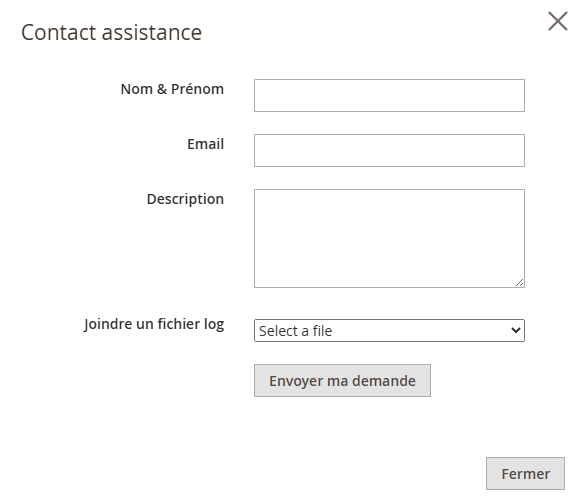
- Contact support : Opens an e‑mail form to reach our support team. The e‑mail automatically includes the server, CMS and module versions.
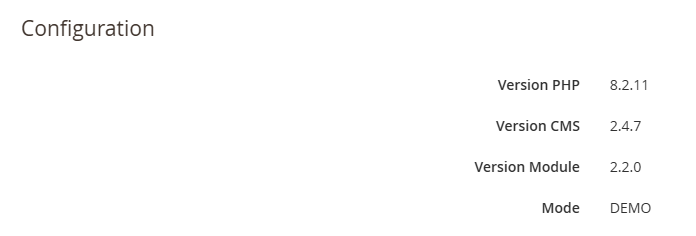
- Verify my configuration: opens a window that displays and checks whether the server configuration is compatible with the installed module.
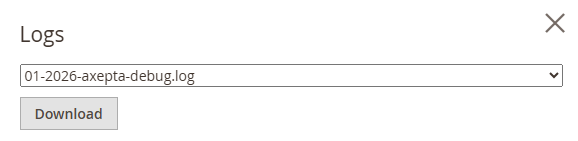
- Log download: This feature allows you to download logs in the format of your choice.
Account Settings
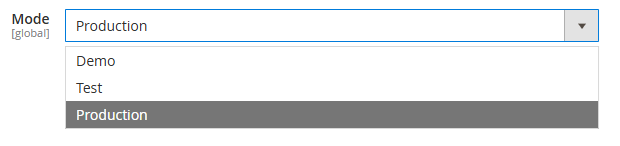
Demo mode
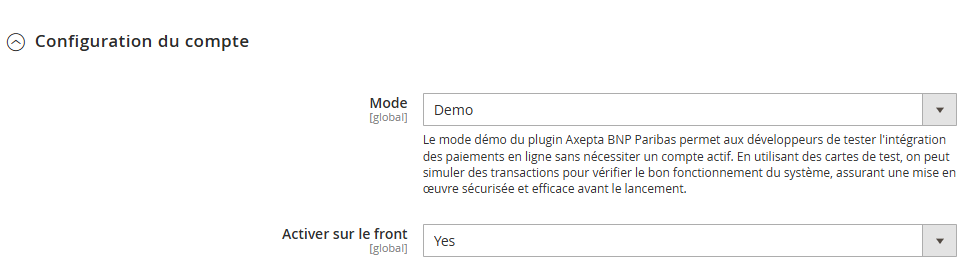
Demo mode (''DEMO'') lets you test the module and its features without having an Axepta BNP Paribas account.
Test mode
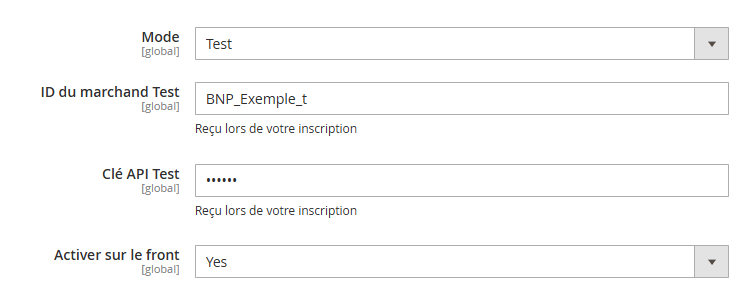
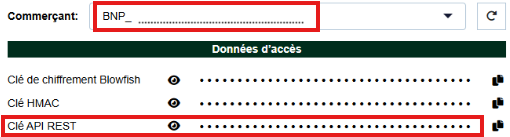
The test MID is available in the "View API credentials" section of your Axepta BNP Paribas Merchant portal.
The test REST API key is also available in the "View API credentials" section of your Axepta BNP Paribas Merchant portal.
This allows you to configure your dedicated test MID, which can be identified by the format BNP_MID_t that you can retrieve from your BNP Paribas merchant portal.
Accès aux identifiants de l’API & HMAC - Documentation Axepta BNP Paribas - Axepta
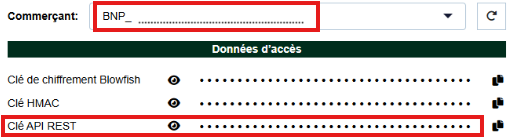
Production mode
- The production MID is available in the ''View API credentials'' section of your Axepta BNP Paribas merchant portal.
- The REST API key is also available in the ''View API credentials'' section of your Axepta BNP Paribas merchant portal.
Allows you to configure your dedicated production MID, which is recognizable by the format (BNP_MID_XXX) available from your BNP Paribas merchant portal.
Accès aux identifiants de l’API & HMAC - Documentation Axepta BNP Paribas - Axepta
Front‑end activation:
Activating this feature is required to display the payment methods on the checkout page.
| Warning |
|---|
Theese items are saved only when the user clicks the |
Payment Method Configuration
The payment‑configuration tab lets you set up multiple module features.
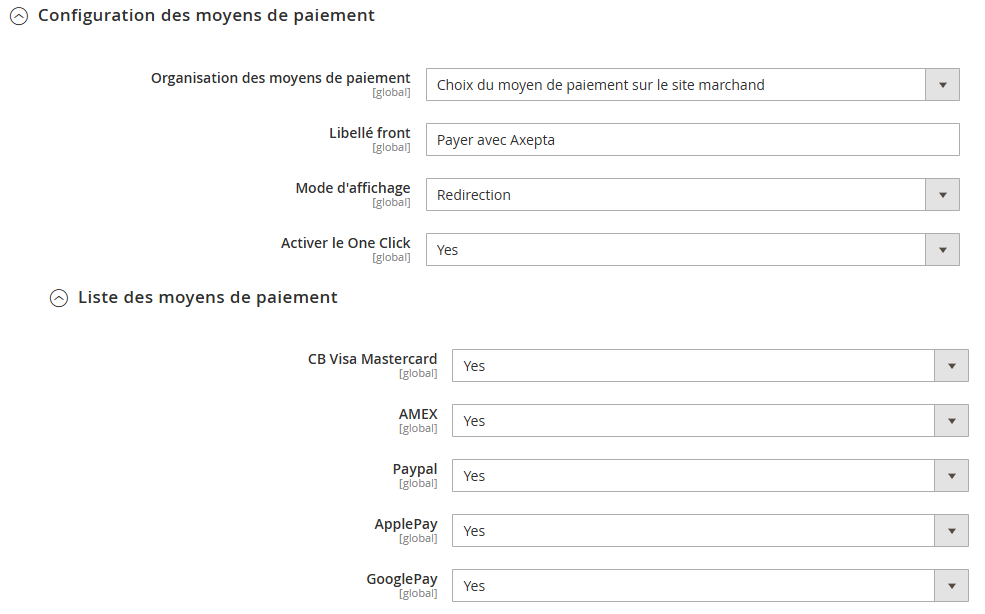
Payment Methods Organization
This section defines how payment options are displayed on the checkout page.
Two options are available:
- Payment method selection on the BNP Paribas page
This corresponds to the payment form hosted by BNP Paribas, where you will see the payment methods that are available for your merchant account.

- Merchant’s site payment methods selection panel
Front label: customizable text that appears on the payment page.

Display mode

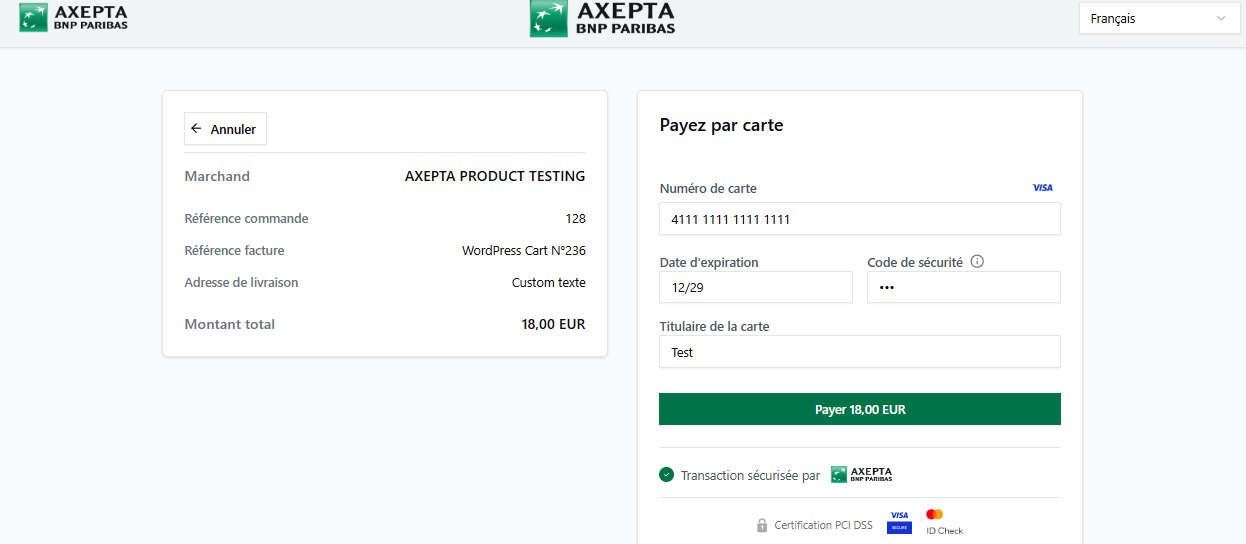
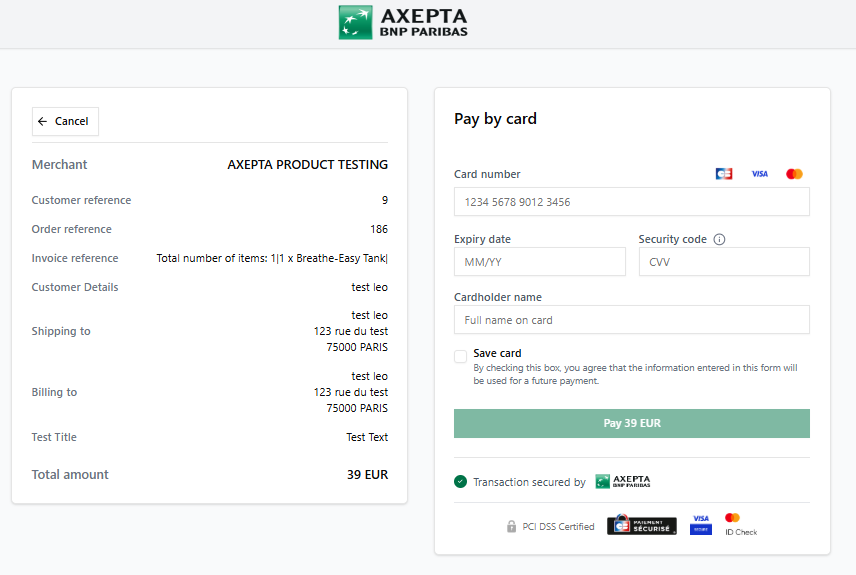
Redirection mode: redirects the customer to the secure payment form provided by Axepta BNP Paribas.
iFrame mode: embeds the payment page directly into your site.
Capture mode
Capture Method
This option allows you to choose the payment capture method.
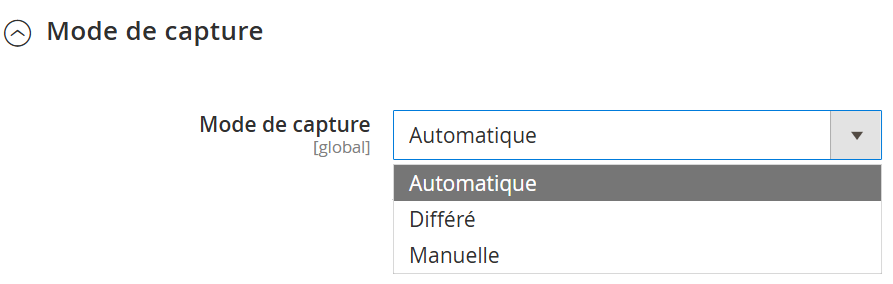
Automatic capture activation:
Automatic Capture (J)
=>: The capture
will beis performed automatically
processedat midnight.
Deferred capture activation:
Deferred Capture (
JJ +
xx)
=>– You can
choose thedefine a delay before
thecapture (delay expressed in hours
: integer between 1 and 696. Example for 2 days: enter 48)Manual Capture => Manual capture is performed manually by the merchant through a configuration in the back-office.
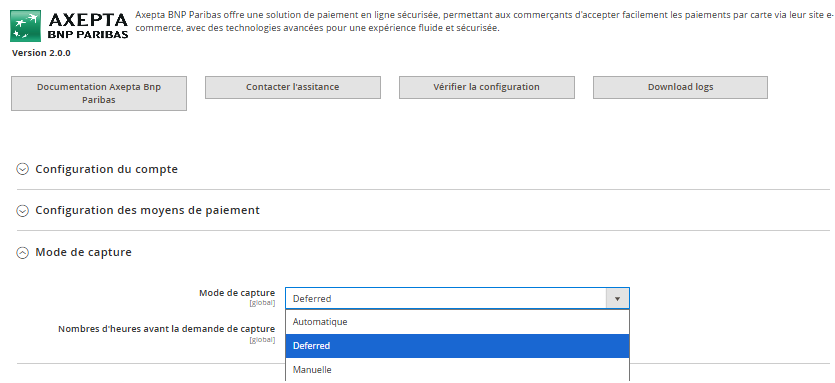
When automatic capture is selected, the payment flows are automatically configured for capture to be performed at midnight.

No action is required by the merchant to perform the capture. It is confirmed by a return flow (IPN).
, integer between 1 and 696).
Example:
for 2 days, enter 48.

Deferred captures appear as "Capture timed" on "Sales" > "Orders", followed by the capture date and time.
Manual capture activation:
Captured manually by the merchant via back‑office configuration.
Activation of Manual Capture:In the merchant configuration menu, scroll down to the "Capture" field and select "Manual Capture."

| Warning |
|---|
Warning : Without action from the merchant, the transaction will not be settled. Capturing a transaction beyond the 7th day results in the loss of the 3D Secure guarantee. Beyond the 29th day, the authorization granted by the issuer will no longer be valid. It is therefore preferable to capture transactions before these deadlines. |
Manually Capture the Transaction :
To manually capture a payment, you need to must invoice the order. Go
For that go to the page of an order that needs to be invoiced , then and click on "Invoice"."


Next, select Select "Capture online" to manually capture the order upon when issuing the invoice issuance.
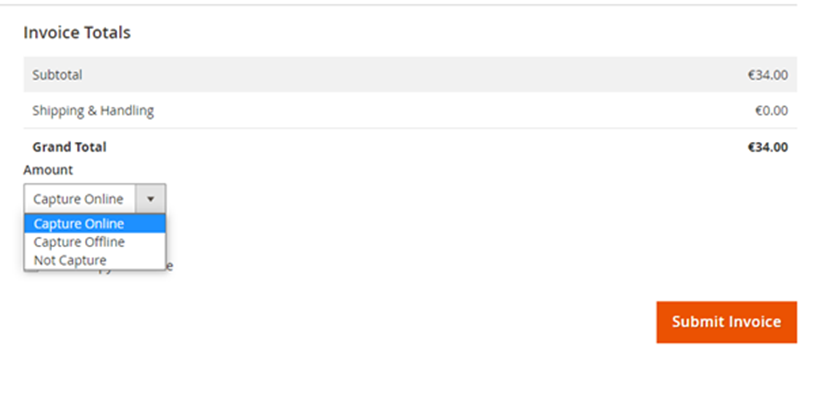
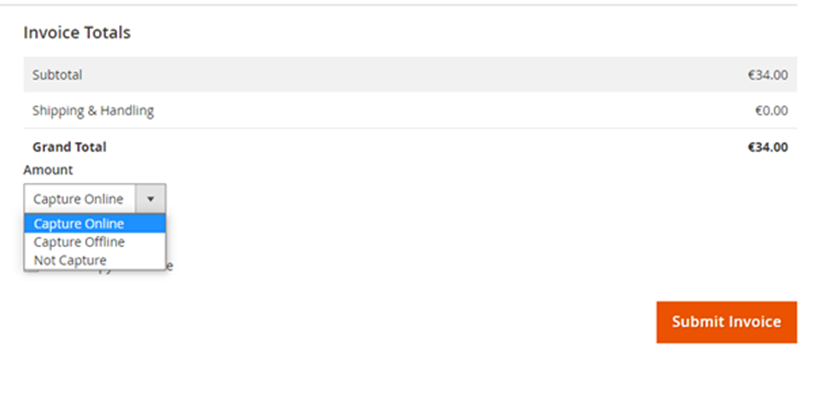
Capture onlineOnline capture: The online capture performed from the Magento 2 back-office will connect Magento 2 back‑office connects to the Axepta back-officeback‑office. The transaction status is automatically synchronized synchronised between the two back-officessystems.
Capture offlineOffline capture: The offline capture will simply generate generates the invoice and mark marks the order as being processed "processing", indicating that the amount has been received manually.
| Tip |
|---|
Partial |
capture: It is possible to capture only a part of the order |
when it contains multiple items by |
adjusting the quantities in the column. In this case, the shipping fees |
are always |
captured on the first invoice. For subsequent |
payment captures of the same order, the shipping fees will not be |
accounted for. |
| Warning |
|---|
Warning: If the merchant does not take any action, the transaction will not be transferred to the bank. Capturing a transaction after the 7th day results in the loss of the guarantee associated with 3‑D Secure. After the 29th day, the authorization granted by the issuer will no longer be valid. Therefore, it is advisable to capture transactions before these deadlines. |
| Info |
|---|
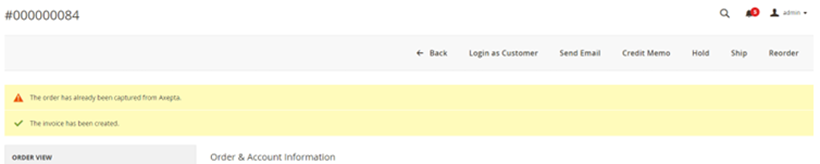
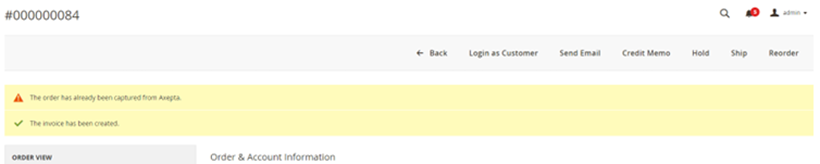
If you try |
to invoice an order whose payment has already been captured, an alert |
message " |
Order has already been captured" |
will appear at the top of the page |
. |
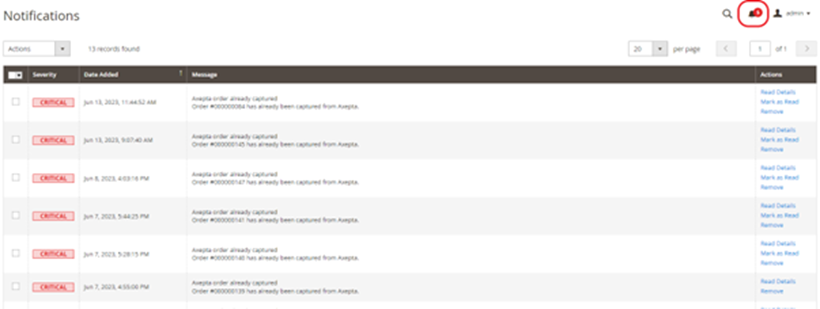
Specifics notifications are also sent to you when a order’s |
capture has already been performed, |
or when a payment has not been captured for more |
than 7 days. |
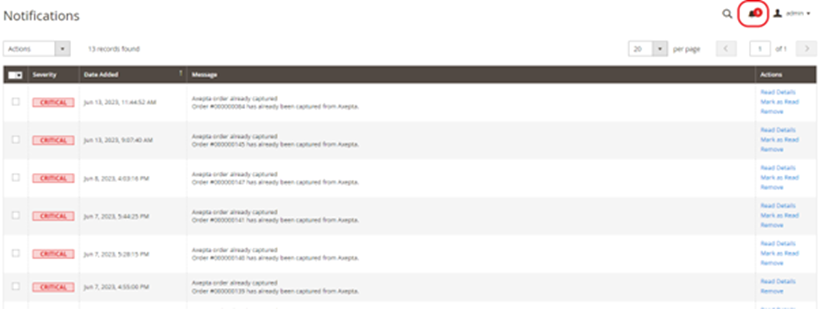
These notifications are visible by clicking on the icon in the top right corner of the screen:
Paiement par Abonnement
The Notifications tab is visible at the top‑right icon of your screen, and the displayed information is refreshed daily.
|
3DS Exemption
Corresponds to the configuration of 3DS (payment authentication method) and its exemption based on the total amount of the customer’s cart.

| Warning |
|---|
Activating the 3‑D Secure exemption request means you accept responsibility in the event of fraud or dispute on the affected transactions. This feature must be used with caution. You can find the various liabilities in case of non‑payment on our dedicated page: Liability Shift and 3D-Secure Matrices - Documentation Axepta BNP Paribas - Axepta |
One click activation
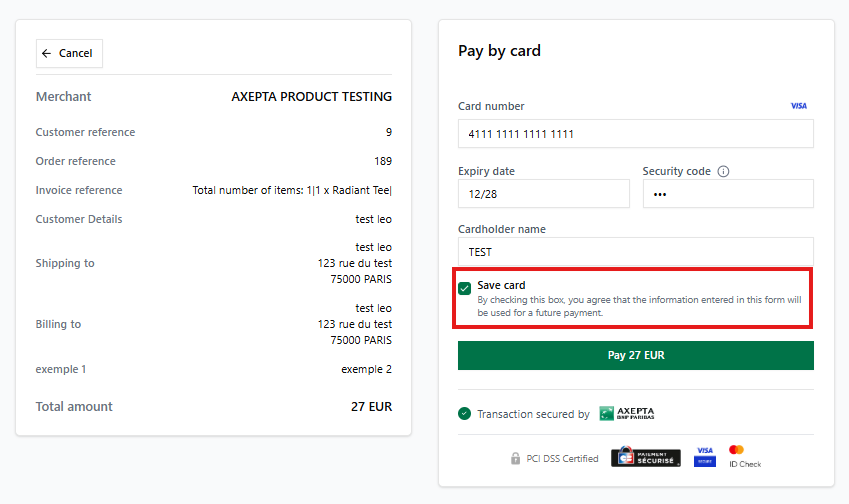
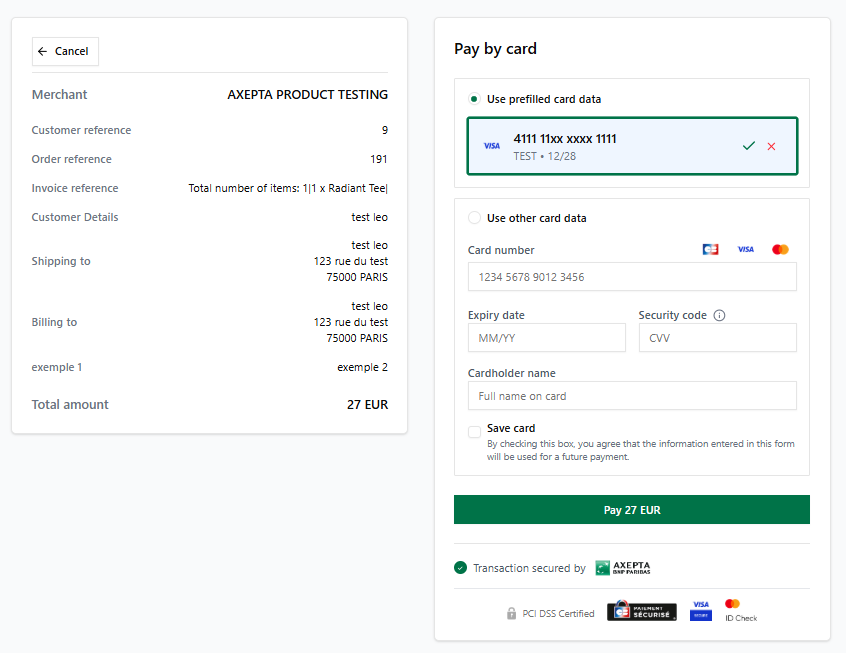
Activating this feature allows logged‑in customers to save their card for future payments.
To do so, the customer must first tick the “save card” checkbox on the payment page.

Payment Methods
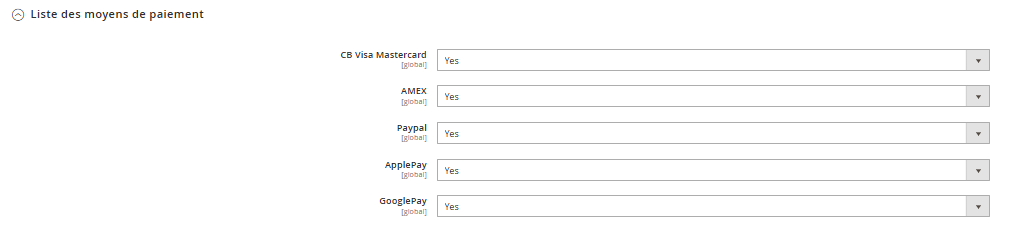
You can enable or disable (‘yes’/‘No’) the subscribed payment methods. To do this, go to the "list of payment methods" section available from the "Payment Methods Configuration" tab.
Customization
Allows configuring the fields sent in the payment form during redirection.
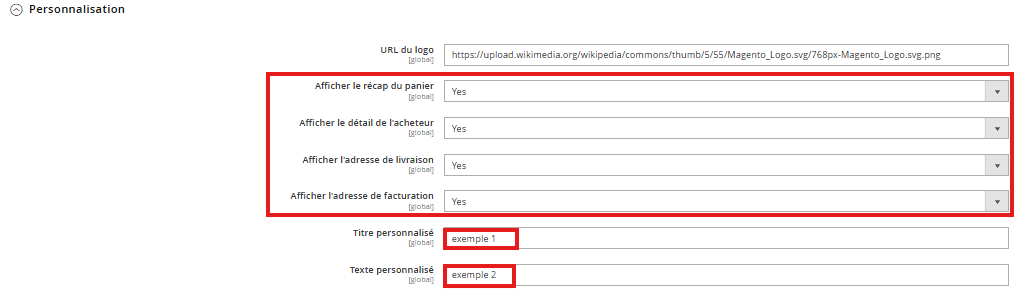
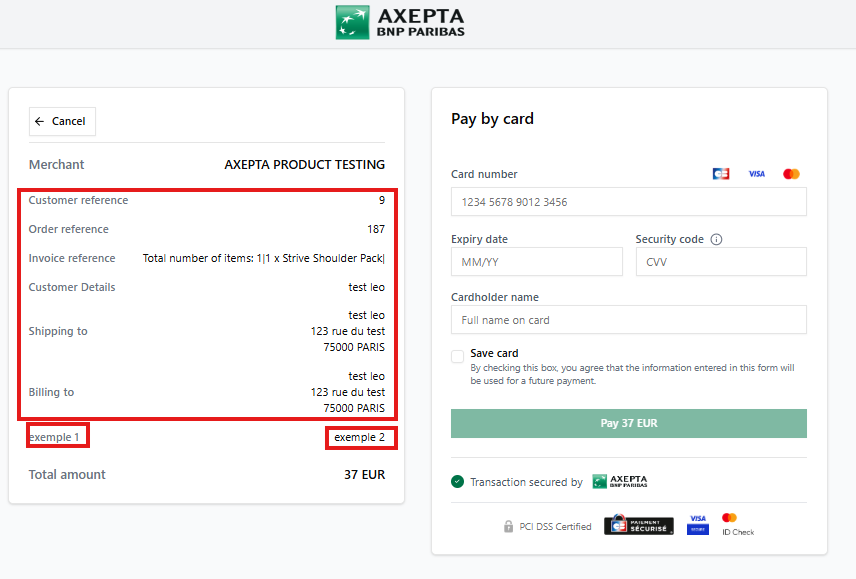
Subscription feature configuration
Allows you to enable or disable Allows you to activate or deactivate the subscription payment method on the store. When this option is enabled, customers will be able to choose can select this payment method mode if their cart contains a product that is set up configured as a subscription.

Payment Method Customization
Allows the configuration of the fields sent in the payment form during redirection.
Création of subscription products

Creating a subscription product page
In "Catalog" > "Products", open the product you want to sell In Magento > >Product Catalog, open the product sale as a subscription (or create a new one).
In the Subscription settings option by Axepta BNP Paribas tab, you can activate a subscription on the product by selecting Yes.
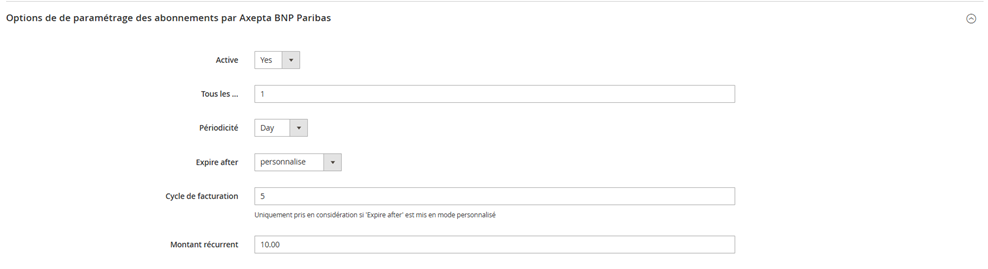
The "Active" field lets you enable or disable the subscription product record ("yes" / "no").
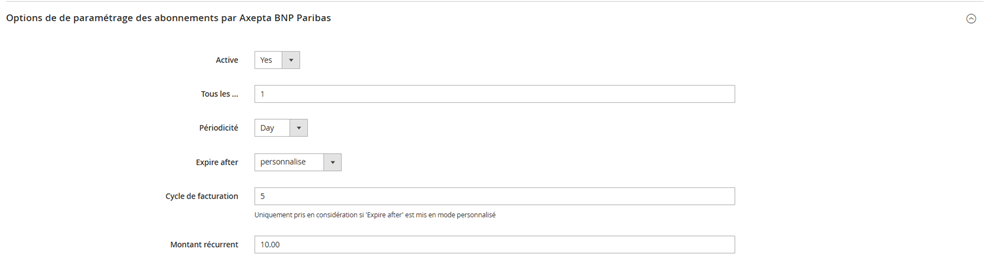
Billing frequency
- All: specifies the numeric value for
- the interval (e.g.
- , 1,
- 2,
- 3 …).
- Frequency:sets the frequency unit in Days, Weeks, Months or Years.
Example:
1+Month →
billedBilling occurs every month
15+
Daysdays →
billedBilling occurs every
15 days15 daysExpired
- Expires after
- Number of occurrences = : number of installement that determine the end of the subscription, more specifically the number of times the customer will be chargedbilled.
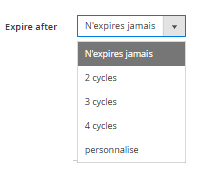
Example:
3 → 3 payments in total (depending on the frequency chosen)
3 → 3 total payments (according to the chosen periodicity).Amount
- Recurring amount: The amount billed charged for each billing period
- .
| Tip |
|---|
Save & update the product. |
Dashboard
Two columns have been added to the order table: one to indicate the type of capture used for the order (automatic, manual, or deferred), and another to indicate whether the payment has been captured from the Magento back-office. A capture performed on the Axepta back-office does not update this order table, but an alert is provided if an attempt is made on an already captured transaction (see alert notifications).
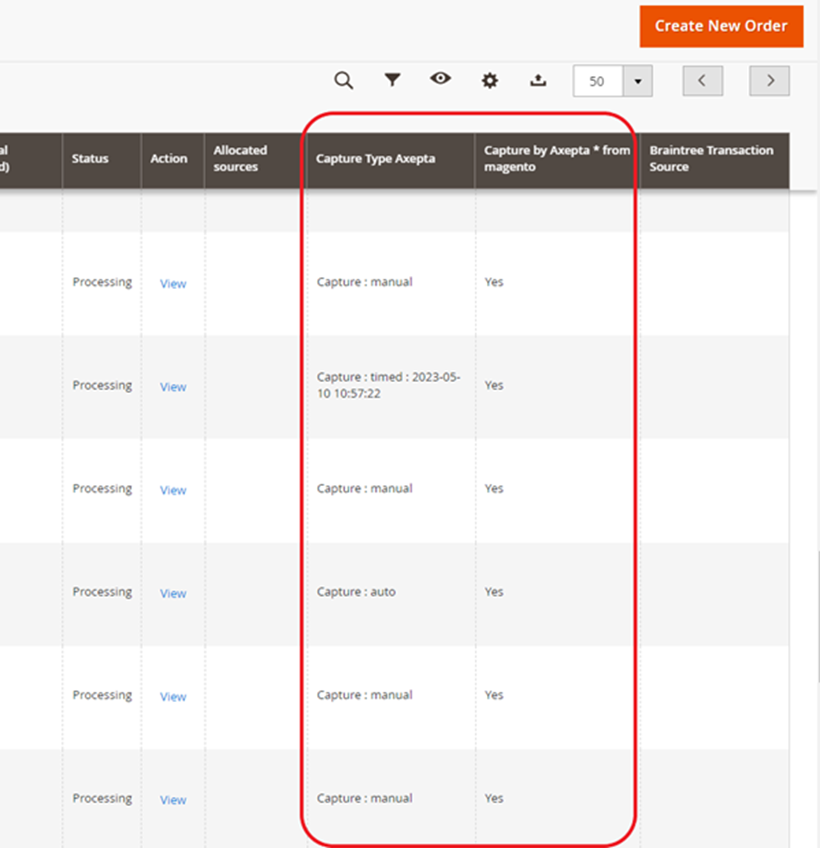
Deferred captures are indicated as "Capture: timed" followed by the date and time when the capture was performed.
Manage ongoing subscriptions
In the “Axepta BNP Paribas” tab → “Subscription List Management”, you can view the list of subscriptions.

You’ll find a list of all subscriptions with the following informations:
| Subscription ID | Unique identifier of the subscription. |
| Order ID | Identifier of the related order. |
| Customer | Customer name / email. |
| Subscription Product | Name of the subscribed product. |
| Transaction ID | Identifier of the payment transaction. |
| Periodicity | Billing frequency. |
| Start Date | Date when the subscription began. |
| Next Execution Date | Date of the upcoming billing. |
| Amount | Amount to be charged each period. |
| Subscription Status | Current status (Active, Paused, Canceled, etc.). |
Stop a subscription
You can change the subscription status to activate it or stop it.
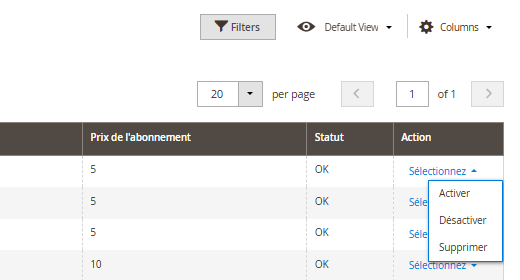
Action: Deactivate a subscription
Effect:
- The subscription is set to “stopped” (no further automatic renewals).
- The customer will no longer be billed from that moment onward. You can reactivate it at any time by clicking “Activate.”
Action: Delete a subscription
Effect:
- Permanently removes all future billing for the subscription.
- The customer will no longer be billed from that moment.
Installment configuration
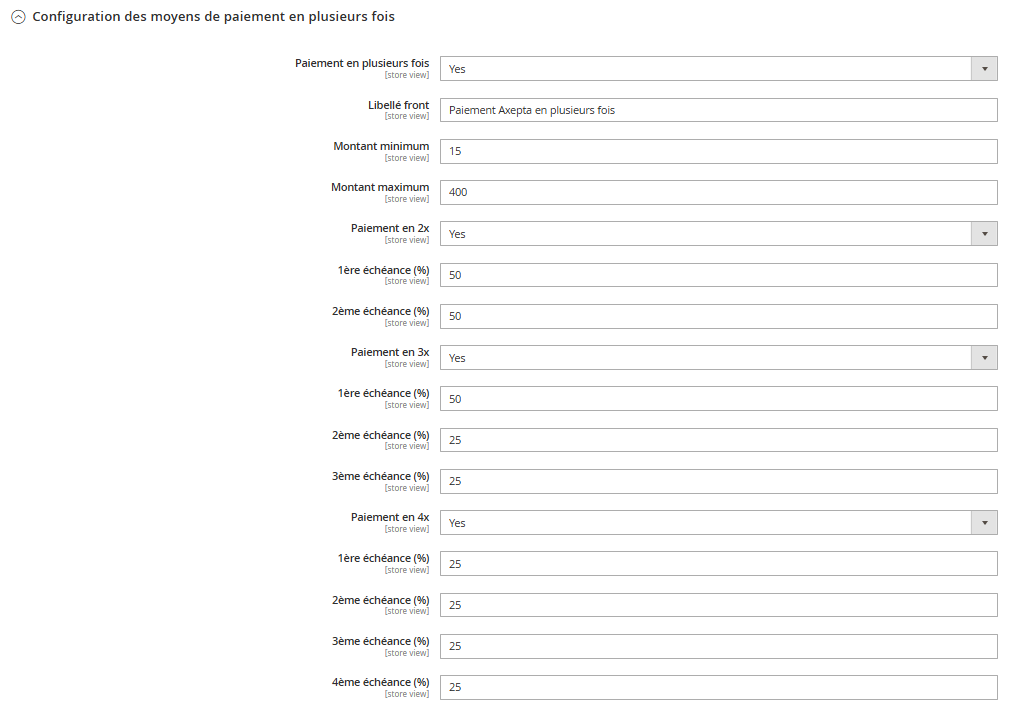
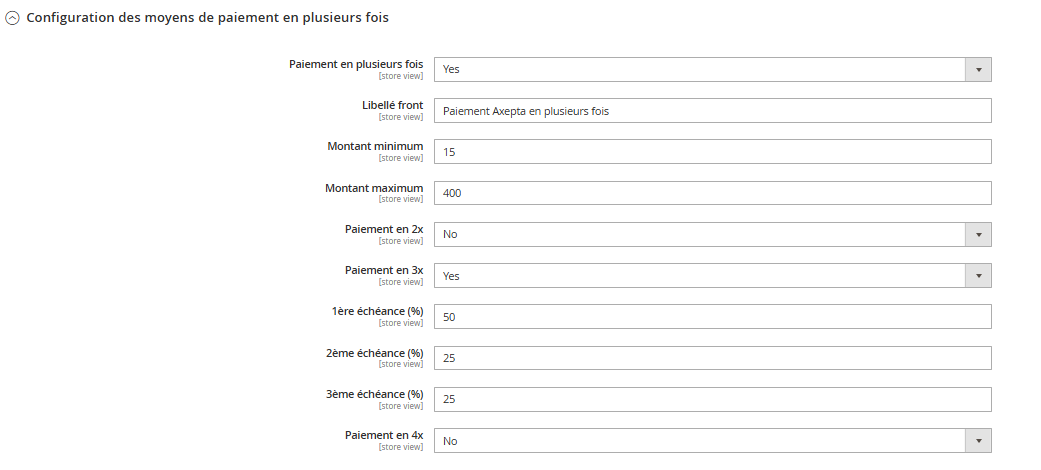
- Payment label: Customizable text that appears on the payment page.
- Minimum amount: The minimum cart total for which the multi‑installment option will be offered.
- Maximum amount: The maximum cart total for which the multi‑installment option will be offered.
- Installments (2X – 3X – 4X): Activate the desired number of installments (choose "yes"/"no").
| Warning |
|---|
Make sure to disable any installment options that you do not want. |
Number of installments: indicates the percentage distribution of the total cart amount across each installment.
Example of a 3‑installment payment for a total amount of €100:
- 1st installment 50 % → €50
- 2nd installment 25 % → €25
- 3rd installment 25 % → €25
| Warning |
|---|
The split is configured as a percentage, not as a fixed amount |
Refund / Cancellation
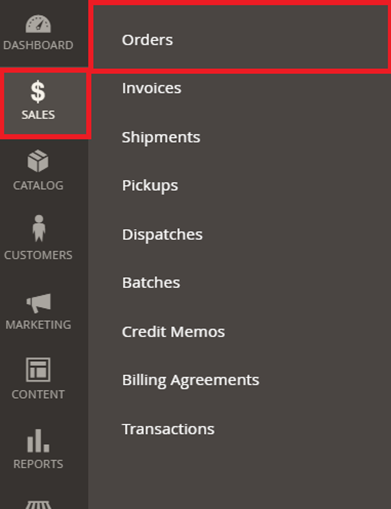
To process a refund or a cancellation, go to the "Sales" > "Orders" section to view the details of the order.
Select the desired
Refund / Cancellation
To perform a refund or cancellation (where possible), go to the Sales > Orders tab to view the details of an order.
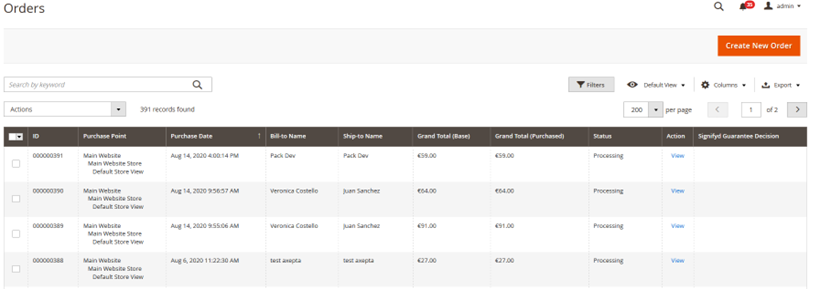
1) Select an order from the list, then click "View" to see display the order details.
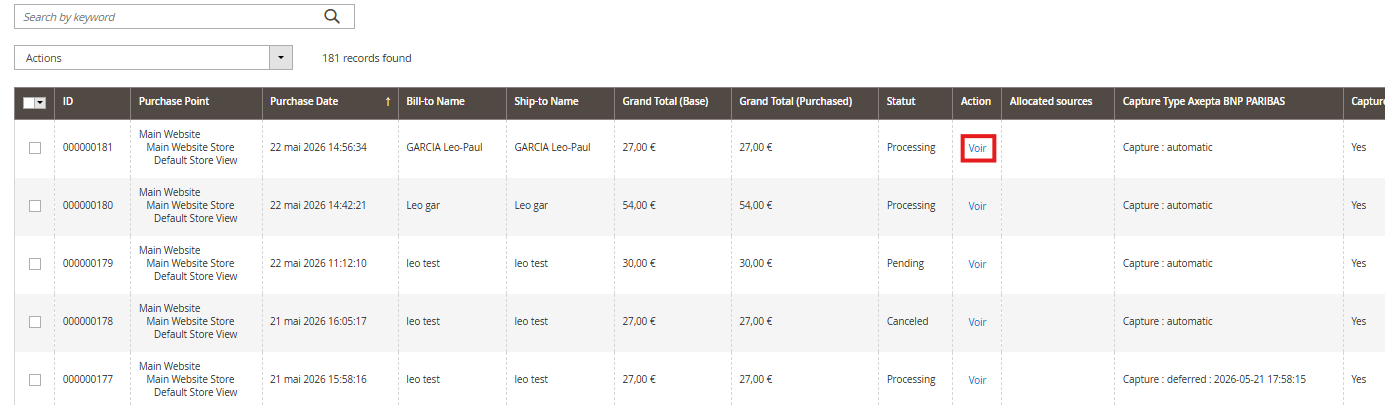
2) Go to "Invoices" and , then select the invoice that was automatically created for the order.


3) Select "Credit Memo." You you will then have see all the information regarding related to the order, and at the bottom of the page, the fields to fill out in case of a refund

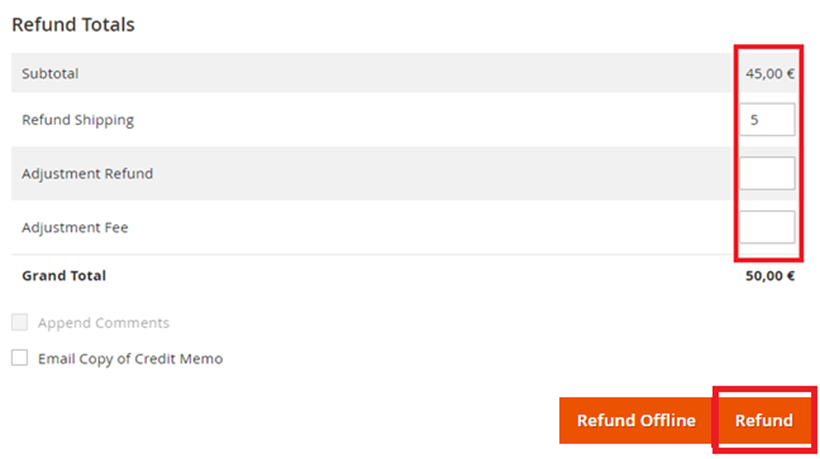
further down you will find the fields that need to be filled out to process a refund.
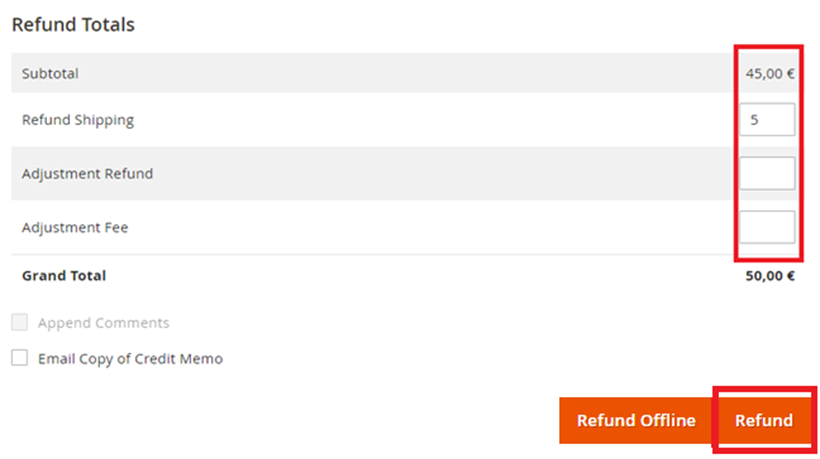
Refund
Full refundFull Refund
For a full refund, the "subtotal" amount (subtotal) is displayed, and you just need to leave the predefined values blank and validate (Refund Offline)is pre‑filled; you simply need to click on  .
.
Partial Refund
For a partial refund, you need to adjust the field values of the fields. The "Adjustment Fee" field field allows you to modify the amount to that will be deducted from the refund.
Example: You want to refund €30 to a customer because of a delivery delay:
For example: Subtotal = 45, Adjustment
Ajustement Fee = 15, by clicking on “Update Totals” you get 30 as a refund for the buyer.
Click “Update Total” to trigger the refund of the difference.
Cancellation
Cancellation
If the transaction has not yet been settled ( status is "processing" when clicking on the orderID), , it means that the funds have not yet been transferred to the bank, so a cancellation is therefore still possible.
To check if determine whether the transaction has been canceled cancelled or fully refunded, go to "Axepta" > > "Transaction" to and view the list of transactions:
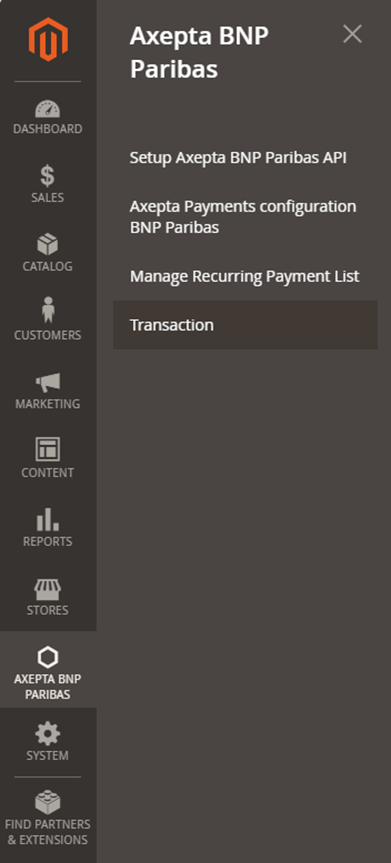
In the "Type" column, it you will be indicated as see "Cancellation" for a cancellation cancelled transaction or"refundRefund" for a refund.

Subscription table
In the Axepta BNP Paribas tab > Subscription List Management: find the list of subscriptions.

- Subscription ID
- Order ID
- The customer
- The Subscription Product
- Transaction ID
- Periodicity
- The start date
- The date of the next execution.
- The amount
- The status of the subscription
You have the option to change the status of the subscription to turn it on or off.
Deactivate a subscription
Action: Deactivate a subscription
Effect:
- The subscription goes to stop (there will no longer be automatic renewal).
- The customer will no longer be charged from that point forward.
refunded transaction.
Logs
Logs are always enabled. You can download them using the button at the top of the configuration screen.
Front Office
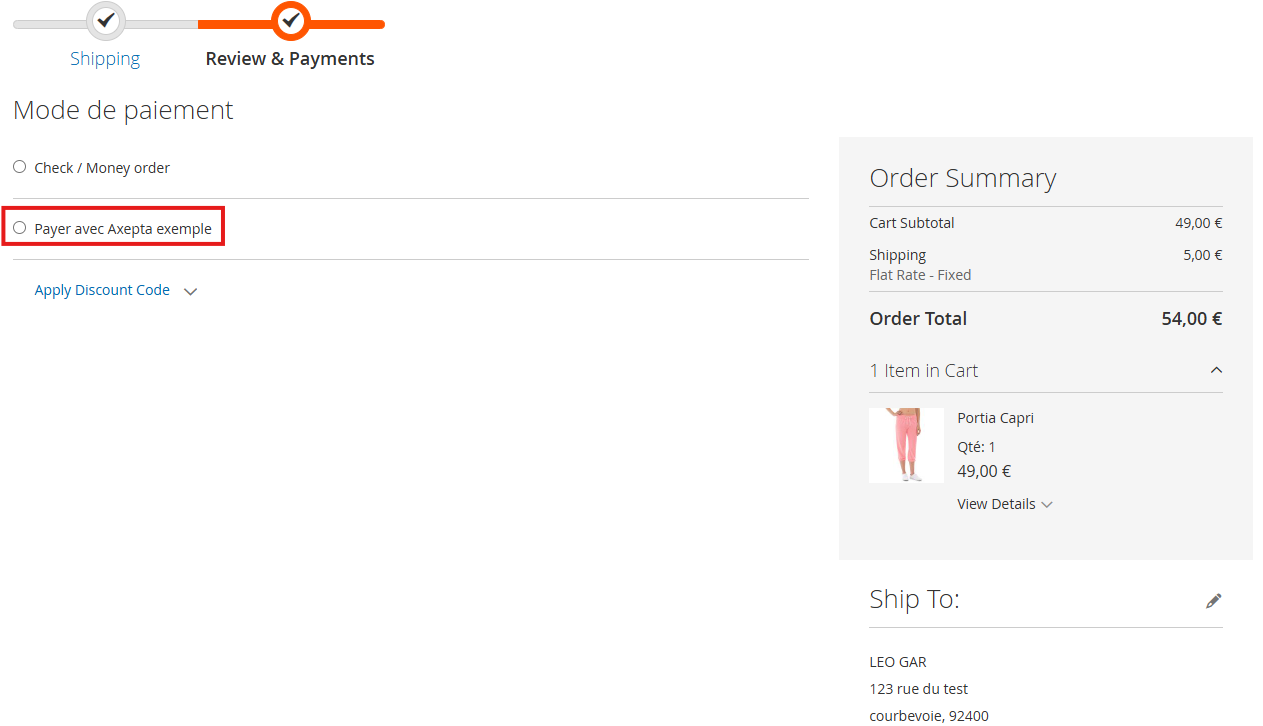
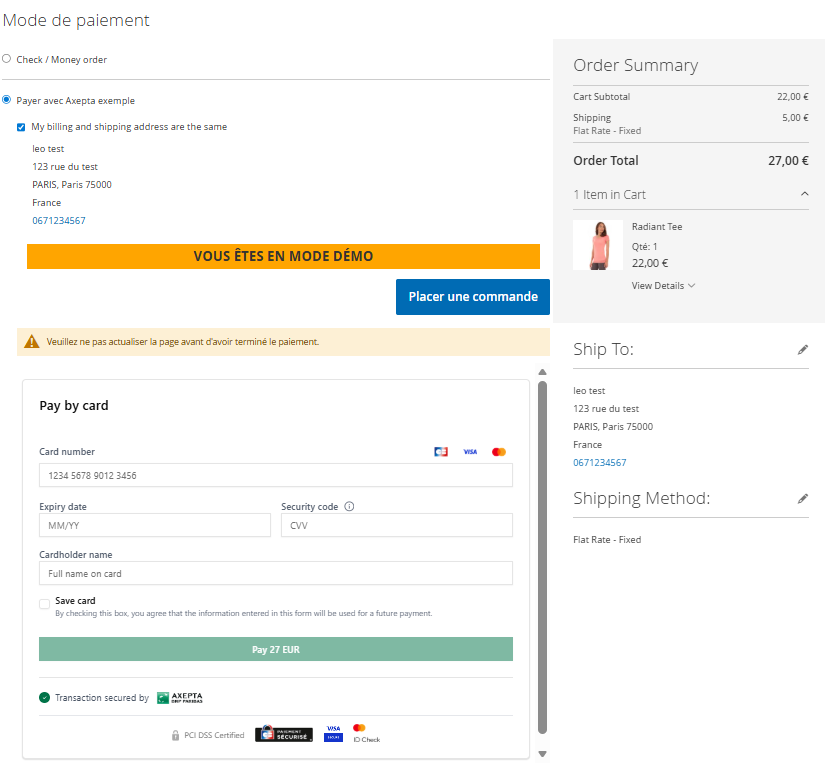
Checkout Page Display
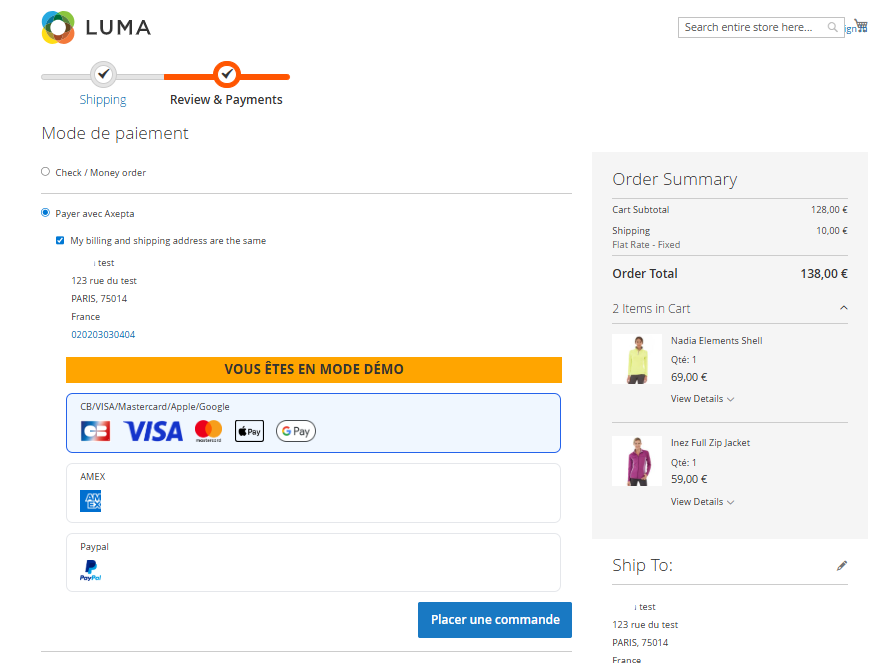
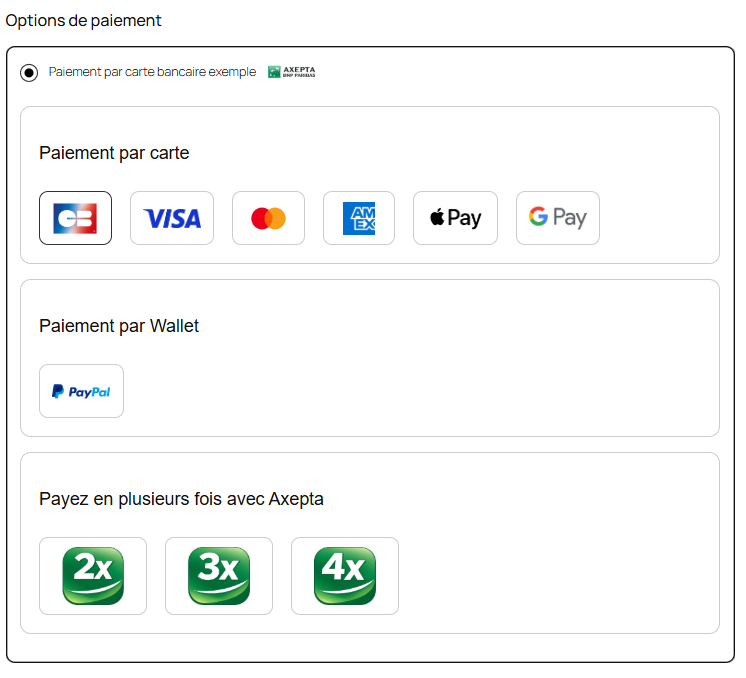
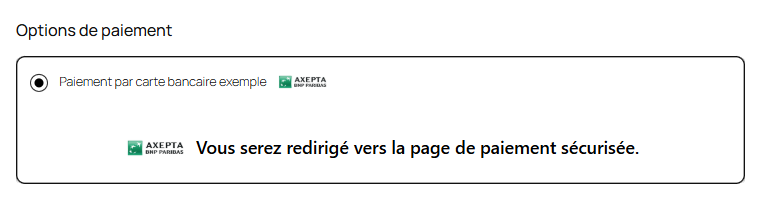
Payment methods are displayed in a designated frame per block.
Additional payment methods are accessible by selecting "More payment options," which only appears if applicable.
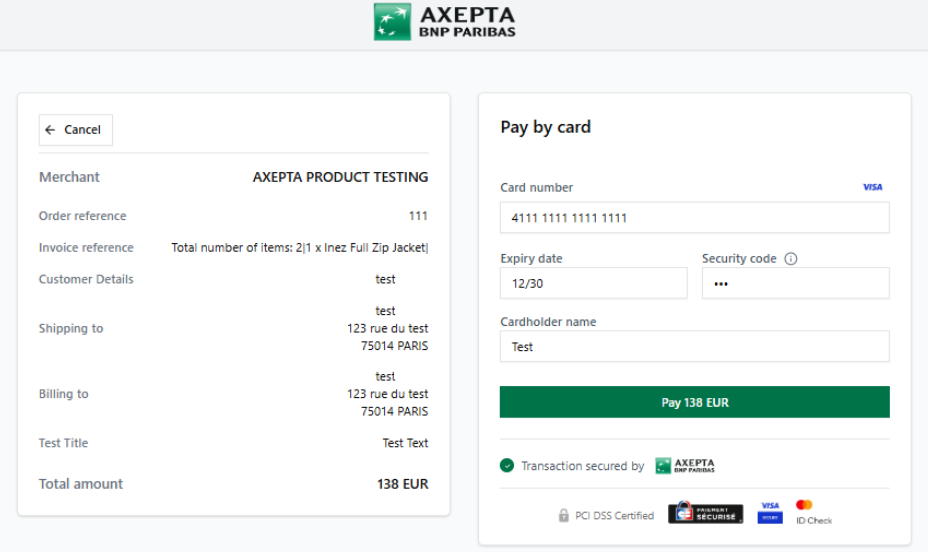
Checkout Page Display in Redirection Mode
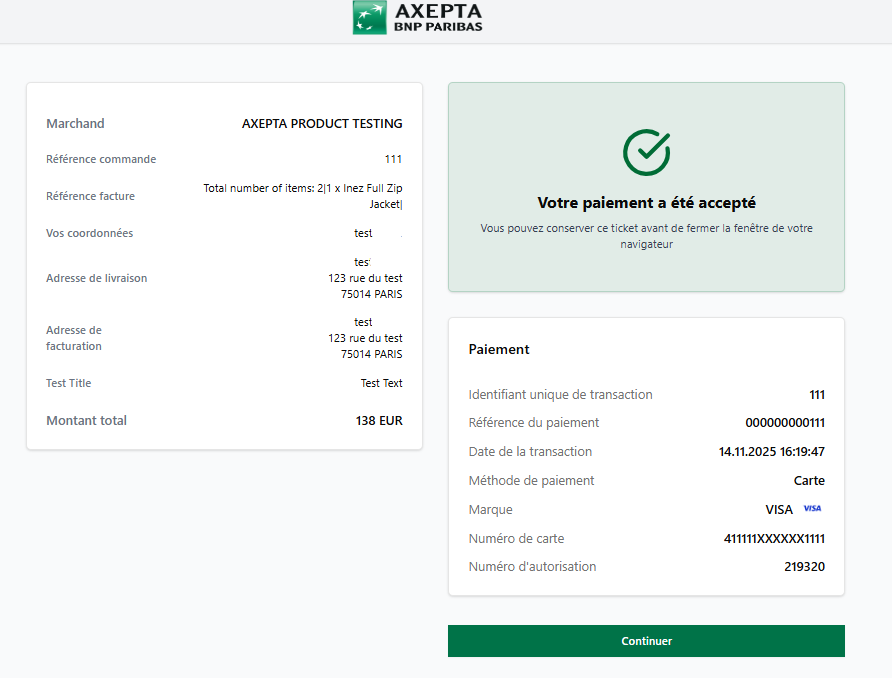
Confirmation Page display
| Info |
|---|
Notice : In demo mode, an orange banner appears with the label "DEMO". |
Customer Account
Orders and subscriptions display an Axepta block in the customer area.