
Summary
| Table of Contents |
|---|
Introduction
Welcome to the documentation for the AXEPTA BNP Paribas module for Prestashop.
This free module allows you to easily integrate our online payment solution into your e-commerce store.
This documentation guides you step by step through the installation, configuration, and use of the module to ensure a simple, reliable, and tailored integration to your needs.
This module is freely available at the following address: https://github.com/AxeptaBNPParibas
Our goal is to support you so that the implementation of our AXEPTA BNP Paribas solution is quick, intuitive, and fully functional in your Prestashop environment.
Plugin Setup
The module installation process is as follows:
Download the module zip file and then unzip it
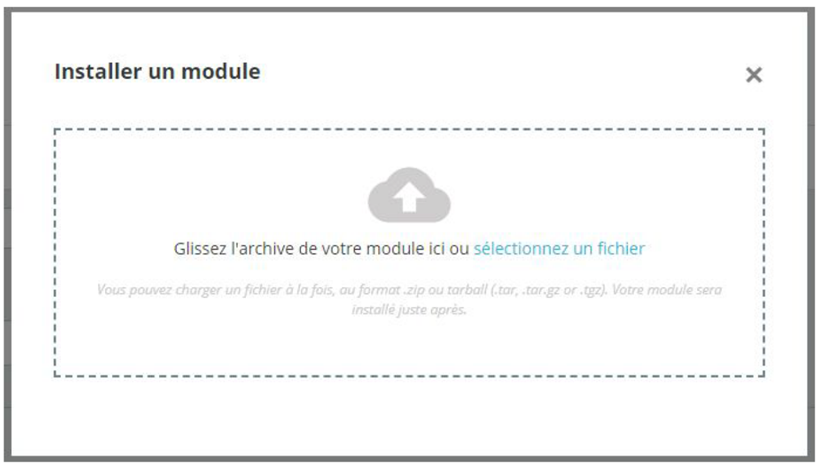
Go to the "Modules" tab in your store's backoffice (on the left side of the screen) > "Module Catalog", click on "Install a module" and then upload the module zip file (by dragging it to the appropriate area)
- In the "Module Manager" tab of the same menu, search for "Axepta" and locate the Axepta BNP Paribas plugin

- Click the "Configure" button to begin the setup.
This configuration page allows you to set up the store's generic parameters, especially if it is a "multi-store".
In a multi-store setup, make sure to select the specific store you need to configure.
Update Plugin
Download the new zip archive
Put your store in maintenance mode
Go to the "Modules" tab in your store's backoffice (left side of the screen) > "Module Catalog", click on "Install a module" and then upload the zip file as you would for a new installation
Remember to activate the module which may have been deactivated
| Info |
|---|
Quote Notice : The library is automatically updated with the Prestashop module update |
Back Office
After updating, remember to reconfigure the Axepta Online settings in each module tab. You will need to re-enter your MID and activation key to put your module back into production.
Plugin Global Settings
The various tool's features are available in the left-hand menu of the page. To begin configuring the module, click on "AXEPTA".
The configuration page displays several buttons at the top:
Contact Support: Opens a form to send an email to support. The server, CMS, and module versions are automatically included in the email.
Documentation: When clicked, the user is redirected to the official documentation hosted by BNP Paribas.
Check Configuration: Allows displaying and verifying in a window that the server configuration is compatible with the installed module.
Download LOG File: Allows downloading the log file related to the module's usage.

Account Settings
o activate online payments, you need to configure both the production mode and the test mode:
Demo Mode ("DEMO") Allows you to test the module without setting up a MID (Merchant ID, provided by BNP Paribas during registration)
Production Mode Requires you to enter the MID and the private key
Test Mode Requires you to enter only the private key. The production MID is used with the parameter (_t) added to it
Select the mode you wish to configure to display the appropriate fields
To use the module, you need to fill in the following parameters in the form:
Production Mode:
- MID (provided by BNP Paribas)
- Private Key (provided by BNP Paribas)
- This is never displayed for security reasons
Test Mode: The production MID is used by default with the addition of a character string
- Private Key (provided by BNP Paribas)
- This is never displayed for security reasons
- Private Key (provided by BNP Paribas)
Demo Mode This mode displays a banner on the site to inform that this mode is active A specific MID is pre-configured
Front-end Activation Required to display the module on the checkout page regardless of the activated mode
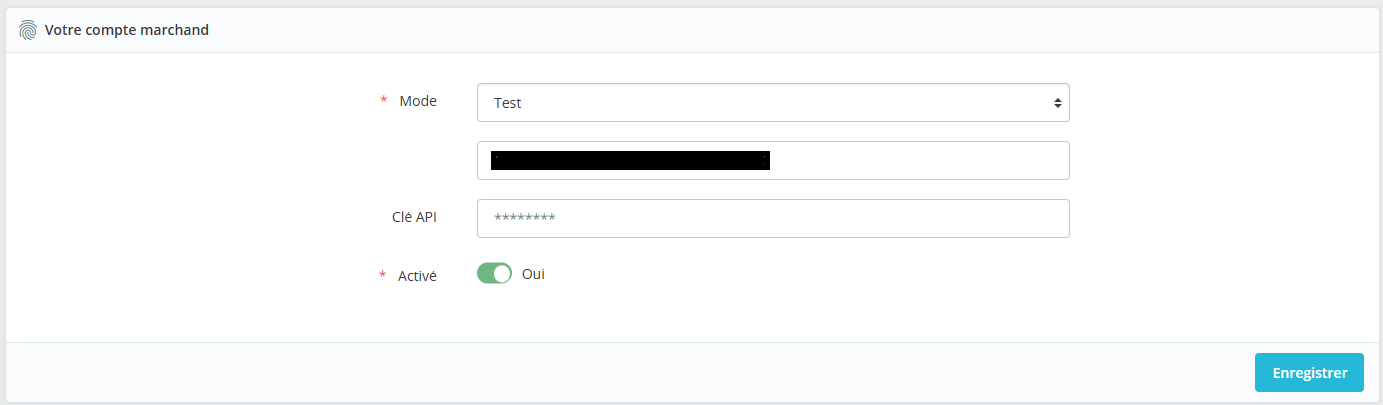
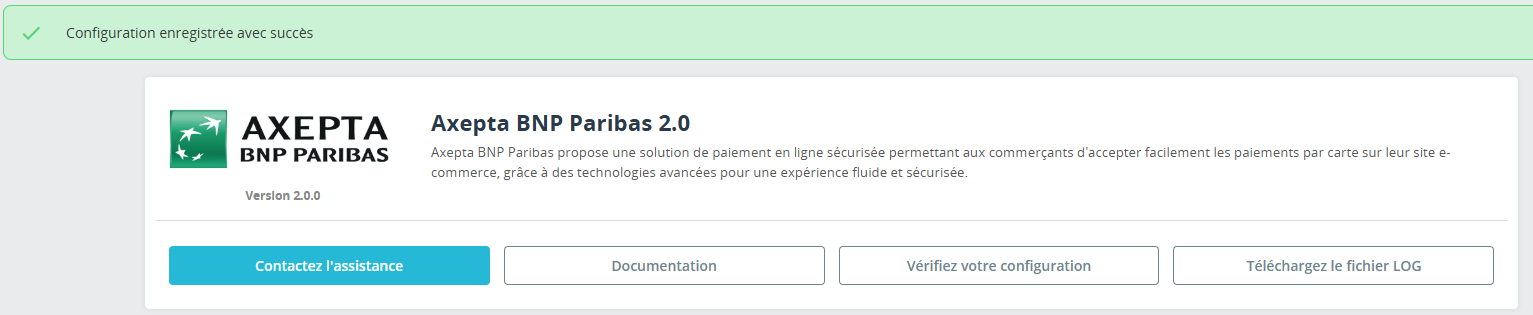
The elements are only saved when the user clicks the save button. A green banner appears if it is successfully saved.
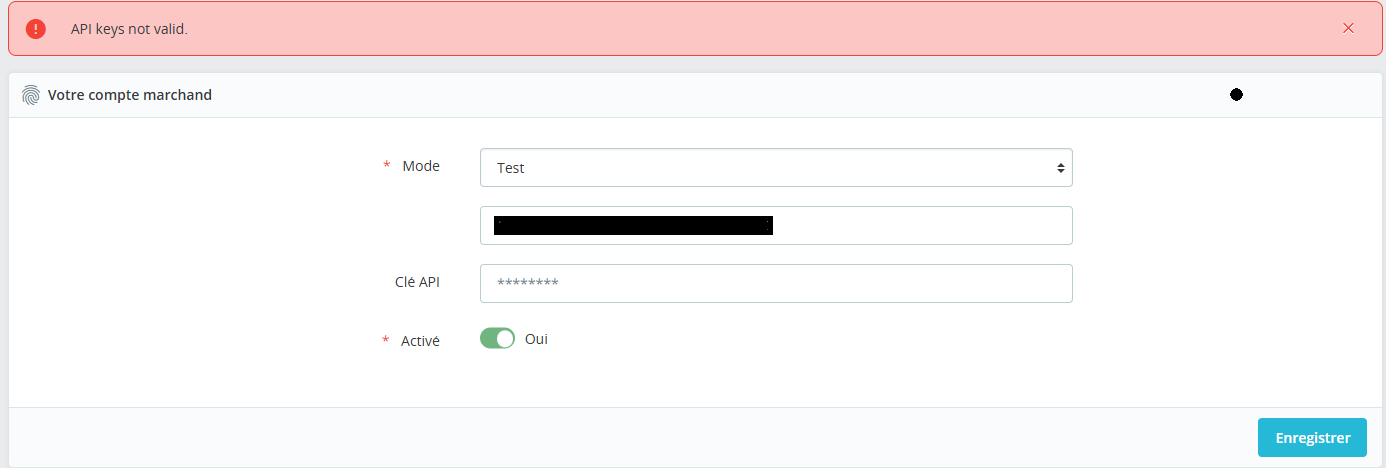
In the opposite case, the error message appears in red
Payment Method Configuration
du paiementVous pouvez maintenant choisir les différents moyens de paiement à activer sur votre boutique.
Un bloc “Configuration du paiement” permet de paramétrer l’affichage des moyens de paiement sur la page de checkout ainsi
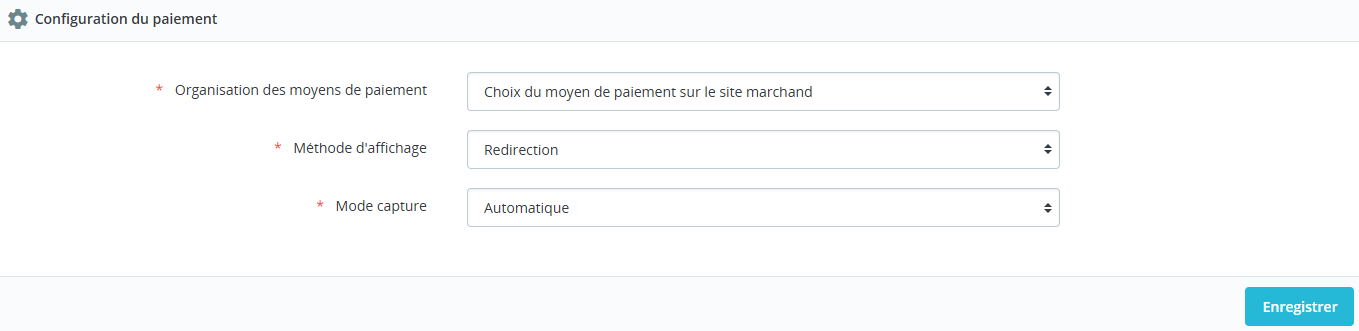
Tous les moyens de paiement intégrés à la librairie sont présentés ici. Il appartient au marchand de sélectionner les moyens de paiement qui l’a souscrit.
La clé d’activation ne permet plus de définir les moyens de paiement.
- Organisation des paiements. Il s’agit de l’affichage des paiements qui a été décidé sur le checkout
- Regroupé : Les bloc de paiement apparaissent. Il est possible de paramétrer les paiement en redirection et en iframe
- HPP : Seule la redirection est possible avec tous les moyen de paiement regroupé en un seul bouton. Affichage d’un bloc complet par de différenciation entre les cartes et les autre méthodes de paiement.
- Méthode d’affichage
- Redirection : lors de la phase de paiement, l’utilisateur est renvoyé vers une page en fonction du moyen de paiement sélectionné
- Iframe: lors de la phase de paiement, le formulaire est affiché en bas de la page de checkout en fonction du moyen de paiement sélectionné
- Méthode de capture :
Cette option vous permet de choisir la méthode de capture du paiement :
- Automatique (J) => La capture se fera automatiquement à minuit.
- Différée (J+x) => Vous pouvez choisir le délai avant la capture (délai en heures : nombre entier compris en 1 et 696. Exemple pour 2 jours: saisissez 48)
- Capture Manuelle
- Méthode de capture :
Cette option vous permet de choisir la méthode de capture du paiement :
- Automatique (J) => La capture se fera automatiquement à minuit.
- Différée (J+x) => Vous pouvez choisir le délai avant la capture (délai en heures : nombre entier compris en 1 et 696. Exemple pour 2 jours: saisissez 48)
- Capture Manuelle
Méthode de capture
Cette option vous permet de choisir la méthode de capture du paiement :
- Automatique (J) => La capture se fera automatiquement à minuit.
- Différée (J+x) => Vous pouvez choisir le délai avant la capture (délai en heures : nombre entier compris en 1 et 696. Exemple pour 2 jours: saisissez 48)
- Capture Manuelle
Activation de la capture Automatique :
Lors de la sélection capture automatique, les flux de paiement sont automatiquement
Activation de la capture Différée :
La capture différée est paramétrée avec un nombre d’heure avant la capture à réaliser. Le maximum possible est 696 heures.
| Info |
|---|
NB : Aucune action n’est nécessaire par le marchand pour réalisée la capture. Elle est confirmée par un flux retour (IPN) |
Activation de la capture Manuelle :
Dans le menu de configuration du marchand, descendre jusqu’au champ « Capture » et sélectionner « Manual Capture ».

| Warning |
|---|
Attention : Sans action du commerçant, la transaction ne sera pas remise en banque. La capture d’une transaction au-delà du 7ème jour entraîne la perte de garantie associée au 3DSecure. Au-delà du 29ème jour l’autorisation accordée par l’émetteur ne sera plus valide. Il est donc préférable de capturer les opérations avant ces échéances. |
You can now select the different payment methods to activate on your store.
A "Payment Configuration" block allows you to configure the display of payment methods on the checkout page as follows:
All payment methods integrated into the library are presented here. It is up to the merchant to select the payment methods they have subscribed to. The activation key no longer allows defining the payment methods.
Payment Organization:
This refers to the display of payments that has been decided on the checkout page.
Grouped: Payment blocks appear. It is possible to configure payments for redirection and iframe.
HPP (Hosted Payment Page): Only redirection is possible with all payment methods grouped into a single button. A complete block is displayed, with no differentiation between cards and other payment methods.
Display Method:
Redirection: During the payment phase, the user is redirected to a page based on the selected payment method.
Iframe: During the payment phase, the form is displayed at the bottom of the checkout page based on the selected payment method.
Capture Method
This option allows you to choose the payment capture method:
- Automatic (J) => The capture will be automatically processed at midnight.
- Deferred (J+x) => You can choose the delay before the capture (delay in hours: integer between 1 and 696. Example for 2 days: enter 48)
- Manual Capture => Manual capture is performed manually by the merchant through a configuration in the back-office.
Activation of Automatic Capture
When automatic capture is selected, payment flows are automatically captured at midnight.
Activation of Deferred Capture:
Deferred capture is configured with a specified number of hours before the capture is executed. The maximum allowed delay is 696 hours (29 days).
| Info |
|---|
Notice : No action is required by the merchant to perform the capture. It is confirmed by a return flow (IPN). |
Activation of Manual Capture:
In the merchant configuration menu, scroll down to the "Capture" field and select "Manual Capture."
| Warning |
|---|
Warning : Without action from the merchant, the transaction will not be processed by the bank. Capturing a transaction beyond the 7th day results in the loss of the 3DSecure guarantee. Beyond the 29th day, the authorization granted by the issuer will no longer be valid. It is therefore advisable to capture transactions before these deadlines. |
Manually capture transactions
To manually capture a payment, go to the transaction list and click on the capture icon in the action column.

Payment Methods
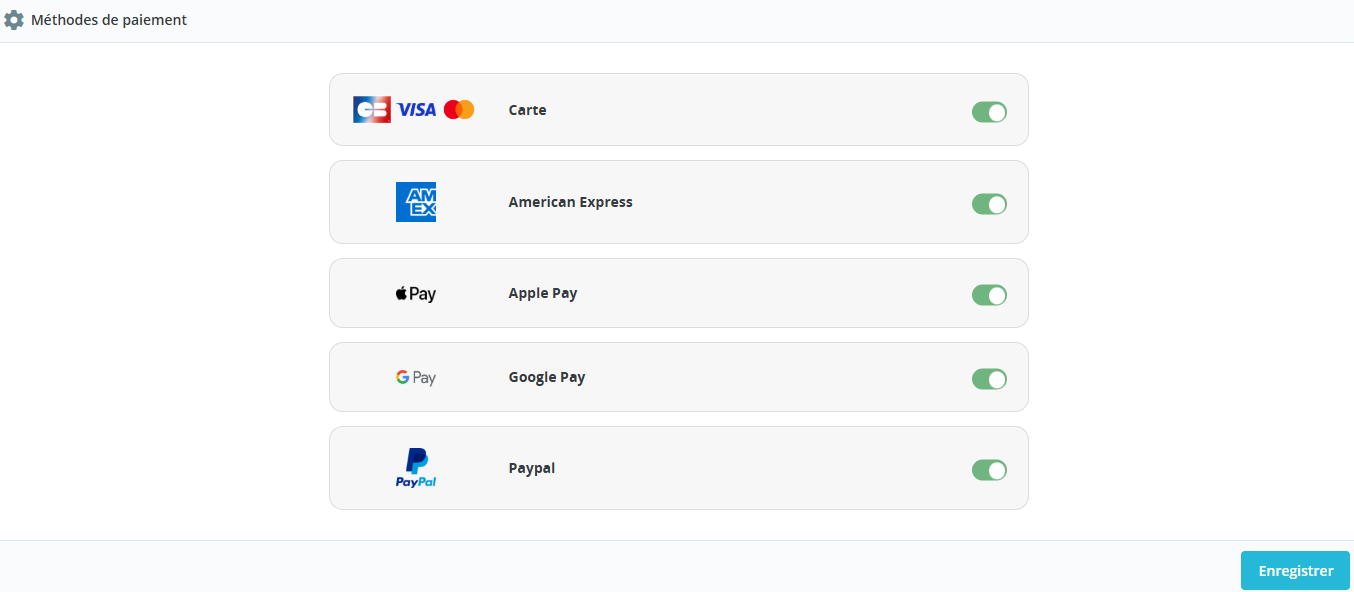
This section enables the activation of various card and wallet payment methods:
Payment Method Selection:
- Choose which payment methods to display at checkout
- Configure the display of each payment option
Card Payment Options:
- CB-Visa-MasterCard: The CB logo will only appear if the delivery country is France
- Other card types: Configure as needed for your business
Digital Wallet Options:
- Apple Pay: Requires subscription to the option in your contract
- Google Pay: Requires subscription to the option in your contract
PayPal Configuration:
- PayPal is a wallet payment method
- Must be configured in advance on your Axepta account
- Requires providing your PayPal PayerID to Axepta beforehand
Implementation Notes:
- Ensure all required subscriptions are in place
- Verify country-specific configurations
- Test each payment method thoroughly
- Monitor payment performance and customer usage
- Update configurations as needed based on business requirements
This configuration allows you to offer a comprehensive range of payment options while maintaining security and compliance with payment regulations.
Customization
Allows configuration of the fields sent in the payment form during redirection.
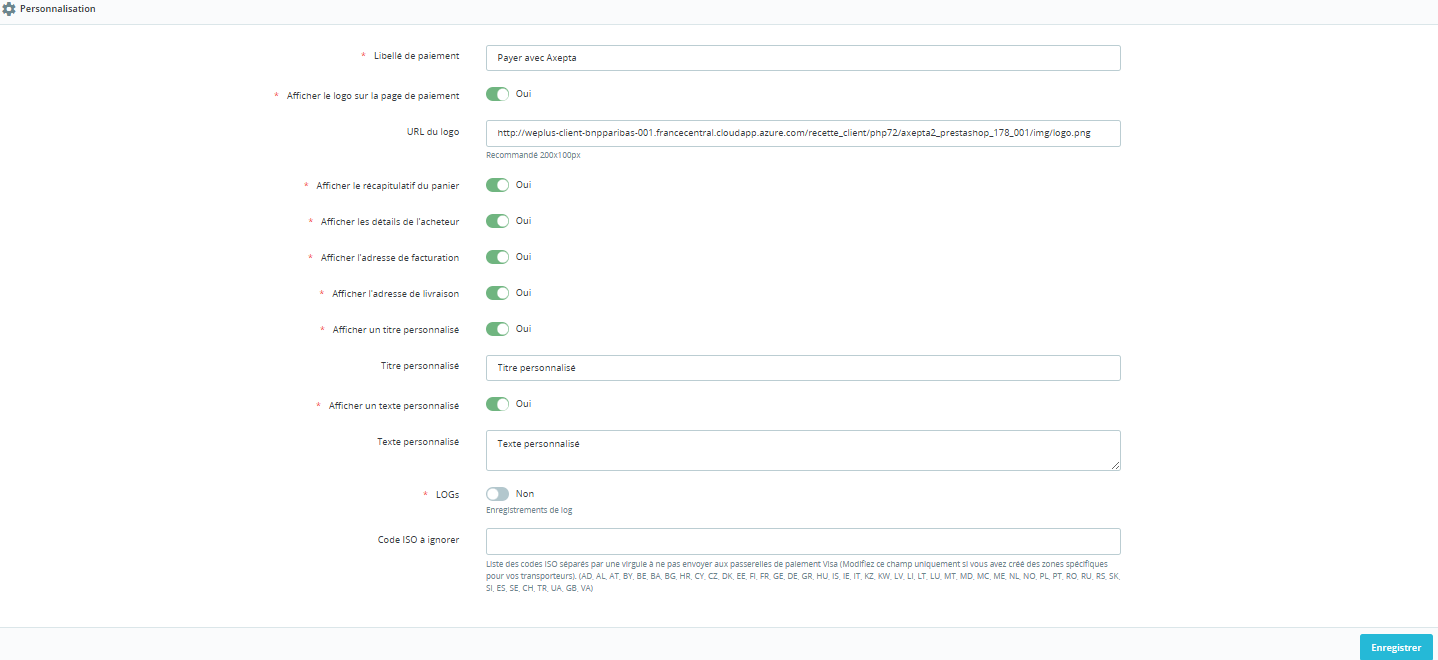
The ISO codes to ignore represent the ISO country codes if you have modified the configuration of your countries for carriers.
For example, FR (France) is not to be sent because it's in Europe, while US (United States) is to be sent.
Dashboard
Order statuses have been added to help you view payments in test, demo, or production environments.

Please note that payments made in demo mode require being in Demo mode to be visible.
Refund/ Cancellation
To refund a transaction, you must first select the store where the order was placed (top right of the screen). A refund can only be processed for a single store at a time.
Next, go to the customer's order in the transaction details (as previously indicated) and click on "Partial Refund" in the "Order" tab to create a gift certificate :
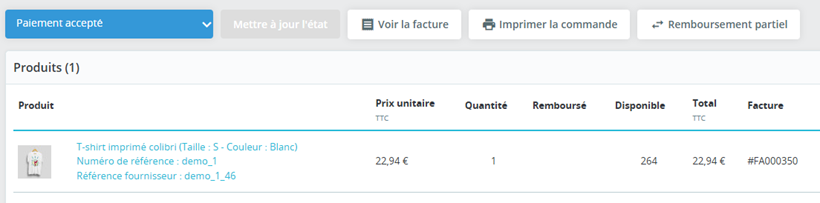
You will be redirected to the "Product" tab of the same page. Follow these steps to process a partial refund:
Select the amount to refund (either total or partial). The amount cannot exceed the total order amount, and the quantity cannot exceed the originally purchased quantity.
Click on "Partial Refund":
After saving the amount, while still on the order details page, go back to the product details:
Select the transaction to be refunded
Choose a gift certificate option
Click "Refund"
You can specify a partial amount if needed
The product will now appear as "refunded" in the order details
Full Refund
Multiple partial refunds can be processed. However, the total of all partial refunds cannot exceed the original order amount.
Cancellation
If the transaction has not yet been processed by the bank (captured), cancellation is possible.
Transactions list
All transactions made with the Prestashop Axepta BNP Paribas 2.0 module are consolidated in a table displayed.

| Info |
|---|
Notice : The uninstallation and reinstallation of the module will result in the deletion of the transactions. |
Logs
Logs are always enabled. You can download them using the button at the top of the settings screen.
Font Office
Checkout Page Display
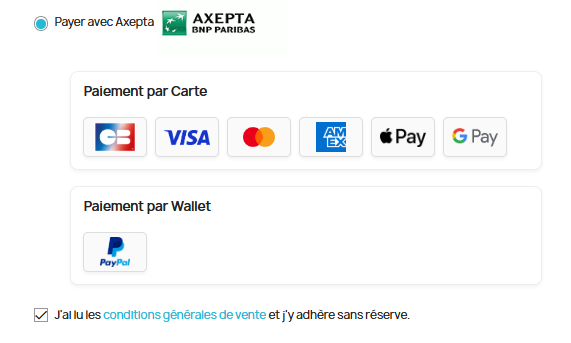
Payment methods are displayed in designated blocks.
Additional payment options are accessible by selecting "More payment options," which only appears when applicable.
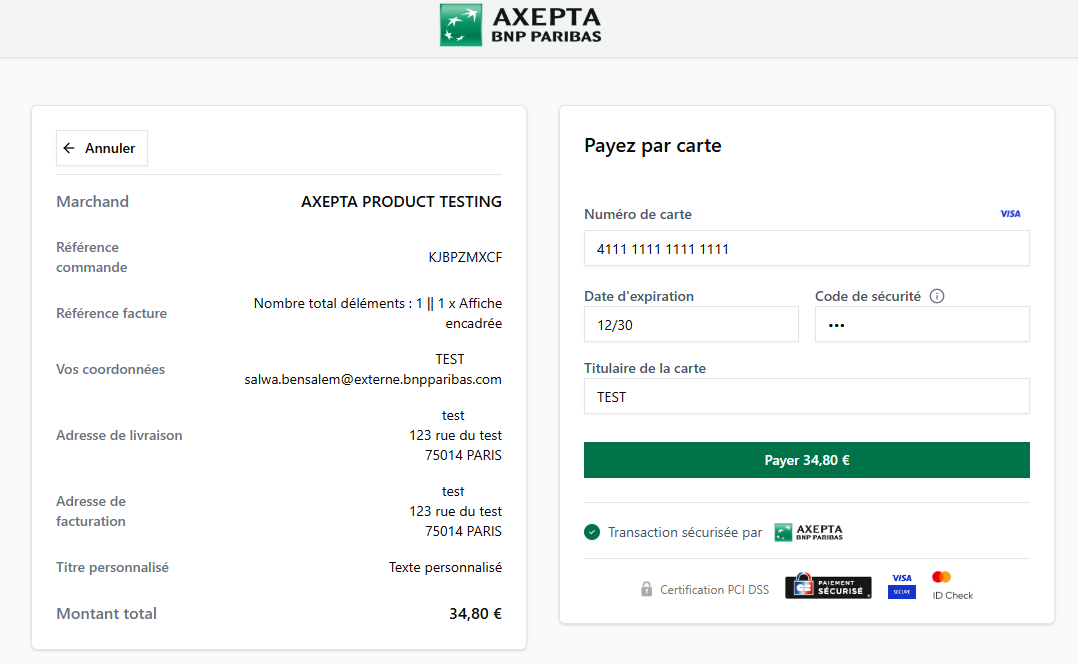
Payment Page Redirection Display
| Info |
|---|
Notice : In demo mode, an orange banner appears with the label "DEMO". |
Customer Account
Orders display an Axepta block in the customer account
Méthodes de paiement
Ce bloc permet l’activation des différents moyens de paiement par carte ou Wallet :
Sélectionner les moyens de paiement à afficher en checkout.
Si CB- Visa-MasterCard est activé, le logo CB apparaîtra seulement si le pays de livraison de la commande est la France
Les paramètres Apple Pay et Google Pay permettent d’afficher les logo sur la page de checkout mais nécessitent d’avoir souscrit l’option sur le contrat pour voir l’affichage en page de paiement.
Paypal est un Wallet qui doit être paramétré en amont sur votre compte Axepta. Il est nécessaire de communiquer le PayerID de Paypal à Axepta en amont.
Personnalisation
Permet le paramétrage des champs envoyés dans le formulaire de paiement lors de la redirection.
Les codes ISO à ignorer représentent les code ISO pays si vous avez modifié le paramétrage de vos pays pour les transporteurs. Ex : FR n’est pas à envoyer car en Europe. US est à envoyer.
Tableau des commandes
Des états de commandes ont été ajoutés pour vous permettre de visualiser les paiements en test, en démo ou en production
Notez bien que les paiement fait en démo nécessite d’être en mode Démo pour être visibles ;
Capture manuelle
Capturer Manuellement la transaction
Pour capturer manuellement un paiement, il faut aller dans la liste des transactions et de cliquer sur l’icone de capture dans la colonne action
Logs
Les logs sont constamment activés. Il est possible de les télécharger par le bouton en haut de l’écran de paramétrage
Remboursement / Annulation
Pour rembourser une transaction, vous devez ,dans un premier temps, choisir la boutique dans laquelle la commande a eu lieu (en haut à droite de l'écran); Un remboursement ne peut être effectué que sur une boutique unique.
Rendez vous ensuite sur la commande du client dans le détail de la transaction (comme indiqué précédemment) et cliquez sur “Remboursement partiel” dans l'onglet "commande" pour créer un bon d’achat:
Vous serez redirigés vers l'onglet "produit" de la même page.
- Choisissez le montant à rembourser (total ou partiel). Le montant ne peut pas être supérieur au montant total et la quantité ne doit pas dépasser la quantité indiquée également.
- Enfin, cliquez sur “Remboursement partiel” :
- Une fois le montant enregistré, toujours sur le détail de la commande, vous devez aller à nouveau sur le détail du produit :
- - Sélectionnez la transaction qui doit être remboursée
- - Sélectionnez un bon d’achat
- - Cliquez sur “Rembourser”
- Vous pouvez renseigner un montant partiel si nécessaire.
- Le produit apparaît désormais sur le détail de la commande comme “remboursé” :
Remboursement total
Il est possible de faire plusieurs remboursements partiels. Cependant, la somme des remboursements partiels ne peut dépasser le montant total de la commande.
Annulation
Si la transaction n'a pas encore été remise en banque (capturée), une annulation est possible.
Liste des transactions
Toutes les transactions réalisées avec le modules Prestashop Axepta BNP Paribas 2.0 sont regroupées dans un tableau présent
| Info |
|---|
NB : La désinstallation et la réinstallation du module provoque la purge de es transactions. |
Font Office
Rendu sur la page de checkout
Les moyens de paiement sont affichés sur un cadre prévu par bloc.
Les moyens de paiement supplémentaires sont accessibles en sélectionnant "Plus d'options de paiement", qui n’apparaît que le cas échéant
Rendu de la page de paiement en redirection
| Info |
|---|
Note : En mode démonstration, un bandeau Orange apparaît avec la mention "DEMO" |
Espace client
Les commandes affichent un bloc Axepta sur l’espace client.