
Summary
| Table of Contents |
|---|
Introduction
Welcome to the documentation for the AXEPTA BNP Paribas module for WooCommerce.
This free module allows you to easily integrate our online payment solution into your e-commerce store.
This documentation guides you step by step through the installation, configuration, and use of the module to ensure a simple, reliable, and tailored integration to your needs.
This module is freely available at the following address: https://github.com/AxeptaBNPParibas
Our goal is to support you so that the implementation of our AXEPTA BNP Paribas solution is quick, intuitive, and fully functional in your WooCommerce environment.
Prerequisites
Plugin Setup
Installation via
l'the WordPress interface
WordPressFor a quick and simple installation, you can download and install the plugin directly from the WordPress administration interface. Follow these steps to do it easily.
Download the plugin ZIP file.
Go to the WordPress dashboard, under Extensions > Add.
Click on Upload Plugin, then select the plugin ZIP file.
Click on Install Now, then activate the plugin after installation.
Installation via FTP/SSH
If you prefer a manual method or if you have restrictions on the WordPress interface, you can install the plugin via FTP or SSH by following these steps.
Download the plugin ZIP file and extract it on your computer.
Connect to your server via FTP or SSH.
Go to the « wp-content/plugins » directory of your WordPress installation.
Create a folder named « axepta-bnp-paribas »
Copy all the contents of the extracted plugin into this folder.
Go to the WordPress interface, under Extensions > Installed Extensions, then activate the plugin.
Mise à jour du module
- Désinstaller totalement le module Axepta BNP Paribas
- Avant toute installation de la nouvelle version de votre module, nous vous invitons à bien désinstaller l’extension actuelle, à vider le cache de votre CMS et vérifier la suppression de l’extension en veillant à supprimer le répertoire d’installation du module sur votre serveur FTP.
- Installer la dernière mise à jour que vous avez téléchargé
| Info |
|---|
N.B. : La librairie est automatiquement mise à jour avec la mise à jour de plugin |
Back Office
Pensez par la suite à remettre les paramètres de configuration Axepta Online dans chaque onglet du module. Il faudra remettre à nouveau votre MID( ID Marchand), votre clé d’activation pour remettre en production votre module
Configuration globale du module
Les fonctionnalités du module sont accessibles via le menu de gauche dans l'interface d'administration « WooCommerce > Réglages ». Pour débuter la configuration, cliquez simplement sur l'option « Axepta BNP Paribas ».
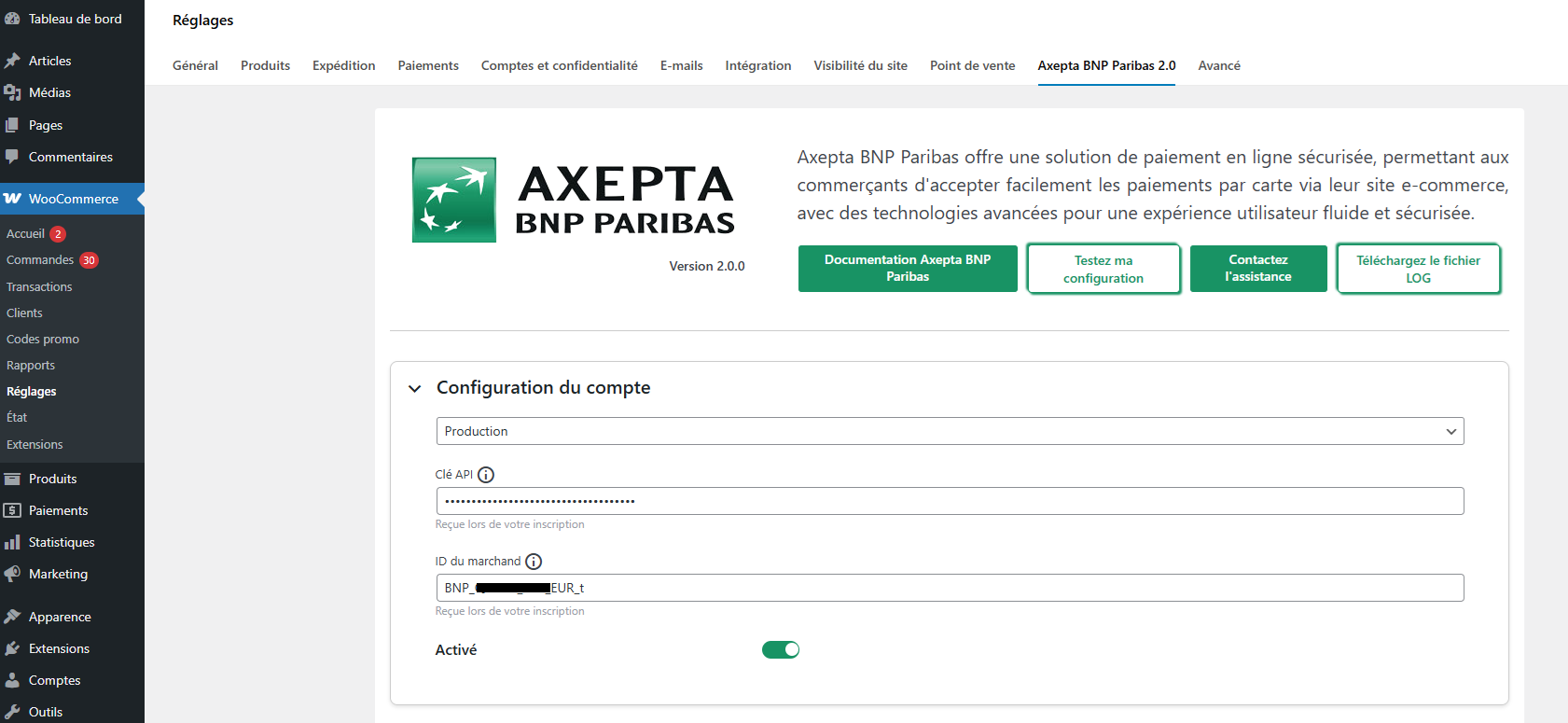
La page de paramétrage fait apparaître plusieurs boutons sur le haut.
- Documentation Axepta BNP Paribas : lors du clic, l’utilisateur est renvoyé vers la documentation officielle hébergée par BNP Paribas
- Contacter l’assistance : Ouverture d’un formulaire pour l’envoi d’un mail vers l’assistance. Dans le mail les versions serveur, CMS et module sont automatiquement envoyées
- Tester la configuration : Permet d’afficher et de vérifier dans une fenêtre que la configuration du serveur est compatible avec le module installé.

Update Plugin
- Uninstall the Axepta BNP Paribas module completely
- Before installing the new version of your module, we invite you to properly uninstall the current extension, clear the cache of your CMS, and verify the deletion of the extension by ensuring that the module installation directory is deleted from your FTP server.
- Install the latest update you have downloaded
| Info |
|---|
Notice : The library is automatically updated with the plugin update. |
Back Office
Please remember to reset the Axepta Online configuration parameters in each tab of the module. You will need to re-enter your MID (Merchant ID) and your activation key to put your module back into production.
Plugin Global Settings
The module's features are accessible via the left menu in the administration interface « WooCommerce > Settings ». To start the configuration, simply click on the option « Axepta BNP Paribas ».
The configuration page displays several buttons at the top.
Axepta BNP Paribas Documentation: When clicked, the user is redirected to the official documentation hosted by BNP Paribas.
Contact Support: Opens a form to send an email to support. The server, CMS, and module versions are automatically included in the email.
Test Configuration: Allows displaying and verifying in a window that the server configuration is compatible with the installed module.
Account Settings
To activate online payments, you need to configure both the production mode and the test mode.
Demo Mode ("DEMO"): Allows you to test the module without setting up a MID (Merchant ID, provided by BNP Paribas during registration).
Production Mode: Requires you to enter the MID and the private key.
Test Mode: Requires you to enter only the private key. The production MID is used with the parameter (_t) added to it.
Select the mode you wish to configure to display the appropriate fields.
To use the module, you need to fill in the following parameters in the form.
Production Mode:
- MID (provided by BNP Paribas)
- Private Key (provided by BNP Paribas)
Test Mode:
The production MID is used by default with the addition of a character string
- Private Key (provided by
Configuration du compte
La configuration du mode production et du mode test sont à faire pour activer le paiement en ligne.
Le mode démonstration ("DEMO") permet de tester le module sans paramétrage d’un MID (ID du marchant, fournit par BNP Paribas lors de l’inscription)
En mode Production, il est nécessaire de renseigner le MID et la clé privée.
En mode test, il est nécessaire de renseigner uniquement la clé privée. On utilise le MID de production auquel il a été ajouté un paramètre (_t)
Sélectionnez le mode que vous souhaitez paramétrer pour voir apparaître les champs adéquats.
Pour pouvoir utiliser le module il est nécessaire de renseigner les paramètres suivants dans le formulaire
Mode production :
- MID (envoyé par BNP Paribas)
- Clé privée (envoyée par BNP Paribas)
Mode test :
Le MID de production est utilisé par défaut avec l’ajout d’une chaine de caractère
- Clé privée (envoyée par
- BNP Paribas)

Demo Mode Démonstration :
Ce mode permet l’affichage de bandeau sur le site pour informer que ce mode est actif.
Un MID spécifique est pré paramétréThis mode displays a banner on the site to inform that this mode is active. A specific MID is pre-configured.

Front-end Activation en front :Nécessaire pour afficher le module sur la page de checkout quel que soit le mode activé
Afficher le logo ApplePay :
ApplePay est actuellement embarqué par la page de paiement. Cette option ne fait qu’apparaître le logo avec les moyens de paiement.
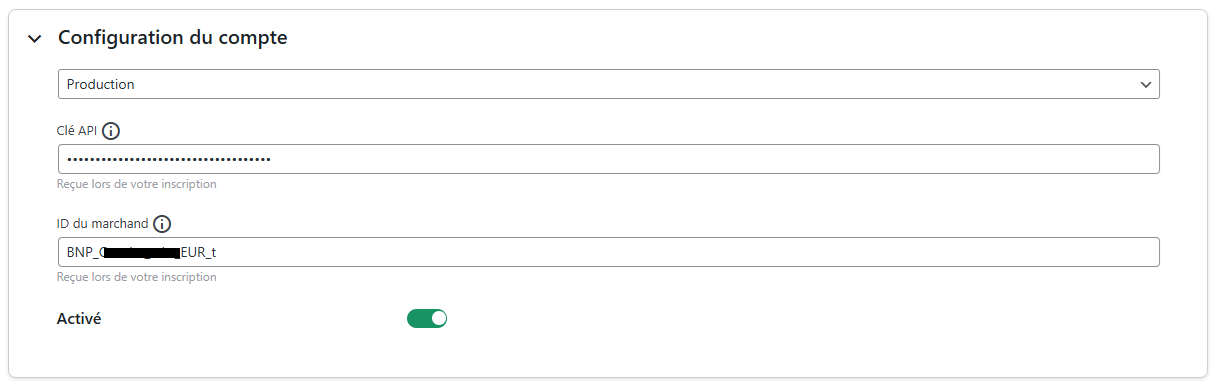
Les éléments ne sont sauvegardés que lorsque l’utilisateur clique sur le bouton de sauvegarde
Configuration des moyens de paiement
Vous pouvez maintenant choisir les différents moyens de paiement à activer sur votre boutique.
Un onglet « Configuration des moyens de paiement » apparaît juste en dessous de « Configuration du compte ». Cliquez dessus pour ouvrir la section et configurer vos moyens de paiement :
Required to display the module on the checkout page regardless of the activated mode
Display the ApplePay logo:
ApplePay is currently integrated into the payment page. This option simply displays the logo along with the payment methods.
The elements are only saved when the user clicks the save button
Payment Method Configuration
You can now select the different payment methods to activate on your store.
A tab labeled « Payment Methods Configuration » appears just below « Account Configuration ». Click on it to open the section and configure your payment methods:
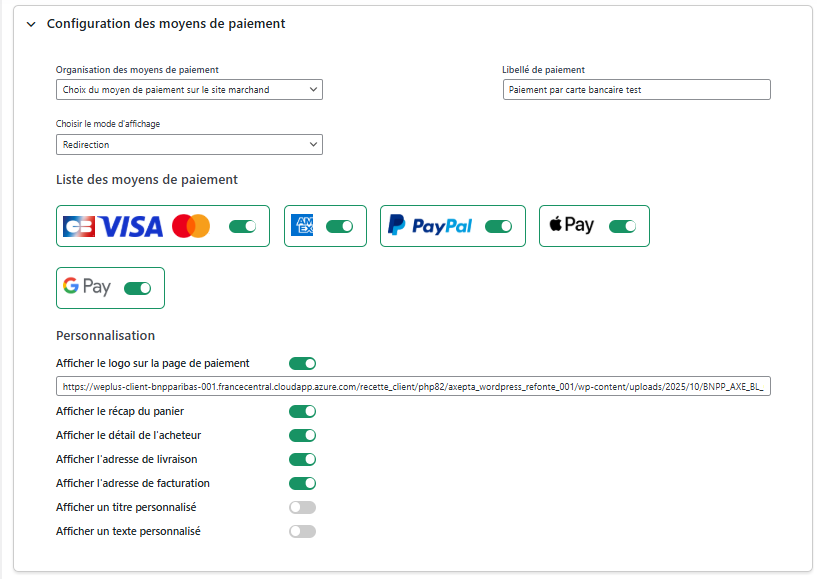
All payment methods integrated into the library are presented here. It is up to the merchant to select the payment methods they have subscribed to. The activation key no longer allows defining the payment methods.
Payment Organization: This refers to the display of payments that has been decided on the checkout page.
Grouped: Payment blocks appear. It is possible to configure payments for redirection and iframe.
Tous les moyens de paiement intégrés à la librairie sont présentés ici. Il appartient au marchand de sélectionner les moyens de paiement qu’il a souscrit.
La clé d’activation ne permet plus de définir les moyens de paiement.
Organisation des paiements :
Il s’agit de l’affichage des paiements qui a été décidé sur le checkout
- Regroupé : Les bloc de paiement apparaissent. Il est possible de paramétrer les paiements en redirection et en iframe
HPP (Hosted Payment Page)
:
Seule la Only redirection
est possible avec tous les moyens de paiement regroupés en un seul bouton. Affichage d’un bloc complet, pas de différenciation entre les cartes et les autres méthodes de paiement.
Méthode d’affichage :
- Redirection : lors de la phase de paiement, l’utilisateur est renvoyé vers une page en fonction du moyen de paiement sélectionné
- Iframe : lors de la phase de paiement, le formulaire est affiché en bas de la page de checkout en fonction du moyen de paiement sélectionné
Label :
Texte à afficher sur le bloc
Liste des moyens de paiement :
Sélectionner les moyens de paiement à afficher en checkout.
| Info |
|---|
Note : Si CB- Visa-MasterCard est activé, le logo CB apparaîtra seulement si le pays de livraison de la commande est la France |
Personnalisation des moyens de paiement :
Permet le paramétrage des champs envoyés dans le formulaire de paiement lors de la redirection.
Configuration des fonctionnalités
Cliquez sur « Configuration des fonctionnalités » pour ouvrir la section dédiée. Vous y trouverez l'option pour choisir « le mode de capture des paiements », vous permettant ainsi de définir comment les transactions seront traitées.
Cette option vous permet de choisir la méthode de capture du paiement :
- Automatique (J) => La capture se fera automatiquement à minuit.
- Différée (J+x) => Vous pouvez choisir le délai avant la capture (délai en heures : nombre entier compris en 1 et 696. Exemple pour 2 jours: saisissez 48)
- Capture Manuelle
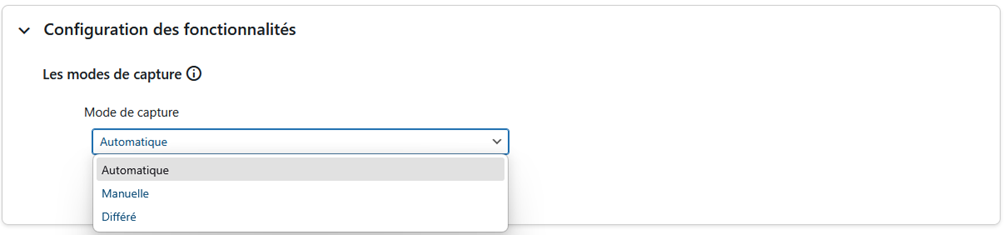
Activation de la capture Automatique :
Lors de la sélection capture automatique, les flux de paiement sont automatiquement capturés.

Activation de la capture Différée :
La capture différée est paramétrée avec un nombre d’heure avant la capture à réaliser.

Aucune action n’est nécessaire par le marchand pour réaliser la capture. Elle est confirmée par un flux retour (IPN).
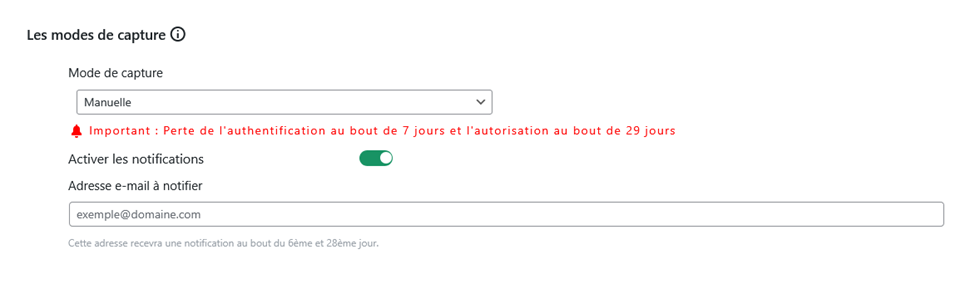
Activation de la capture Manuelle :
Dans le menu de configuration du marchand, descendre jusqu’au champ « Capture » et sélectionner « Manual Capture ».
| Warning |
|---|
Attention : Sans action du commerçant, la transaction ne sera pas remise en banque. La capture d’une transaction au-delà du 7ème jour entraîne la perte de garantie associée au 3DSecure. Au-delà du 29ème jour l’autorisation accordée par l’émetteur ne sera plus valide. Il est donc préférable de capturer les opérations avant ces échéances. |
is possible with all payment methods grouped into a single button. A complete block is displayed, with no differentiation between cards and other payment methods.
Display Method:
Redirection: During the payment phase, the user is redirected to a page based on the selected payment method.
Iframe: During the payment phase, the form is displayed at the bottom of the checkout page based on the selected payment method.
Label: Text to display on the block
List of Payment Methods: Select the payment methods to display during the checkout.
| Info |
|---|
Notice: If CB-Visa-MasterCard is enabled, the CB logo will only appear if the order's delivery country is France. |
Payment Method Customization:
Allows the configuration of fields sent in the payment form during redirection.
Feature Configuration
Click on « Feature Configuration » to open the dedicated section. You will find the option to choose « payment capture mode », allowing you to define how transactions will be processed.
Capture Method
This option allows you to choose the payment capture method:
Automatic (J) => Payment will be automatically captured at midnight.
Deferred (J+x) => You can choose the delay before capture (delay in hours: integer between 1 and 696. Example for 2 days: enter 48)
- Manual Capture => Manual capture is performed manually by the merchant through a configuration in the back-office.
Activation of Automatic Capture:
When automatic capture is selected, payment flows are automatically captured.
Activation of Deferred Capture:
Deferred capture is configured with a number of hours before the capture is to be performed.
No action is required by the merchant to perform the capture. It is confirmed by a return flow (IPN).
Activation of Manual Capture:
In the merchant configuration menu, scroll down to the "Capture" field and select "Manual Capture."
| Warning |
|---|
Warning : Without action from the merchant, the transaction will not be processed by the bank. Capturing a transaction beyond the 7th day results in the loss of the 3DSecure guarantee. Beyond the 29th day, the authorization granted by the issuer will no longer be valid. It is therefore preferable to capture operations before these deadlines. |
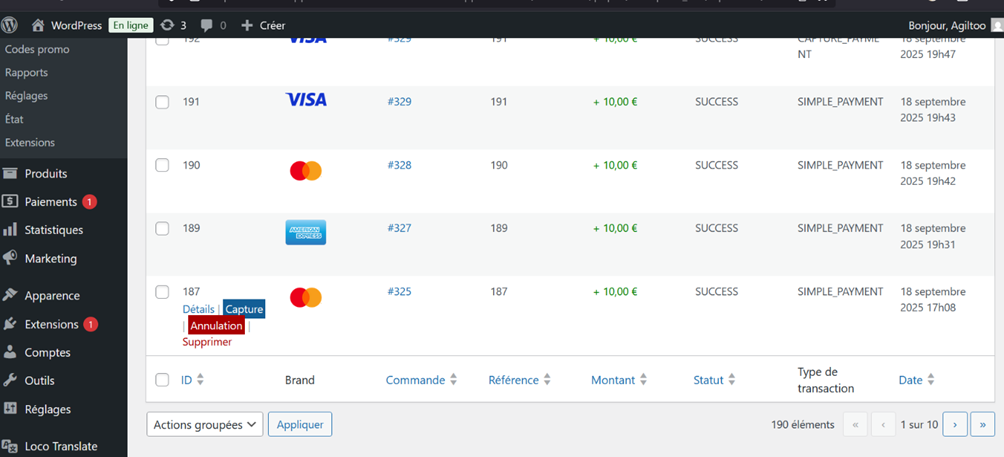
To manually capture a transaction, follow these steps:
Go to WooCommerce > Transactions from your WordPress dashboard.
You will see the list of transactions that have been made.
When you hover over a line corresponding to a transaction that has not yet been captured, a blue "Capture" button will appear below that line.
Click this button to perform the payment capture.
Once the capture is complete, the transaction status will be updated to reflect the action.
Manual Capture Notifications Notifications are displayed during the manual capture attempt of a payment to keep you informed of the operation status:
Successful Capture: A notification informs you that the capture was successfully completed.
Already Captured: If the transaction has already been captured, an alert indicates that the capture cannot be redone.
Failed Capture: In case of capture failure, a detailed notification explains the reason for the problem and guides you through the steps to follow.
These notifications allow you to precisely track the status of each transaction and act accordingly.
Dashboard
A new column titled "Capture Status" has been added to the order list in WooCommerce.
This column indicates whether the payment transaction has been captured or not. If the capture has not yet occurred, the time elapsed since the capture request will be displayed.
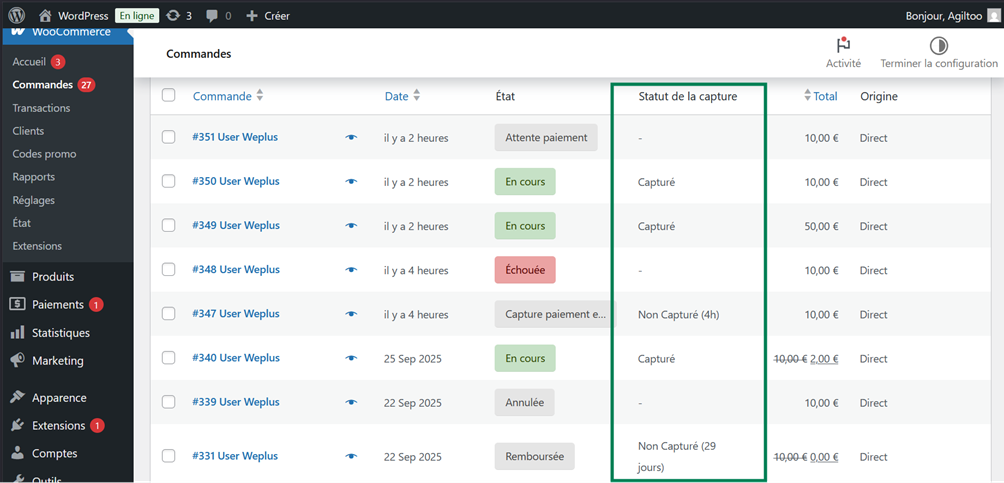
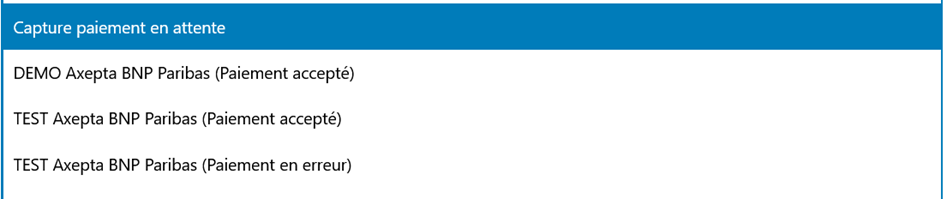
Additionally, a new status "Pending Payment Capture" has been added to the WooCommerce order statuses. This status is only assigned to orders for which the payment capture has not yet been completed. It clearly differentiates orders awaiting capture from those whose payment has already been finalized.
Refund / Cancelllation
Remboursement
Go to WooCommerce > Orders and click on the order you wish to refund.
On the order page, you will find the relevant information about the order.
You will see a "Refund" button. Click on it to open the refund section.
Once the section is open, you can enter the "refund amount" as well as the "refund reason" which is optional.
After filling in the fields, click on "Refund X.XX € with Axepta BNP Paribas" to proceed (X.XX is the entered refund amount) with the refund. The refund will be processed if the order has already been captured.
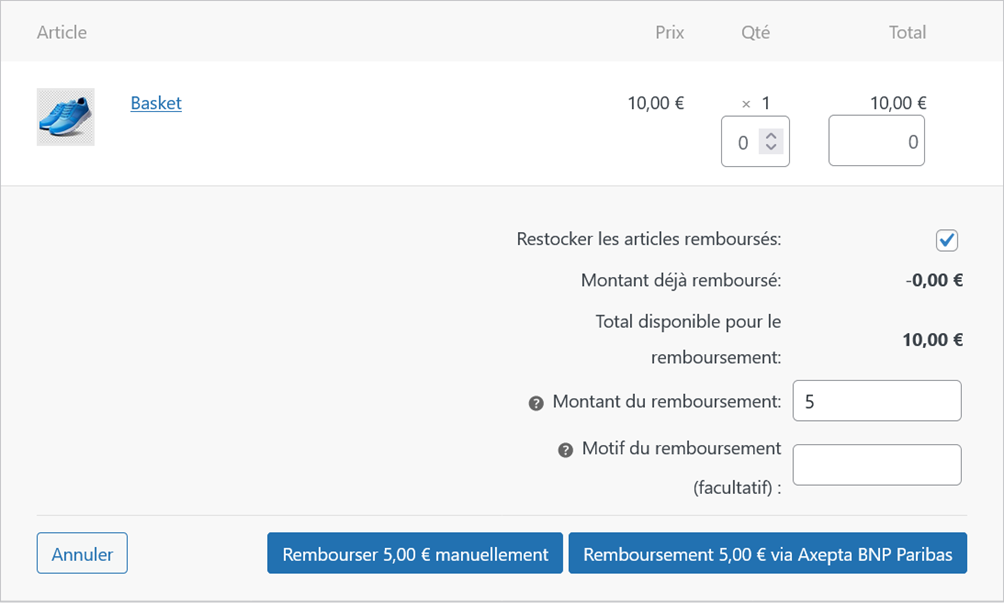
Full Refund
For a full refund, the amount (subtotal) is displayed, and you simply need to leave the predefined values blank and confirm (Refund Offline).
Partial Refund
For a partial refund, you need to adjust the field values. The "Adjustment Fee" field allows you to modify the amount to be deducted from the refund. For example: Subtotal = 45, Adjustment Fee = 15, clicking on "Update Totals" results in a refund of 30 for the buyer.
Cancellation
If the transaction has not yet been processed by the bank (status "processing" when clicking on the order ID), cancellation is possible via « WooCommerce > Transactions ».
Cancellation
To cancel an order whose payment has not yet been captured, follow these steps:
Go to WooCommerce > Transactions.
Search for the transaction associated with the order number you wish to cancel, and ensure that payment capture has not yet been completed.
Once the transaction is located, click the "Cancel" button to cancel the order

Logs
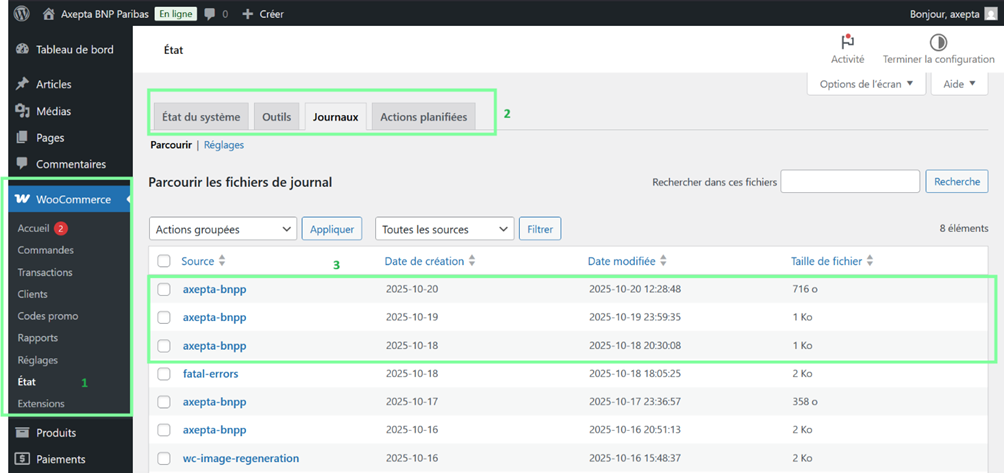
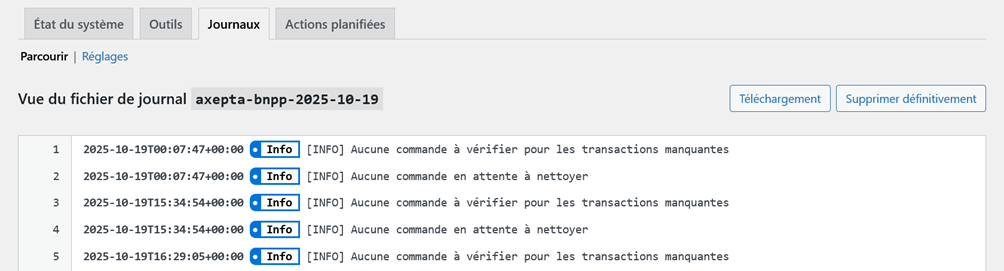
Logs are always enabled. To view or download them, go to « WooCommerce > Status > Logs » and select the log « axepta-bnpp ». On the next page, you can view the logs and download them by clicking the « Download » button.
Front Office
Checkout Page Display
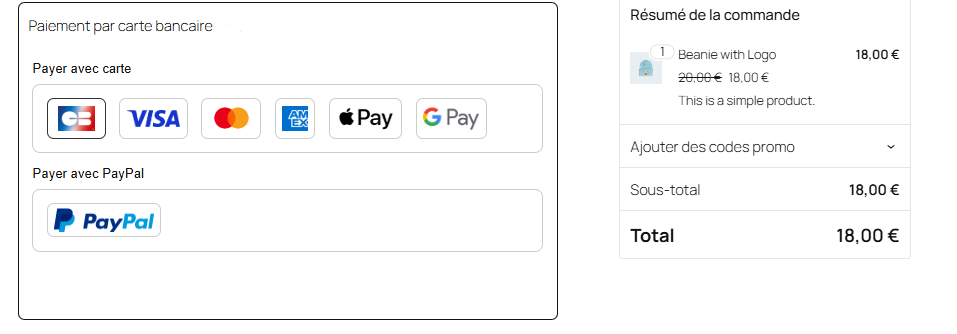
The payment methods are displayed in a block-specific frame.
Additional payment methods are accessible by selecting "More payment options," which only appears when applicable.
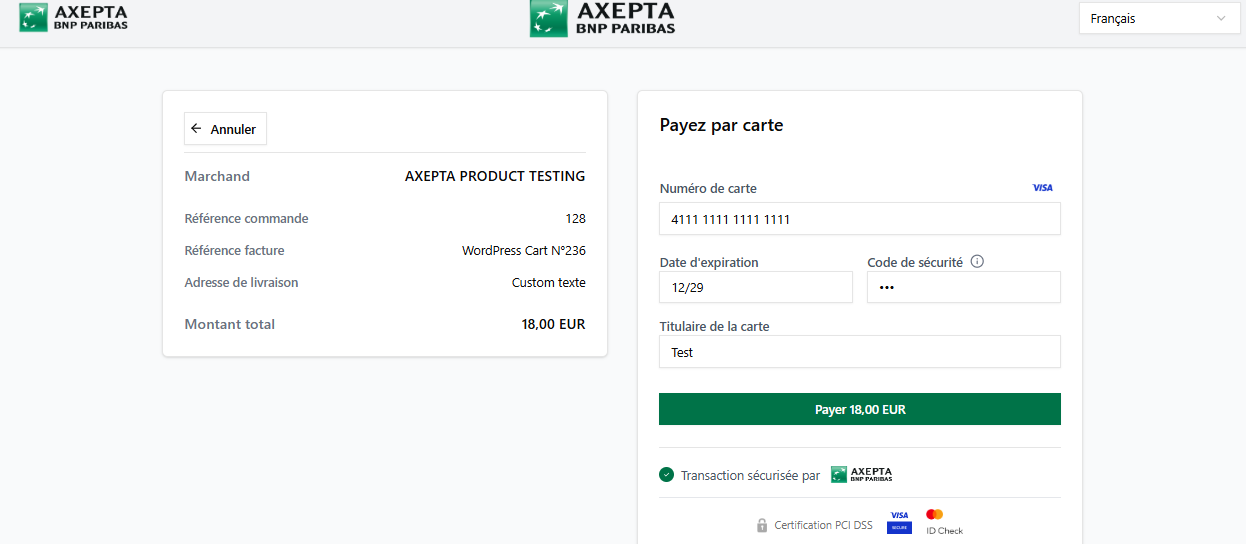
Checkout Page Display in Redirection Mode
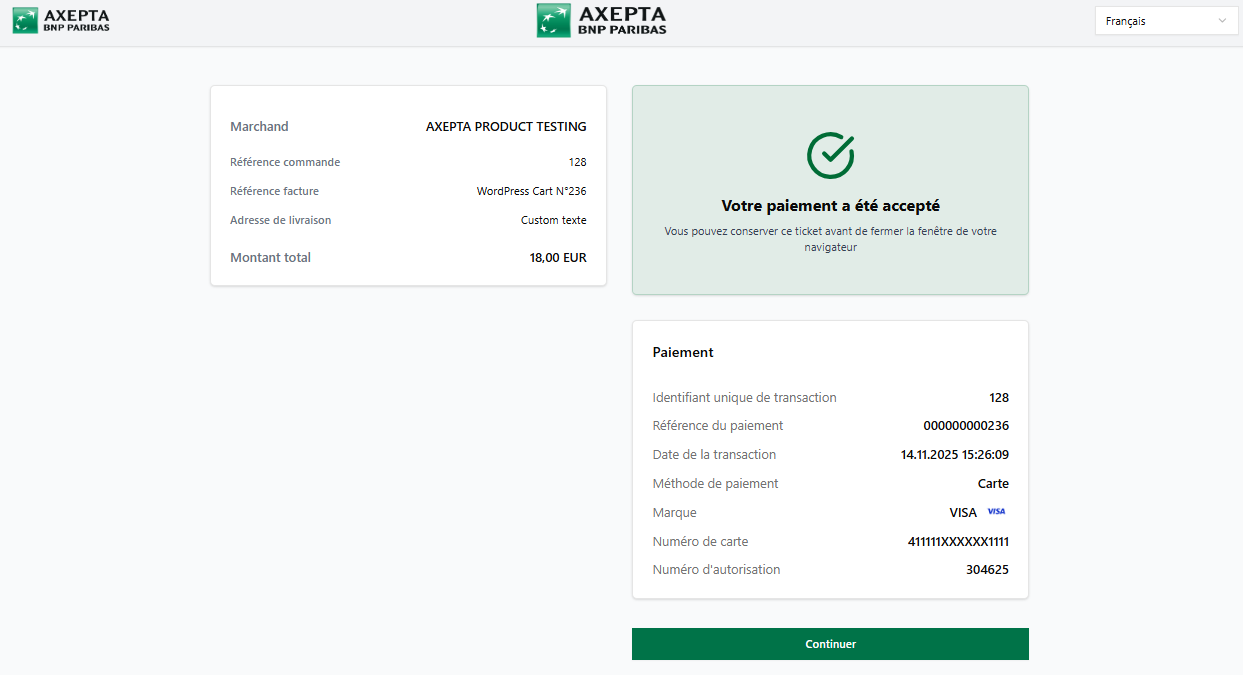
Confirmation Page display
Customer Account
Orders display an Axepta block in the customer account
Tableau des commandes
Une nouvelle colonne intitulée "Statut de la capture" a été ajoutée à la liste des commandes dans WooCommerce. Cette colonne indique si la transaction de paiement a été capturée ou non. Si la capture n'a pas encore eu lieu, le temps écoulé depuis la demande de capture sera affiché.
De plus, un nouveau statut "Capture paiement en attente" a été ajouté aux statuts des commandes WooCommerce. Ce statut est uniquement attribué aux commandes pour lesquelles la capture du paiement n'a pas encore été effectuée. Il permet de différencier clairement les commandes en attente de capture de celles dont le paiement a déjà été finalisé.
Capture manuelle
Pour capturer manuellement une transaction, suivez ces étapes :
- Accédez à « WooCommerce > Transactions » depuis votre tableau de bord WordPress.
- Vous verrez alors la liste des transactions effectuées.
- Lorsque vous survolez une ligne correspondant à une transaction qui n’a pas encore été capturée, un bouton "Capture" en bleu apparaîtra en dessous de cette ligne.
- Cliquez sur ce bouton pour effectuer la capture du paiement.
Une fois la capture effectuée, le statut de la transaction sera mis à jour pour refléter l’action.
Notifications de capture manuelle
Des notifications sont affichées lors de la tentative de capture manuelle d’un paiement, afin de vous tenir informé du statut de l’opération :
- Capture réussie : Une notification vous informe que la capture a été réalisée avec succès.
- Capture déjà effectuée : Si la transaction a déjà été capturée, une alerte vous indique que la capture ne peut pas être rééditée.
- Capture échouée : En cas d’échec de la capture, une notification détaillée explique la raison du problème et vous guide sur les étapes à suivre.
Ces notifications vous permettent de suivre précisément l’état de chaque transaction et d’agir en conséquence.
Remboursement / Annulation
Remboursement
- Allez dans WooCommerce > Commandes et cliquez sur la commande que vous souhaitez rembourser.
- Sur la page de la commande, vous trouverez les informations relatives à cette dernière.
- Vous verrez un bouton "Remboursement". Cliquez dessus pour ouvrir la section de remboursement.
- Une fois la section ouverte, vous pourrez saisir le « montant du remboursement » ainsi que le « motif du remboursement » qui est facultatif.
- Après avoir rempli les champs, cliquez sur « Remboursement X.XX € avec Axepta BNP Paribas » pour procéder (X.XX est le montant saisi du remboursement) au remboursement. Le remboursement sera effectué si la commande a déjà été capturée.
Remboursement total
Pour un remboursement total, le montant (subtotal) est affiché et il suffit de laisser les valeurs prédéfinies vides et de valider (Refund Offline).
Remboursement partiel
Pour un remboursement partiel, il faut ajuster les valeurs des champs. Le champ "Ajustement Fee" permet de modifier la somme à retirer du remboursement.
Par exemple : Subtotal = 45, Ajustement Fee = 15, en cliquant sur “Update Totals” on obtient 30 comme remboursement pour l’acheteur.
Annulation
Si la transaction n'a pas encore été remise en banque (statut "processing" en cliquant sur l'orderID), une annulation est donc possible via « Woocommerce > Transactions ».
Annulation
Pour annuler une commande dont le paiement n'a pas encore été capturé, suivez ces étapes :
- Allez dans WooCommerce > Transactions.
- Recherchez la transaction associée au numéro de la commande que vous souhaitez annuler, et assurez-vous que la capture du paiement n'a pas encore été effectuée.
- Une fois la transaction localisée, cliquez sur le bouton "Annulation" pour annuler la commande.
Logs
Les logs sont activés en permanence. Pour les consulter ou les télécharger, allez dans « WooCommerce > État > Journaux » puis sélectionnez le log « axepta-bnpp ». Sur la page suivante, vous pourrez visualiser les logs et les télécharger en cliquant sur le bouton « Télécharger ».
Front Office
Rendu sur la page de checkout
Les moyens de paiement sont affichés sur un cadre prévu par bloc.
Les moyens de paiement supplémentaires sont accessibles en sélectionnant "Plus d'options de paiement", qui n’apparaît que le cas échéant.
Rendu de la page de paiement en redirection
Rendu de la page de Confirmation de Paiement
Espace client
Les commandes affichent un bloc Axepta sur l’espace client.