
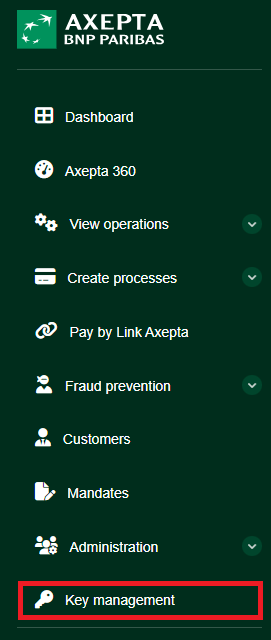
Overview of Key management
Accessing the Key Management page
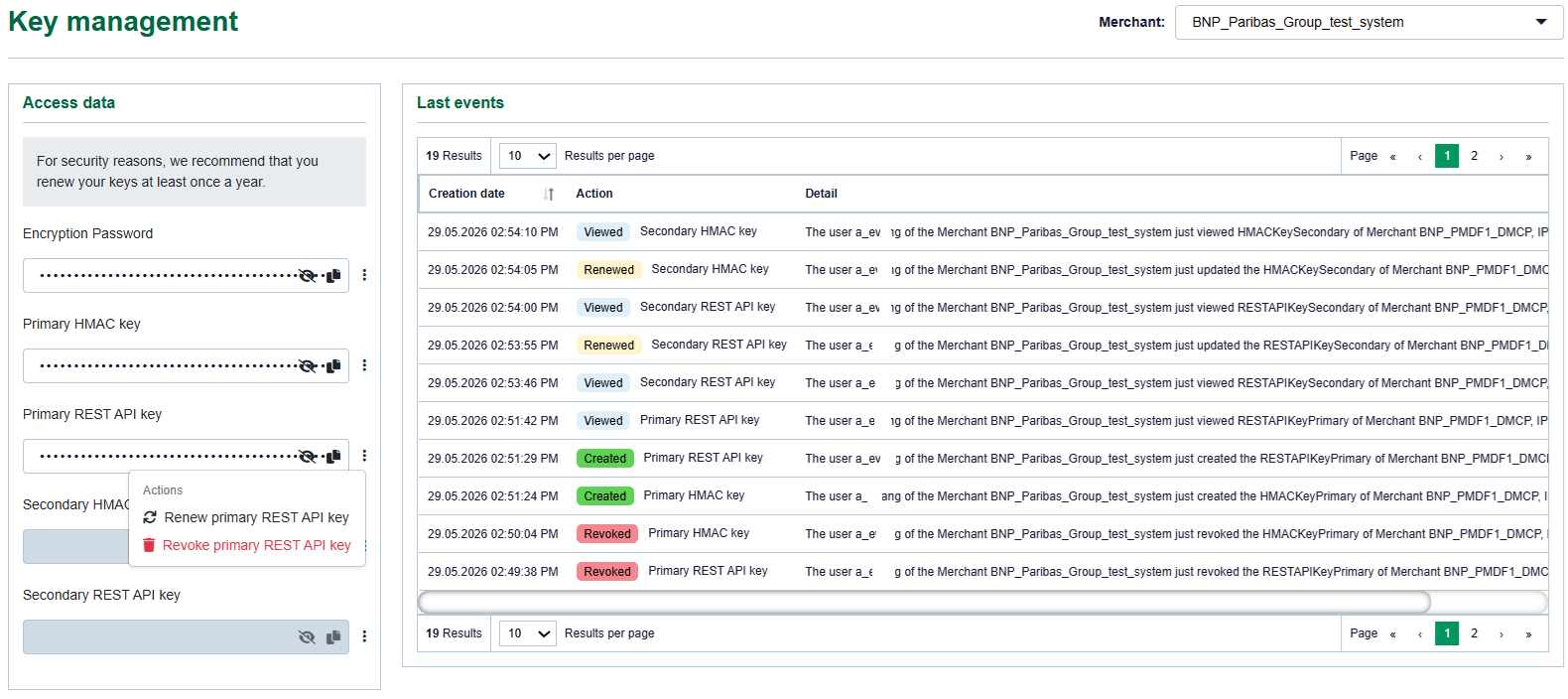
From the Axepta Online Merchant Portal, open the Key Management section. The page displays the following information:
- the selected merchant;
- available access data;
- primary and secondary keys;
- available actions for each key;
- the latest activity history.
Note: depending on your user profile, the Key Management section may not be visible.
| Info | ||
|---|---|---|
| ||
At the top right of the screen, the Merchant field allows you to select the relevant merchant account. Before performing any action, make sure the correct merchant is selected. |
Available access data
The Access data section contains the technical elements required for the integration.
Depending on the account configuration, the following items may be displayed :
Item | Description | Main usage |
Encryption password | Password used in some legacy or specific integration modes | Encryption or securing of specific exchanges |
Primary HMAC key | Main active HMAC key | Message signing or verification |
Primary REST API key | Main key used for REST API calls | REST API calls in test or production |
Secondary HMAC key | Secondary HMAC key | Key rotation or double run |
Secondary REST API key | Secondary key used for REST API calls | Key rotation or double run |
Key values are hidden by default. A display icon allows the key to be temporarily shown if your user profile is authorized. A copy icon may also be available to copy the value to the clipboard.
- Display icon
 : temporarily reveals the hidden value of the key.
- Copy icon
 : copies the key to the clipboard for immediate use.
- Action button
 : action menu on the keys.
Available actions
Each key line includes an action menu available from the icon on the right side of the relevant field.
Available actions may include :
Action | Description | Effect |
Create | Generates a key when the field is empty | The new key can be used immediately |
Renew | Generates a new value for an existing key | The previous value is replaced |
Revoke | Disables and deletes the key | The key can no longer be used |
| Info | ||
|---|---|---|
| ||
Key revocation is immediate. Once revoked, the key must no longer be considered usable by your system. |
Renewing a primary REST API key
Use this procedure when you need to replace the primary REST API key.
Steps
- Log in to the Axepta Online Merchant Portal.
- Open the Key Management section.
- Make sure the correct Merchant is selected.
- In the Access data section, identify the Primary REST API key line.
- Click the action menu on the right side of the key.
- Select Renew primary REST API key.
- Confirm the action when a confirmation message is displayed.
- Display or copy the new key.
- Update your configuration.
- Test REST API calls with the new key.
- Check that the expected transactions or technical operations work correctly.
Zero-downtime rotation with secondary keys
For REST API integrations, Axepta Online may allow two sets of keys to be used in parallel : a primary key and a secondary key.
This feature is especially useful for rotating keys without service interruption.
Principle
The primary key remains used by the existing system while the secondary key is created or renewed.
The integrator then updates the application to use the new secondary key.
Once the new key has been validated, the old key can be revoked or renewed according to the defined strategy.
Recommended procedure
- Check which key is currently used by your system.
- Create or renew the secondary key.
- Configure your system to use this new key.
- Deploy the configuration.
- Perform technical tests:
- simple REST API call;
- transaction creation or retrieval;
- notification or webhook validation, if applicable;
- application log review.
- Monitor transactions.
- Once the new key is confirmed as operational, revoke the old key that is no longer required.
This approach reduces the risk of interruption because the old key remains available during the switch-over phase.
Revoking a REST API key
Revocation disables an existing key. It should only be used when you are sure the key is no longer used, or when compromise is suspected.
Steps
- Log in to the Axepta Online Merchant Portal.
- Open Key Management.
- Select the correct Merchant.
- Identify the key to revoke.
- Click the key action menu.
- Select Revoke.
- Confirm the operation.
- Check the activity history to confirm that the action was recorded.
- Make sure your system no longer use this key.
Important: a revoked key must no longer be used in your system. If the system continues to use a revoked key, the related API calls may fail.
Renewing an HMAC key
The HMAC key is used to sign or verify certain technical exchanges, especially when the integration relies on signature mechanisms.
Steps
- Open the Key Management section.
- Identify the Primary HMAC key or Secondary HMAC key.
- Open the action menu.
- Select the renewal action.
- Update your application configuration.
- Check that signatures generated or verified by your system remain valid.
- Review application logs and any authentication errors.
Latest activity history
The Latest activities section displays operations performed on keys.
It allows you to view:
- the action or creation date;
- the type of action performed;
- the key concerned;
- the operation details;
- the user who performed the action;
- the merchant concerned.
This section is useful for audit tracking, traceability and incident analysis.
Examples of visible actions:
- key viewed;
- key renewed;
- key revoked;
- encryption password viewed.
Export & Security
- Keys cannot be exported as a file; they must be copied manually.,
- For security reasons, keys are hidden by default.